
 School device management
BYOD in school: a teacher's own iPad or Mac in lessons
BYOD for teachers in a Czech school: how to bring a personal iPad or Mac into lessons safely. What the school can and cannot see, User Enrollment, Apple Classroom on a personal device and when ADE is the better choice. Based on experience from 300+ schools.

BYOD in school: a teacher's own iPad or Mac in lessons
TL;DR for busy ICT coordinators: BYOD (Bring Your Own Device) lets a teacher use their own iPad or Mac in lessons without handing it over to the school to manage. Technically, this is Apple User Enrollment: school data (email, apps, Apple Classroom) lives in a separate encrypted space next to the personal data. The school cannot see the teacher's photos, messages or installed apps, and it cannot erase or locate the device. The teacher can remove the school profile at any time. And the main benefit: Apple Classroom also works from the teacher's personal device, so the teacher sees pupils' screens and runs the lesson from their own iPad. Watch out for one rule: a device bought by the school does not belong in BYOD mode. It should be school property and under full supervised management through ADE.
What is BYOD and how does it work in a school?
BYOD (Bring Your Own Device) means that an employee uses their personal computer, tablet or phone for work. In a school setting, the most common situation is this: a teacher has their own iPad or MacBook at home, knows it, likes it and wants to use it to prepare and teach lessons. The school accommodates them and delivers the school environment to the device: Wi-Fi, email, apps and Apple Classroom.
On Apple devices, BYOD has a precise technical form called User Enrollment. It works differently from full management of school devices:
- The teacher opens an enrolment link on their device and signs in with their school Managed Apple Account. Thanks to federation with Microsoft 365 or Google Workspace, this is usually the same username and password the teacher uses for the school's systems.
- A separate encrypted space for school data is created on the device. Apple creates a separate volume on the disk for it, with its own encryption keys.
- School and personal data never mix. School documents are saved to the school iCloud (a Managed Apple Account comes with 200 GB of free storage), while personal photos and messages stay with the personal Apple ID.
Think of it as a school backpack placed next to your personal belongings. The school can only reach into the backpack; nothing else on the device exists for it. And when the teacher leaves the school, the school takes the backpack away with a single command.
When to use BYOD and when to choose ADE instead?
The simplest decision rule, which has proven itself over years of work in schools: whoever owns the device decides the management mode.
The school bought the device → ADE, not BYOD. An iPad or Mac bought from the school budget (or from a grant or project) belongs in the school's asset register and in ADE (Automated Device Enrolment through Apple School Manager). This gives the school supervised management: full control of settings, enforced updates and, above all, protection of its property. A supervised device can be switched to Lost Mode with its location shown, locked with Activation Lock and erased remotely if it is lost or stolen. Enrolling a school device only as BYOD is a mistake: the school voluntarily gives up protection of its own property and the ability to find the device.
The teacher bought the device → BYOD. Supervision is not possible on someone else's property, nor should it be. User Enrollment gives the school exactly as much control as it needs to deliver the school environment safely, and leaves the teacher both privacy and ownership.
And two grey areas that schools often ask us about:
- Long-term loan to a teacher. The device is still school property, so it belongs in ADE. The teacher can keep it for years, but the school keeps its records and protection.
- Pupils' personal devices. Pupil BYOD is technically possible, but we recommend great caution: schools usually want to control pupil devices much more tightly (app restrictions, kiosk mode for tests), which BYOD by design cannot do. This article is therefore aimed at teachers.
| School device (ADE) | Teacher's personal device (BYOD) | |
|---|---|---|
| Owner | school (asset register) | teacher |
| Supervision | yes, full management | no |
| Lost Mode and location | yes | no |
| Erasing the whole device | yes | no, only removal of school data |
| Single App Mode (kiosk) | yes | no |
| Enforcing system updates | yes | no |
| List of installed apps | school can see it | school cannot see it |
| Removing school data | yes | yes, with one command |
Will the school see what is on my iPad? No, and Apple guarantees it
The most common worry among teachers is: “If I connect to the school MDM, the administrator will see my photos, messages and apps.” With BYOD, the answer is clear: they will not, and this is not a promise from the MDM vendor but a property of Apple's protocol. User Enrollment is designed so that the MDM server never receives certain information from the device, however it asks. How Hanus.ai itself handles data is summarised on the Security page.
What the school cannot see on a BYOD device:
- The list of installed apps. A BYOD device does not report its app inventory to the MDM server at all. The school only sees the apps it delivered itself.
- Photos, messages, email in personal accounts, browsing history, notes, health data.
- The device's location. No location tracking, no Lost Mode.
- The personal iCloud and its contents.
- Not even the serial number and UDID: with User Enrollment, Apple masks them from the MDM server so that a personal device cannot be permanently identified.
What the school cannot do on a BYOD device:
- erase the whole device or restart it,
- turn on Lost Mode or Activation Lock,
- deploy Single App Mode,
- enforce a system update,
- restrict or delete personal apps and content.
And the ultimate safeguard: the teacher can remove the school profile themselves at any time in Settings. BYOD is a voluntary relationship. Removing the profile deletes all school data and licences from the device, while the personal part stays untouched. The same protection works the other way round: the school can be sure it can always pull sensitive school documents and pupil data back from someone else's device.
What can the school send to a teacher's device?
BYOD is not management “just for show”. MDM can deliver everything the teacher needs for work to the school part of the device:
- A Wi-Fi profile including an 802.1X certificate. The teacher connects to the school network securely, without copying a password from the noticeboard. When they leave the school, the school revokes the certificate and network access ends. For the school network, this is much more secure than a shared password.
- School email, calendar and contacts as a managed account.
- Apps from the school's VPP pool. The licence remains school property; when the teacher leaves, it automatically returns to the pool and the school assigns it to another device.
- Web shortcuts to Bakaláři, Škola OnLine (Czech school information systems), the staff room and other school systems.
- Basic security requirements to protect school data, typically requiring a passcode.
- Apple Classroom with the class roster, which the next section covers.
MDM does not reach beyond the school part: nothing listed in the previous section is technically possible on a BYOD device.
Does Apple Classroom work on a teacher's personal iPad? Yes, fully
This is the main reason to deal with BYOD for teachers at all. Apple Classroom works on a teacher's personal iPad or Mac exactly as it does on a school device.
Apple Classroom is the app a teacher uses to run a lesson: they see thumbnails of pupils' iPad screens, open the same app or web page for everyone, lock the iPads during an explanation, share materials via AirDrop and, at the end of the lesson, sign pupils out of Shared iPads. For everyday teaching with iPads, it is the most useful tool Apple gives schools.
One practical note on installation: the administrator does not send the app to a teacher's personal iPad through MDM, because it would end up in the separate work space and could not reach the school settings. The teacher downloads it from the App Store themselves; it is free. On a managed school device, by contrast, the administrator can send it. We write in detail about what Apple Classroom can and cannot do in the article Apple Classroom in school.
To work on a personal device, it needs three things, and BYOD provides all three:
- The class roster comes from Apple School Manager. Class and pupil lists are synchronised into ASM from the school's Microsoft 365 or Google Workspace, so nobody fills them in by hand.
- Pairing the teacher with the class is set up by MDM. The administrator assigns the teacher to their classes in the console and Apple Classroom appears on the device already configured.
- The teacher's identity is their Managed Apple Account, which they are signed in with in the BYOD profile.
A scenario from a real lesson: a teacher comes into the classroom with her own iPad, which also holds her personal things. She opens Apple Classroom, locks the pupils' iPads so they listen to the explanation, then opens Kahoot for everyone and, at the end of the lesson, signs the pupils out of the Shared iPads with one tap so the devices are ready for the next class. Throughout, the school sees nothing of her private data. We describe exactly how Shared iPads work in the article Shared iPad in school.
What BYOD does not solve (and it is fair to say so)
- Devices for pupils. Pupil iPads should be school-owned and supervised, with kiosk mode and firm restrictions available.
- Uniform classroom equipment. BYOD is an add-on for teachers, not a replacement for the school's iPad cart.
- Enforcing updates. The school cannot force a teacher to update a personal device; it can, however, set an outdated system to mean limited access to school data.
One more thing belongs in a fair list: it is voluntary. A school cannot order a teacher to use a personal device for work. BYOD is an offer for teachers who want it. We recommend a simple school policy that describes what the school installs on the device, who pays for any repairs and how a teacher's departure is handled. It saves misunderstandings on both sides.
How to turn on BYOD in Hanus.ai
In Hanus.ai, enrolling a teacher's device takes minutes:
- The administrator generates a BYOD enrolment link in the console (you can just tell Hanuš: “Prepare BYOD enrolment for teachers”).
- The teacher opens the link on their iPad or Mac, or simply scans the QR invitation with the camera, and signs in with their school account (thanks to federation, with the same password as for Microsoft 365 or Google Workspace).
- Hanus.ai delivers Wi-Fi, email, apps and Apple Classroom according to the groups the teacher belongs to.
- When a teacher leaves, one command is enough: school data and licences are removed, the personal part stays untouched.
All of it works in Czech, with an audit of every action and with data in the EU. You can try it free in Hanus Lite.
Frequently asked questions
How does a teacher install Apple Classroom on their personal iPad?
The teacher downloads the Classroom app from the App Store themselves; it is free. The administrator does not send it through MDM to a personal iPad in BYOD mode, because it would end up in the separate work space and could not reach the school settings. The class roster and pairing with classes are then handled by the school profile and Apple School Manager.
Can a school order a teacher to use their own iPad or Mac for teaching?
No. BYOD is a voluntary offer for teachers who want to use their personal device in lessons. We recommend the school adopts a simple policy that describes what the school installs on the device, who pays for any repairs and how a teacher's departure is handled.
How does a teacher's personal iPad connect to the school Wi-Fi?
Through the BYOD profile, the school sends the teacher a Wi-Fi profile including an 802.1X certificate, so the teacher does not have to copy the network password. When the teacher leaves the school, the school revokes the certificate and access to the school network ends. For the school network, this is much more secure than a shared password.
Can pupils use their own iPads at school in BYOD mode?
Technically yes, but we recommend great caution. Schools usually want to control pupil devices more tightly, for example by restricting apps or turning on Single App Mode for tests, and BYOD by design cannot do that. Pupil iPads should therefore be school-owned and supervised through ADE.
Will the school see my photos, messages or apps?
No. MDM never sees photos, messages or other personal content, not even on school devices under full management (ADE): there the school additionally sees only the list of installed apps. With BYOD (User Enrollment), the device does not report even that to the MDM server. This is guaranteed by Apple's protocol, not by the settings of a particular MDM. With BYOD, the school only sees the school part: the apps and accounts it delivered itself.
Can I cancel BYOD at any time?
Yes. You can remove the school profile in your device's Settings at any time, without the school's consent. Removing it deletes school data, email, apps and Wi-Fi; personal data stays untouched.
What happens when I leave the school?
The school sends one command that removes the school part from the device: documents, email, apps and certificates. VPP app licences return to the school pool. Your personal photos, apps and data do not change.
Does Apple Classroom work on my personal iPad?
Yes, fully. The class roster comes from Apple School Manager, pairing with pupils' iPads is set up by MDM and you sign in with your school Managed Apple Account. You see pupils' screens, open apps, lock iPads and sign pupils out of Shared iPads.
Can the school find or erase my iPad if it is lost?
No. Lost Mode, location and remote erasure of the whole device only work on supervised school devices (ADE). For a personal device, use Apple's own Find My feature. The school can only remove school data.
Does my personal iPad have to be school property?
No, quite the opposite. Only devices the school has bought belong in the asset register and under full management (ADE). A personal device remains yours, and the school accesses it only through the separate school profile.
Sources
- Apple: User Enrollment and management of personal devices (Apple deployment documentation)
- Apple: Automated Device Enrollment
- Apple: the Classroom app
- Own experience: 300+ Czech schools managed by the predecessor mdmproskoly.cz and the Hanus.ai platform (as of 7 July 2026)
You might also like
 MDM basics
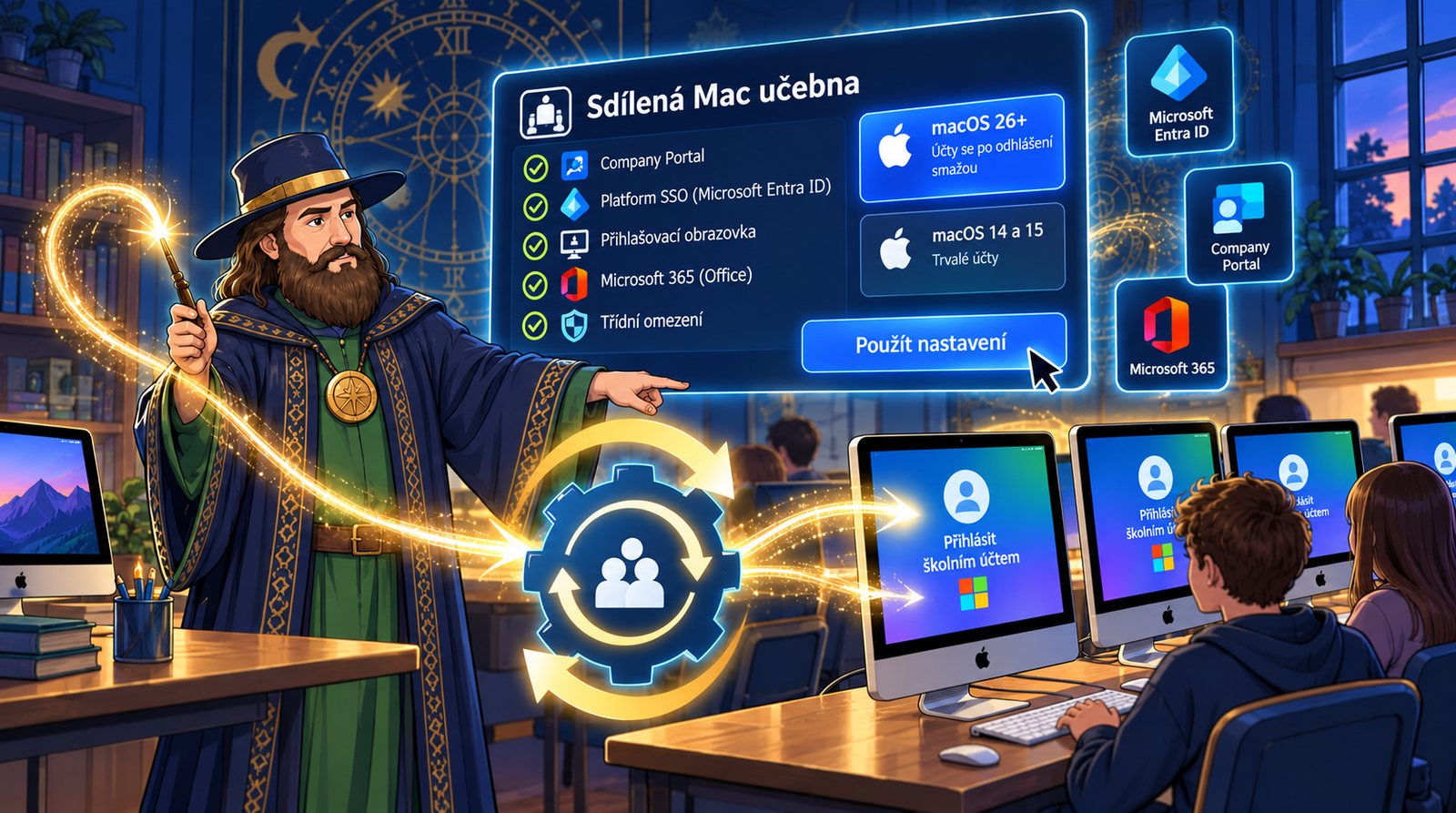
Shared Mac classroom: set up sign-in with a school Microsoft account from a single card
New in Hanus.ai: the Shared Mac Classroom card sets up Company Portal, Platform SSO with Microsoft Entra ID, the login screen, Office and classroom restrictions all at once. A new Mac from Apple School Manager can register as early as Setup Assistant (macOS 26). A comparison with the manual procedure from public guides.
 MDM basics
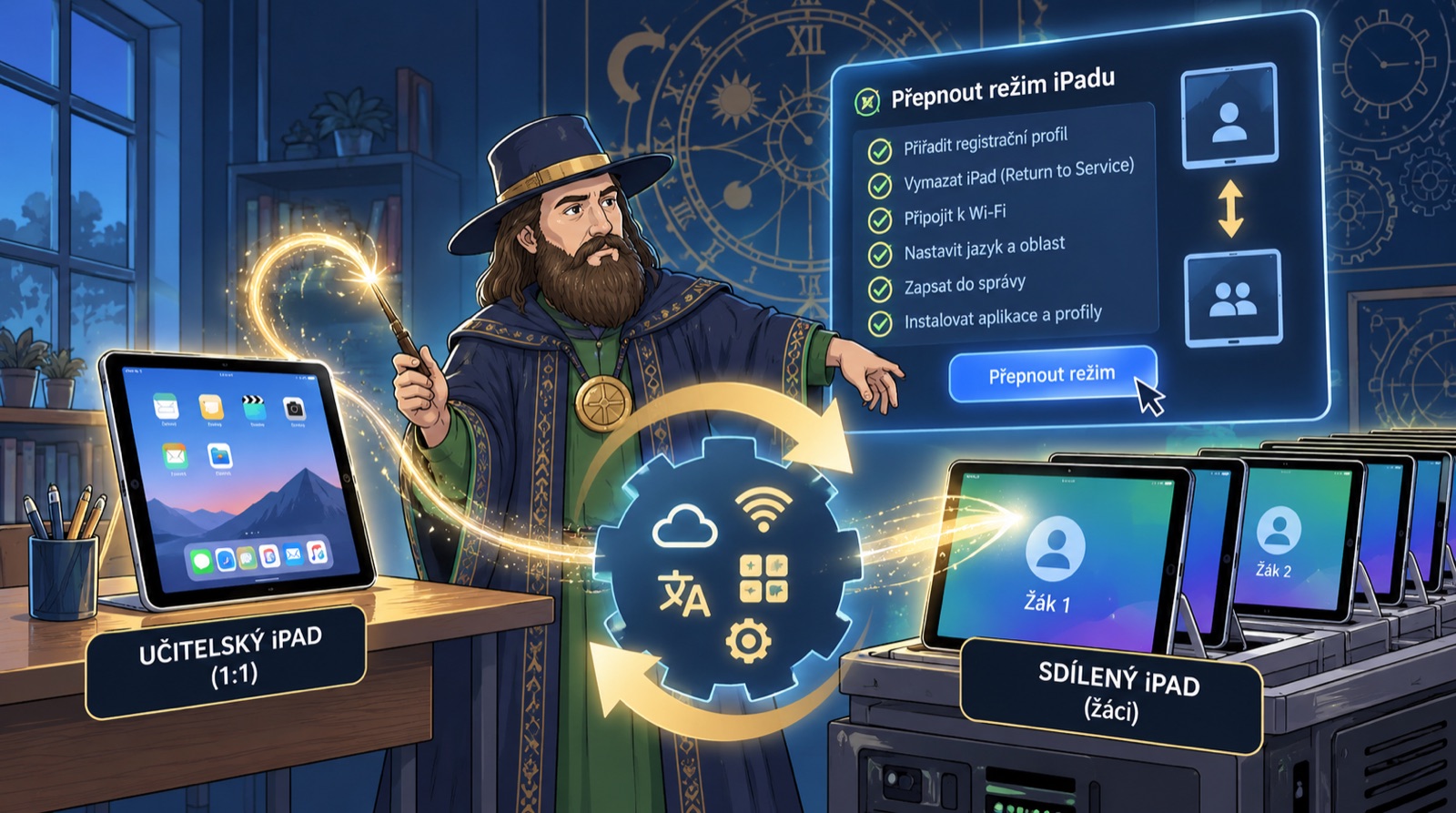
From teacher iPad to shared pupil iPad in one click: switching modes without manual work
Hanus.ai switches an iPad from single-user mode (1:1) to Shared iPad and back with one action in the console. The iPad erases itself, connects to Wi-Fi, sets the language, enrols back into management and receives its group’s apps. No walking round to the iPads, even for hundreds of devices at once.
 MDM basics
Apple Classroom in school: how a teacher runs a lesson with iPads
Apple Classroom in practice: live viewing of the whole class’s screens, locking pupils into one app during a test, what works only in the classroom and what also works remotely, who decides on pupil privacy and how the connection to Apple School Manager works through Hanus.ai.