
 School device management
Shared Mac classroom: set up sign-in with a school Microsoft account from a single card
New in Hanus.ai: the Shared Mac Classroom card sets up Company Portal, Platform SSO with Microsoft Entra ID, the login screen, Office and classroom restrictions all at once. A new Mac from Apple School Manager can register as early as Setup Assistant (macOS 26). A comparison with the manual procedure from public guides.
A computer room with Macs has a simple brief: any student or teacher sits down at any Mac, signs in with their school Microsoft account and works. After the lesson they sign out and the Mac is ready for the next person. Until now, though, getting there took dozens of steps: the Company Portal app, a Platform SSO profile with keys copied from the documentation, the login window, an exception for the local administrator and finally registering each Mac in Microsoft Entra ID.
In September we described how we built such a classroom at ZŠ Valašské Meziříčí, a Czech primary school. That experience led to the new feature this article is about: the Shared Mac Classroom card in a Mac group. One button sets up everything we assembled piece by piece back then, and a new Mac from Apple School Manager can register as early as Setup Assistant.
At a glance
- Who it is for: schools with shared Macs where students and teachers sign in with a school Microsoft account (Platform SSO with Microsoft Entra ID).
- What is new: the Shared Mac Classroom card in the macOS group details. It sets up Company Portal, sign-in to macOS, the login screen, Office and classroom restrictions all at once, and can be undone with one button.
- Two variants: macOS 26 and later (accounts are deleted after sign-out) and macOS 14 and 15 (persistent accounts).
- A new or erased Mac: with an ADE profile that creates a hidden local administrator and holds the Mac in Setup Assistant, it registers in Entra on macOS 26 while still in Setup Assistant, without a helper account.
- A Mac that is already in the school: receives the same settings and registers in Entra once from a helper account.
What setting up a Mac classroom used to involve
At ZŠ Valašské Meziříčí we set up 21 Macs in about 15 minutes of work in the console. But those 15 minutes assumed that the administrator knew exactly what they were doing. In the group, you had to do the following manually:
- Assign the Company Portal app and wait for it to install. Without it, Platform SSO does not work, because it is Company Portal that carries the single sign-on extension.
- Set up the SSO profile with the shared classroom preset.
- Set up the Login Window profile: the “Other…” item, hiding the administrator, the text on the screen.
- Set up Restrictions for the classroom.
- Optionally, App settings for automatic sign-in to Office.
- Remember to exclude the local administrator from Platform SSO so that the system does not take it over.
- Register each Mac in Entra: sign in with a helper account, confirm the prompt, enter the Microsoft password and the local password, delete the helper account.
Only the person who did it last time knew the order of the steps and the exceptions.
General guides look similar. For Intune, Microsoft describes a policy in the settings catalogue into which the administrator copies about ten required values (extension identifier, team identifier, URLs, registration token, authentication method and more), deploys Company Portal separately, and the user completes registration from a desktop notification. The Jamf School guide states that the profile may only be deployed to Macs that have Company Portal and recommends a smart group for this. Both procedures are correct; they just assume an administrator who knows Platform SSO in detail. (The sources are at the end of the article.)
Shared Mac Classroom in Hanus.ai: one card
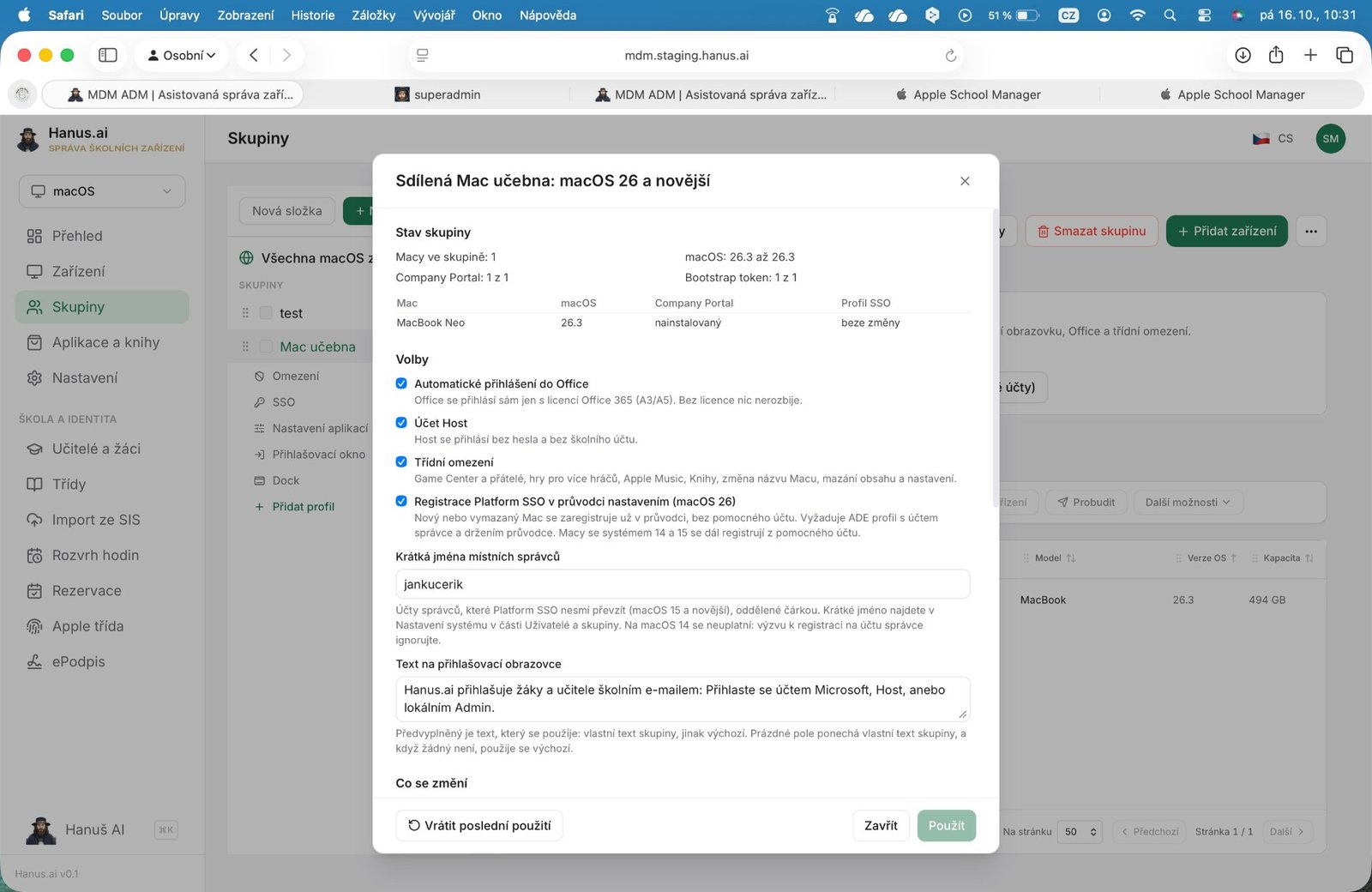
The Shared Mac Classroom dialog for macOS 26 and later. At the top, the group status; below it, the options, administrators' short names and the text on the login screen.
In the console, open Groups, select a Mac group and, in the Shared Mac Classroom card, click one of two buttons:
- macOS 26 and later (accounts are deleted after sign-out): the student signs in, works, and after sign-out macOS deletes their session. It is built on the mode Apple calls Authenticated Guest Mode.
- macOS 14 and 15 (persistent accounts): at the first sign-in, the student gets a local account that stays on the Mac. We have not yet verified this variant in live use, and the dialog says so; try it on one Mac first.
Group status
Before you change anything, the dialog shows how many Macs are in the group, which macOS versions they run, how many of them have Company Portal and how many have a Bootstrap token, and for smaller groups also a table for each Mac (Mac, macOS, Company Portal, SSO profile). If a Mac with an older system belongs to the macOS 26 variant, the dialog blocks it and suggests the variant for macOS 14 and 15.
Options
- Automatic sign-in to Office: Office signs in by itself after signing in to the Mac. Works only with an Office 365 licence (A3/A5); without a licence it does not sign in, but nothing breaks.
- Guest account: a Guest appears on the login screen who signs in without a password and without a school account. Handy for supply teachers or visitors.
- Classroom restrictions: turns off Game Center and friends, multiplayer games, Apple Music, Books, renaming the Mac and erasing content and settings.
- Platform SSO registration in Setup Assistant (macOS 26): a new or erased Mac registers as early as Setup Assistant, without a helper account. More in the next section.
- Short names of local administrators: accounts that Platform SSO must not take over. If the administrator's short name from the ADE profile is missing from the list, the card warns you.
- Text on the login screen: a pre-filled default text that you can overwrite.
Then click Apply and confirm the number of Macs. Hanus.ai carries out the steps in the right order: it installs Company Portal only on Macs where it is missing, sends the SSO profile immediately only to Macs that already have Company Portal, and delivers it to the others automatically after Company Portal is installed. Profiles that do not change are not sent at all, so a second Apply with the same options sends nothing.
The Undo last apply button returns the group's profiles to their state before the apply. Company Portal stays, and the undo does not overwrite manually changed profiles. If the group did not have an SSO profile before, the dialog warns in advance that undoing will cancel the Macs' registration.
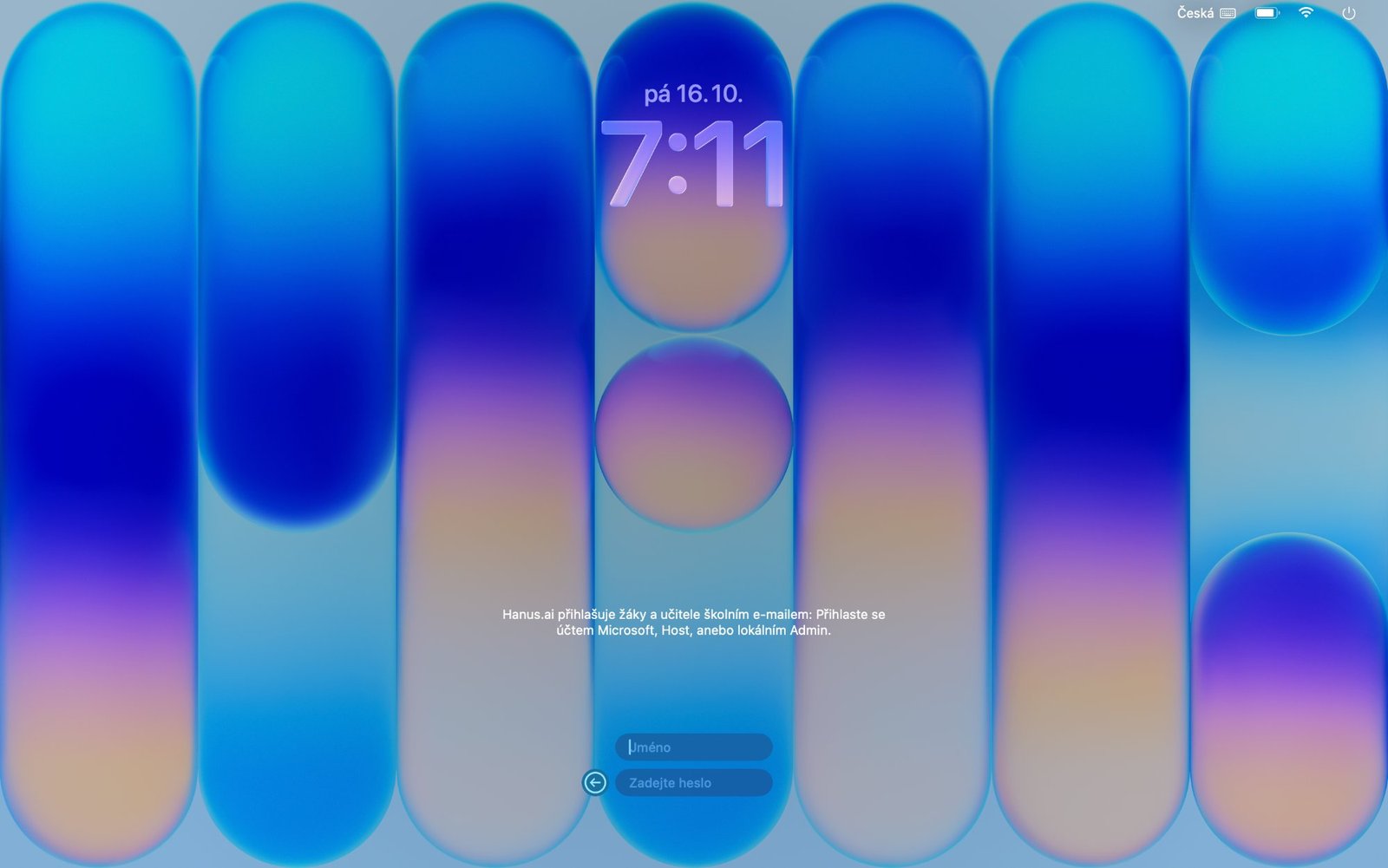
The default text on the login screen. If you turn off the Guest account, the default text does not mention the Guest.
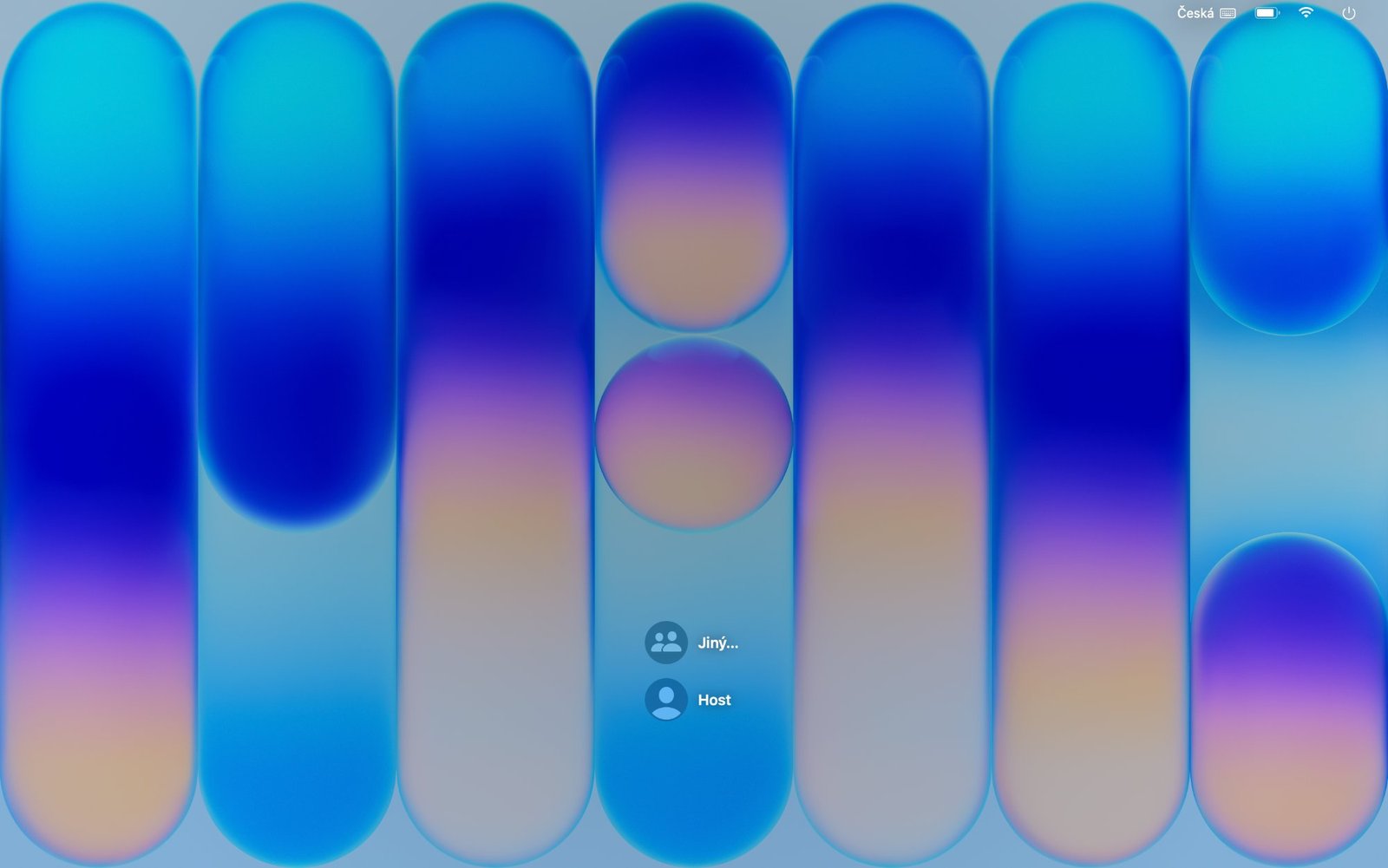
The macOS 26 variant: the login screen shows only Other… (for the school account) and Guest; the local administrator is hidden.
Or let Hanuš do it for you
You do not have to go through the card yourself. Just write to the Hanuš assistant in the console, for example “Set up the Mac classroom group as a shared classroom with Microsoft sign-in”. Hanuš first checks whether the group is ready: macOS versions, Company Portal, Bootstrap token and administrators' short names. It tells you what, if anything, is missing and prepares the whole classroom setup as a single proposal. You just approve it, and Hanuš carries out all the steps in the right order. As with any other action, it changes nothing without your confirmation, and every change is recorded in the audit log.
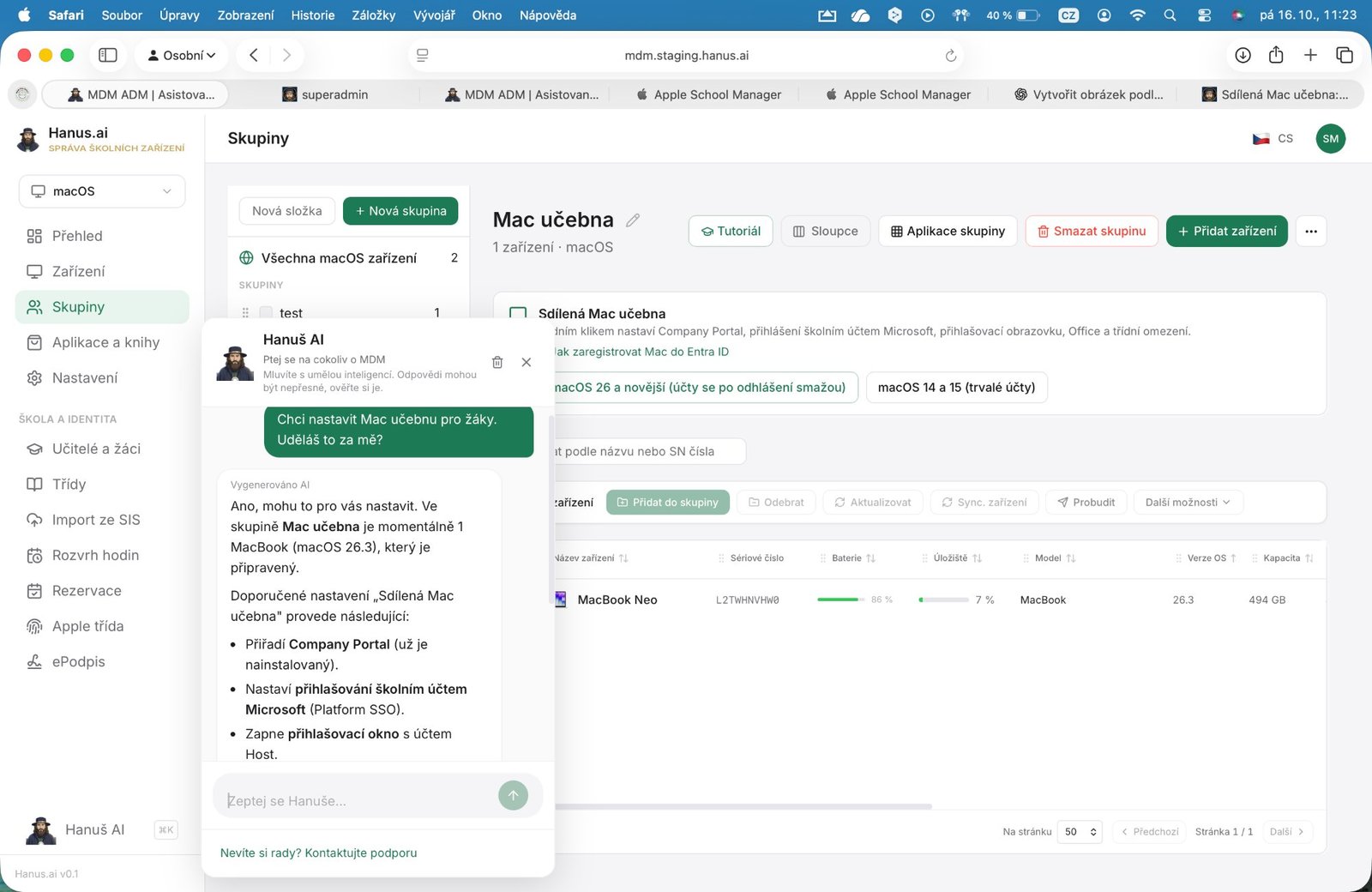
One sentence is enough. Hanuš checks the Mac classroom group, explains what the setup will do and, after your approval, sets up the whole classroom by itself: Company Portal, sign-in with a school Microsoft account, the login window, Office and classroom restrictions. The administrator does not have to open a single profile.
Anyone who asks “Is the Mac classroom ready for shared sign-in?” gets a clear answer instead of a table of profiles.
A new Mac: done in Setup Assistant
New and erased Macs save the most work. Previously, a Mac had to go through Setup Assistant, an administrator had to be created, you had to wait for Company Portal and then register from a helper account. Now it all happens at first power-on.
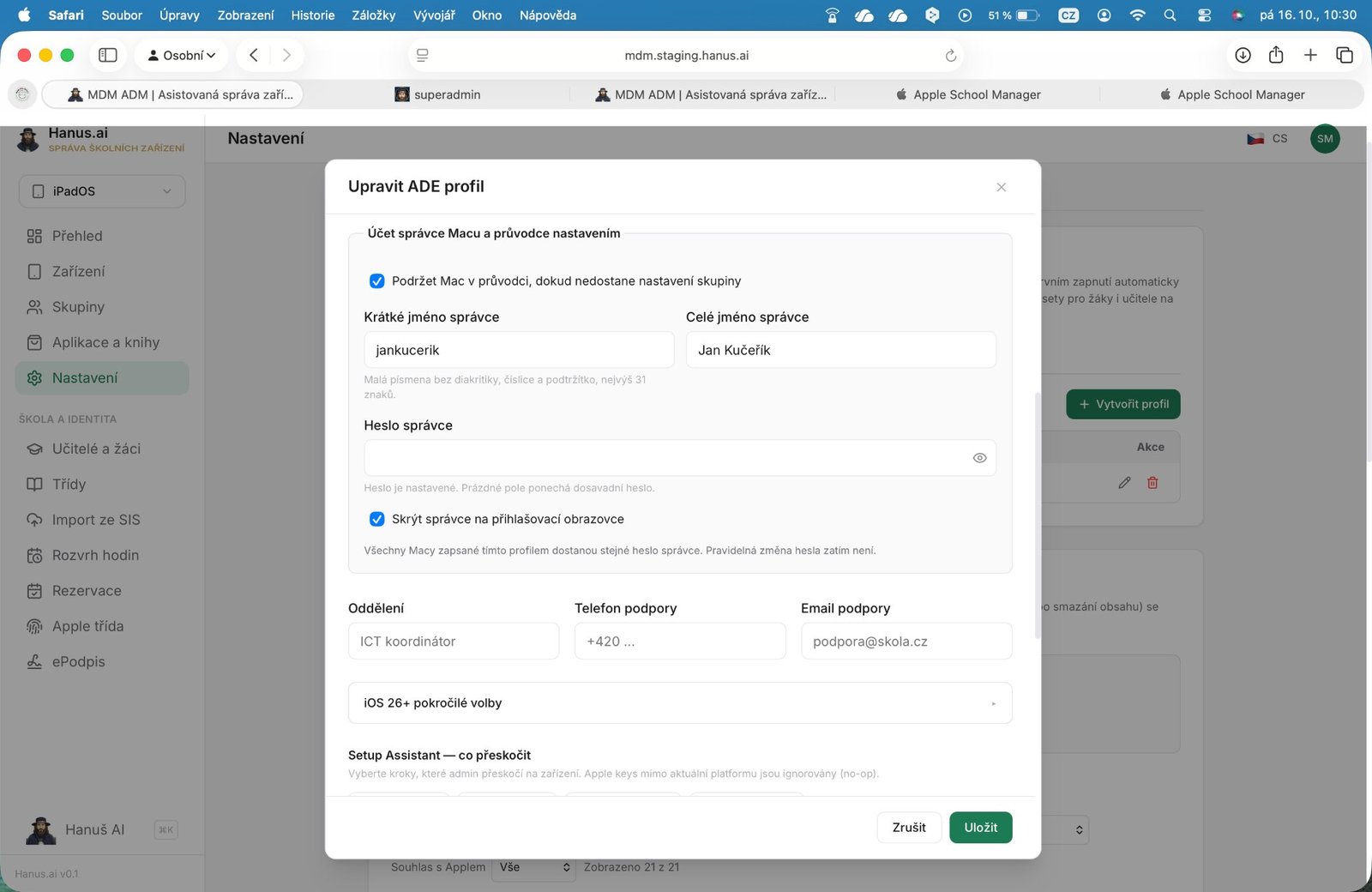
The Mac administrator account and Setup Assistant section in the ADE profile for macOS.
The procedure is as follows:
- In Settings, in the Enrolment part, sync devices from Apple School Manager. New Macs appear as not enrolled.
- In the ADE profile for macOS, turn on Await configuration, and in the Mac administrator account and Setup Assistant section fill in Administrator short name, Administrator full name and Administrator password. Leave Hide administrator on the login screen turned on and turn on Hold the Mac in Setup Assistant until it receives the group settings. Assign the profile to the Macs.
- In the Mac group, click Add devices and, on the Not enrolled tab, select the new Macs. The classroom dialog marks them “waiting to be switched on”.
- In the Shared Mac Classroom card, turn on Platform SSO registration in Setup Assistant (macOS 26), add the administrator's short name from the ADE profile to Short names of local administrators and click Apply. The card can also be applied to a group that does not yet contain any enrolled Mac.
- Switch on the Mac.
At enrolment, Hanus.ai creates the local administrator from the ADE profile, so nobody creates any account in Setup Assistant. The administrator password is not stored; only an encrypted hash is kept. The Mac then waits in Setup Assistant for Company Portal and the group's SSO profile and offers registration in Entra.
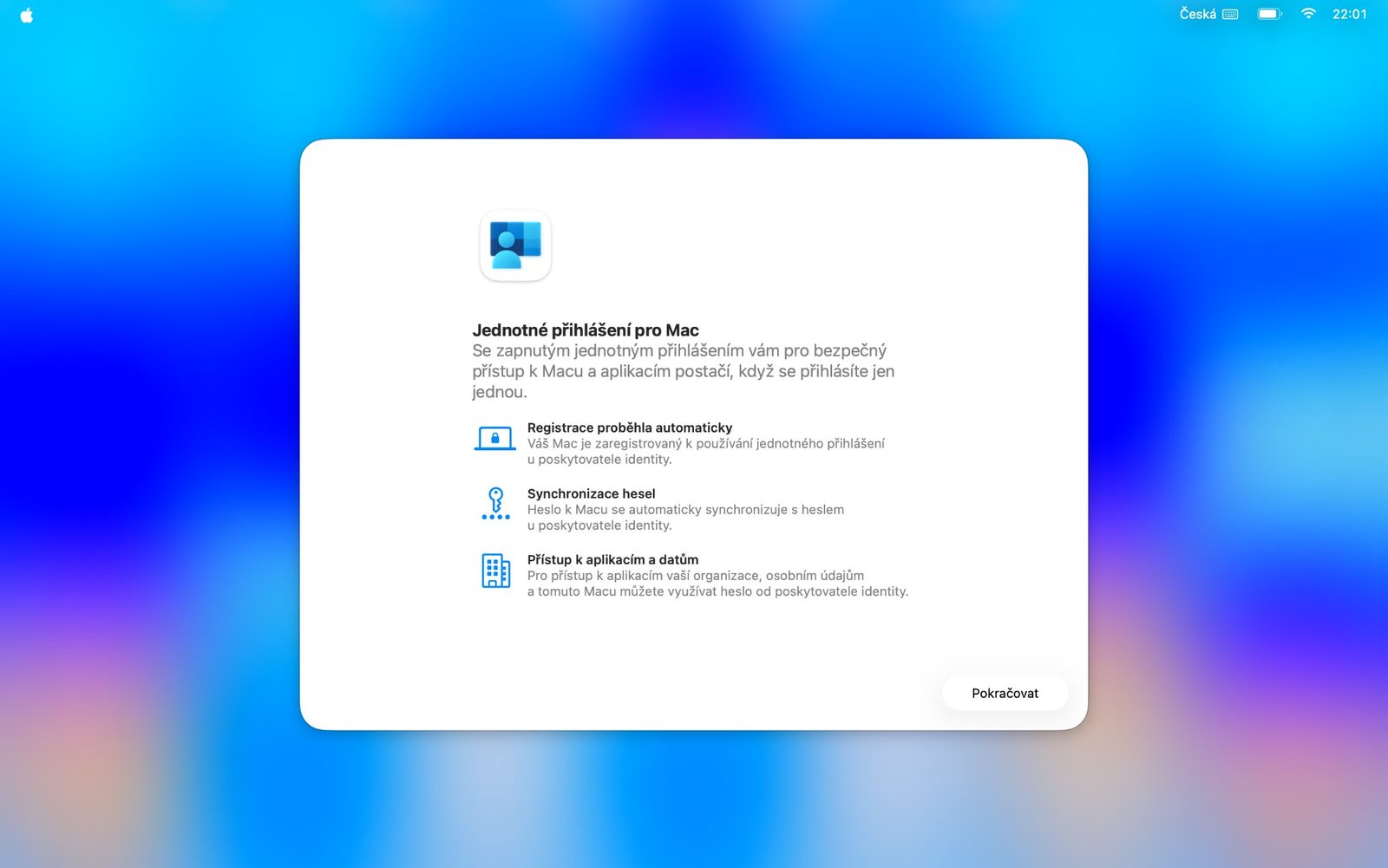
Platform SSO registration directly in Setup Assistant on macOS 26.
After Setup Assistant, the login screen shows Guest and Other…, and the administrator is hidden. No helper account.
If you do not see the option in the card, write to us. Registration in Setup Assistant also requires Company Portal version 5.2604.0 or later; for regular Platform SSO, 5.2404.0 is enough.
And what about macOS 14 and 15? Apple introduced registration in Setup Assistant only in macOS 26. Older Macs get a hidden administrator in Setup Assistant, and a standard helper account is created on them, from which registration is done after Setup Assistant.
A Mac that is already in the school
You do not have to erase the classroom. The card works the same way for Macs already enrolled in Hanus.ai: they get Company Portal (if it is missing), the SSO profile, the login window, Office and restrictions. The only manual step is registration in Entra, once on each Mac:
- Wait until Company Portal is installed on the Mac.
- Create a standard helper account just for registration and sign in with it, never with the administrator account.
- At the registration prompt, sign in with the Microsoft account in the first window, and in the second enter the local password of the helper account.
- Sign out and delete the helper account. The Mac's registration remains.
Comparison: manually or with one card
| Step | Manually following public guides | In Hanus.ai |
|---|---|---|
| Company Portal | Add the app, assign it to the same group as the SSO policy, for registration in Setup Assistant version 5.2604.0 as an LOB app (Microsoft) | The card assigns and installs it only where it is missing |
| Order of Company Portal and SSO | Deploy the SSO profile only to Macs with Company Portal, for example with a smart group (Jamf School) | SSO arrives by itself after Company Portal is installed |
| Platform SSO profile | Select and copy about ten required values (Microsoft) | A preset in the card |
| Login window, Office, restrictions | Separate profiles | Options in the same card |
| Exception for the local administrator | Manually in the SSO profile | The Short names of local administrators field and a warning if the administrator from ADE is missing |
| Registration in Setup Assistant (macOS 26) | Intune: three policies in the same static user group, ADE with user affinity and modern authentication (Microsoft) | ADE profile with a hidden administrator and hold, one option in the card |
| Undoing changes | Profile by profile | Undo last apply |
Why you will not find this elsewhere
We have not found Mac classroom setup with one card, or one sentence to an assistant, in any other MDM. We went through Microsoft Intune, Jamf School and Mosyle (as of October 2026), and there is nothing like it there. The administrator still assembles the classroom the old way: adds the app, creates an SSO profile and copies values from the guide into it, sets up the login window, restrictions and Office separately, keeps an eye on the deployment order and finally registers each Mac. Each step is a different place in the console, and each error has to be tracked down separately.
Those tools are built for corporate IT departments, where device management is handled by a full-time specialist. That is usually not the case in schools. In our schools, iPads and Macs are typically managed by a teacher who has ICT administration as one of many duties, often for a few hours a week between lessons. They do not need to know extension identifiers or the order in which profiles are deployed. They need the classroom ready for Monday's lesson.
That is why Hanus.ai is built differently. Instead of a list of profiles, it offers ready-made setups for specific school situations, such as Shared Mac Classroom. Instead of technical terms, it speaks the language of the school. And when the administrator is stuck, they ask Hanuš in Czech and get an answer as well as a ready-made proposal for a solution.
A note on fairness: Microsoft and Apple describe registration in Setup Assistant mainly for a single-user Mac, where the first local account is created from the identity of the person switching the Mac on. In a shared classroom, there is no such user. For shared deployments, Apple recommends creating the first administrator via MDM and registering the Mac without creating a user. This is exactly the combination Hanus.ai uses: the administrator is created from the ADE profile, and no first account is created from an Entra identity in Setup Assistant.
What you need to have ready
- Microsoft Entra ID with student and teacher accounts in the same tenant. Each new account must have completed its first sign-in (changing the temporary password), for example in a browser at portal.office.com. The Mac login screen cannot complete a temporary password change.
- Licences: sign-in to the Mac itself does not require a Microsoft 365 licence. Automatic sign-in to Office requires an Office 365 A3 or A5 licence.
- Apple School Manager connected to Hanus.ai, with the Macs assigned to Hanus.ai.
- An ADE profile for macOS with an administrator account and hold in Setup Assistant, if you want registration in Setup Assistant for new Macs.
- Macs enrolled with Bootstrap token support. The dialog shows how many Macs have it. Apple requires it for shared modes.
- macOS 26 for the variant with account deletion and for registration in Setup Assistant.
What to watch out for
- Multi-factor authentication: on a shared Mac, only Entra accounts without mandatory MFA can sign in. Admin accounts with MFA cannot sign in at the login screen. Whether registering the Mac requires MFA is controlled by the Entra setting “Require multifactor authentication to register or join devices with Microsoft Entra ID” (the default is No).
- One tenant: Company Portal on the Mac must be signed in with an account from the same tenant in which you are registering the Mac. Mixed tenants show up as sign-in failing even with the correct password.
- Administrator short name: it belongs in the Short names of local administrators list, otherwise Platform SSO may take it over. On macOS 14 the list does not apply, so ignore the registration prompt on the administrator account.
- One administrator password: all Macs with the same ADE profile get the same administrator password. A password change applies to Macs enrolled afterwards.
- Moving a Mac to another group with SSO: the old profile is removed and the Mac may ask for a new registration. Allow for this when reorganising classrooms.
Frequently asked questions
How do I let students sign in to a Mac with their school Microsoft account?
The Mac must have Platform SSO single sign-on set up with Microsoft Entra ID and Company Portal installed. In Hanus.ai, you set this up with the Shared Mac Classroom card in the Mac group, or you ask the Hanuš assistant to do it. The student then chooses Other… on the login screen and enters their school email and Microsoft password.
How much does setting up a Mac classroom in Hanus.ai cost?
The Shared Mac Classroom card is part of Hanus.ai and there is no extra charge for it. You only pay the licence of €6.60 per device per year including VAT, and only for the most numerous device type in the school. Signing in to the Mac with a school Microsoft account does not require a paid Microsoft 365 licence; automatic sign-in to Office does (A3 or A5).
How long does it take to set up a Mac classroom?
The setup in the console itself takes minutes: select the group, tick the options and click Apply. A new Mac with macOS 26 then prepares itself at first power-on. For Macs that are already in the school, you also need to do the registration in Microsoft Entra once on each of them.
Can both students and teachers sign in to the same Mac?
Yes. Anyone who has a school account in the same Microsoft Entra ID can sign in. On macOS 26 the account is deleted after sign-out, so the Mac is immediately ready for the next person. Watch out for teacher accounts with mandatory multi-factor authentication: they cannot sign in at the login screen of a shared Mac.
What if a student forgets their Microsoft account password?
The school's Microsoft 365 administrator resets the password, or the student resets it themselves if the school has allowed this in Microsoft. They then sign in to the Mac with the new password. The student must first use a new account or temporary password once in a browser, for example at portal.office.com, because the Mac login screen cannot complete a temporary password change.
Do I have to erase a classroom I set up manually?
No. The card sends only actual changes, and the Mac's registration is preserved when the SSO profile is sent again.
Do students need Microsoft Authenticator?
No. After the first sign-in has been completed, the school email and password are enough on a shared Mac. If the school enforces MFA or conditional access in Entra, the sign-in follows those rules too.
Does registration in Setup Assistant also work on macOS 15?
No. Registration in Setup Assistant came with macOS 26. Macs running macOS 14 and 15 register from a helper account; they receive the other card settings all the same.
Related
- Mac in school: signing in with Office 365 in the computer room (case study: ZŠ Valašské Meziříčí)
- How to manage a Mac in school
- How to connect your school with Microsoft
- What is ADE, Automated Device Enrolment
- What is Apple account federation
- iPad management
- Hanus.ai features
Sources
- Microsoft Learn: Configure Platform SSO for macOS devices in Microsoft Intune (required policy settings, Company Portal 5.2404.0, registration from a notification; updated 22 June 2026)
- Microsoft Learn: Add Platform SSO policy to ADE Profile on macOS devices (registration in Setup Assistant: macOS 26, Company Portal 5.2604.0 as an LOB app, three policies in the same static user group, ADE with user affinity)
- Apple Platform Deployment: Platform Single Sign-on for macOS (Platform SSO during ADE, Authenticated Guest Mode from macOS 26, Bootstrap token and local administrator requirement)
- Jamf Support: Configuring Entra ID for Platform SSO for macOS with Jamf School (profile only after Company Portal is installed, smart group; article dated 17 March 2026)
- Hanus.ai details: the Hanus.ai console and internal documentation as of 16 October 2026.
You might also like
 MDM basics
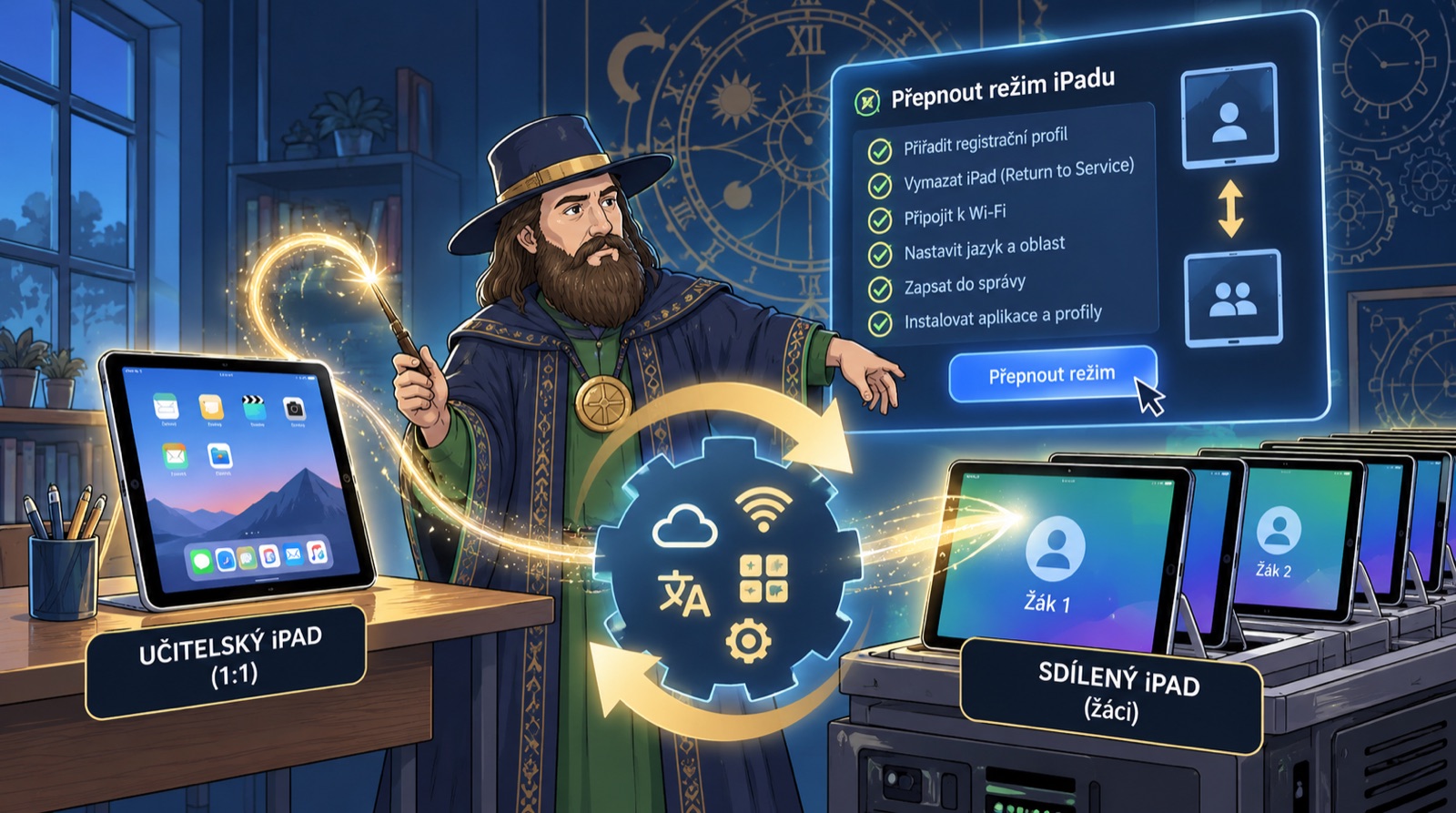
From teacher iPad to shared pupil iPad in one click: switching modes without manual work
Hanus.ai switches an iPad from single-user mode (1:1) to Shared iPad and back with one action in the console. The iPad erases itself, connects to Wi-Fi, sets the language, enrols back into management and receives its group’s apps. No walking round to the iPads, even for hundreds of devices at once.
 MDM basics
Apple Classroom in school: how a teacher runs a lesson with iPads
Apple Classroom in practice: live viewing of the whole class’s screens, locking pupils into one app during a test, what works only in the classroom and what also works remotely, who decides on pupil privacy and how the connection to Apple School Manager works through Hanus.ai.
 MDM basics
Shared iPad at school: one iPad for several pupils and how to set it up
Shared iPad for Czech and Slovak schools: how several pupils safely take turns on one iPad, signing in with a Microsoft or Google account, storage quotas, logging out according to the lesson timetable and a comparison with Mosyle and Jamf. Based on experience from 300+ schools.