
 School device management
From teacher iPad to shared pupil iPad in one click: switching modes without manual work
Hanus.ai switches an iPad from single-user mode (1:1) to Shared iPad and back with one action in the console. The iPad erases itself, connects to Wi-Fi, sets the language, enrols back into management and receives its group’s apps. No walking round to the iPads, even for hundreds of devices at once.
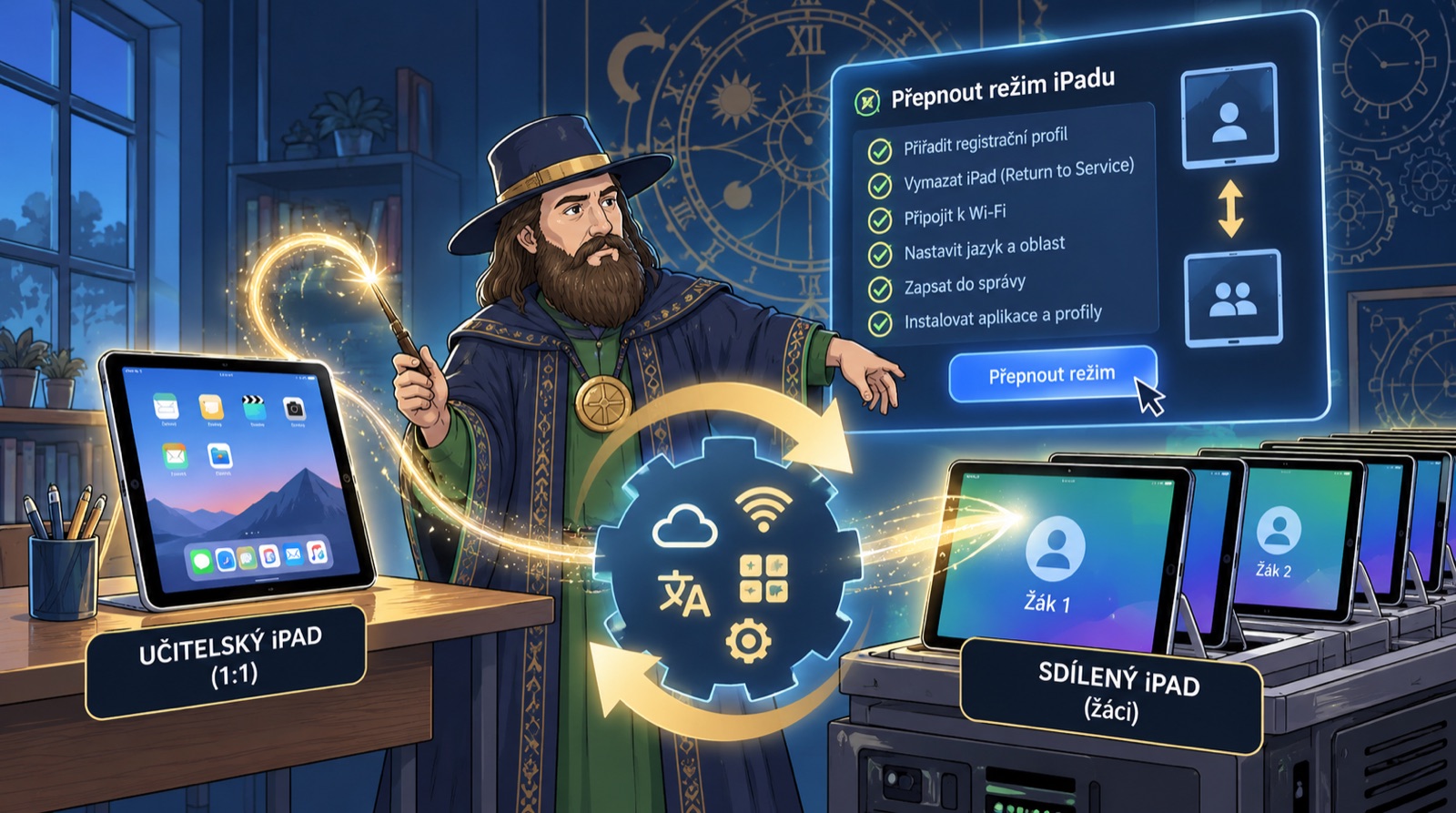
From teacher iPad to shared pupil iPad in one click
In short: An iPad at school runs either in single-user mode (1:1), typically a teacher’s or pupil’s iPad for one person, or as a Shared iPad, on which pupils take turns with their own accounts. Until now, switching between modes meant erasing the iPad, walking over to it and going through the Initial Setup wizard by hand: language, region, Wi-Fi and other screens. For a class set of iPads, a whole afternoon on site. In Hanus.ai you can now do it with one action in the console, for one iPad or for hundreds at once. The iPads erase themselves, connect to Wi-Fi by themselves, set themselves up and return to management by themselves in the new mode, with their group’s apps and profiles. Nobody has to stand next to them.
Why schools change iPad mode more often than you might think
An iPad’s mode is not a one-off decision for the whole life of the device. At school it changes with the timetable, the budget and the people:
- A teacher leaves or has got a new iPad. It would be a shame to leave their old iPad in a drawer; it belongs on the pupils’ trolley as a shared device.
- Reorganisation over the summer holidays. Lower secondary (years 6 to 9) moves to 1:1, and its existing shared iPads go to the primary years (years 1 to 5), or the other way round.
- End of a 1:1 pilot. The school tried one class with an iPad for every pupil and wants to return the iPads to shared use for the whole school.
- An enrolment error. The iPad enrolled in a different mode than it should have.
In all cases you need the same thing: to get the iPad from one mode to the other, clean and ready for teaching.
How it worked until now
Apple turns on shared mode when the iPad is activated, so changing the mode without erasing is not possible. That still applies, and it applies with every MDM. But the pain was not in erasing; the pain was in what followed:
- In Apple School Manager or in the MDM, assign the iPad a different enrolment (ADE) profile, with or without shared mode.
- Erase the iPad.
- Walk over to the iPad and go through the Initial Setup wizard on it: language, region, Wi-Fi connection, other screens.
- Wait until it enrols into management and check that it really is in the new mode.
Steps 1 and 2 can be done from your desk. Step 3 cannot: for each iPad separately, for a class set of iPads anything from an hour to an afternoon of work on site. And it is easy to get the order wrong. If the iPad is erased before the new profile is in place at Apple, it comes back in the old mode and the whole round starts again.
What Hanus.ai can do now: Switch iPad mode
In the Hanus.ai console you select the iPads and choose Switch to Shared iPad or Switch to single-user iPad. The rest happens by itself:
- Hanus.ai assigns the correct enrolment profile to the iPads at Apple. If Apple refuses this for any iPad, that iPad is not erased and stays as it was.
- Only then does it send the erase command with Apple’s Return to Service feature and with the school’s Wi-Fi network.
- The iPad erases itself, connects to Wi-Fi by itself and downloads the new profile from Apple.
- It sets itself up. It takes the language and region from the school’s enrolment profile and skips the wizard screens the school skips. It ends up on the Home Screen.
- It enrols back into management, already in the new mode. Hanus.ai verifies that it has returned in the correct mode, and only then reports it as done.
- It gets back everything from its group: profiles, apps and, for a Shared iPad, also the shared mode settings (sign-in, quotas, logout according to the timetable).
The order of the steps is controlled by Hanus.ai, not by a person. That is why an iPad cannot be erased before it has the new profile at Apple.
For the administrator this means just one thing: clicking. How long the whole process takes depends on when the iPads pick up the command and how quickly the apps download again after erasing. But nobody has to stand next to them, and it does not matter whether you are switching five or three hundred.
How to do it in the console
One iPad: Devices → click the iPad → Dangerous actions section → Switch to Shared iPad… (or Switch to single-user iPad…). The button is right below Delete device.
Several iPads at once: on the Devices page or in Groups, tick the iPads → More options → you will find the switch in the red section. The direction is determined by the mode most of the selected iPads are in. A Super admin can switch in bulk; an Admin can switch a single iPad.
In the dialogue you choose:
- Enrolment profile the iPads are moving to. The default one is preselected.
- Wi-Fi the erased iPads will connect to by themselves. Only a network with a saved password is offered, because there will be nobody at the iPad to enter the password.
- To be sure, you type the word VYMAZAT (the console uses the same word in all languages) and confirm.
If the selection includes iPads that cannot be switched, the dialogue excludes them by itself and states the reason for each one. The others are switched. You then follow the progress in the device detail and in the list for each iPad: assigning profile, erase sent, waiting for the iPad to check in, verifying mode, done.
What must be in place
Switching relies on Apple’s Return to Service feature, so it has a few requirements. The console checks them for each iPad by itself, and when something is missing, it tells you what and where to fix it.
- An iPad with iPadOS 17 or later, enrolled through Apple School Manager (ADE) and supervised.
- Two enrolment profiles in Settings → Enrolment → ADE profiles: one with Shared iPad turned on, one without it. This makes it possible to switch in both directions.
- Wi-Fi with a saved password: WPA2 or WPA3 with a password, or an enterprise network that has both the username and password directly in the profile. An open network or a network where sign-in credentials are entered on the iPad will not work.
- A valid connection to Apple School Manager.
- At least 32 GB for shared mode. How many pupils fit on which iPad is covered in the article on Shared iPad.
- Activation Lock turned off. If Apple School Manager reports it for an iPad, you turn it off on the ASM website.
On an iPad that does not meet the requirements, for example because it has an older system that cannot be updated, the old manual procedure remains. The console describes it for such an iPad.
Things to keep in mind
The erase is real. The iPad loses apps and data that exist only on it. On a Shared iPad, stored pupils are deleted too; their school accounts and work on iCloud remain. For a teacher’s iPad, check beforehand that the teacher does not have anything stored only on the device.
Many iPads at once put a load on Wi-Fi. Every erased iPad downloads its apps again. Switch larger batches in the afternoon or during the holidays, not in the middle of teaching.
The iPads must be switched on and within Wi-Fi range. An iPad in a drawer will not pick up the command. Hanus.ai wakes it up by itself several times, and if it does not return within two hours, you will see that we are waiting for it.
Can you find this elsewhere?
The Return to Service feature that switching relies on is supported by many MDMs today. In their public documentation, however, we did not find a single action that combines the mode change, the erase and verification of the result. Elsewhere it is usually two manual steps in different places in the console: first move the iPad to a different enrolment profile, then erase it. Jamf School, for example, recommends in its documentation waiting up to ten minutes between the two steps. As far as we know, no other MDM for schools offers conversion between 1:1 and Shared iPad as a single action with mode verification.
The comparison is based on the public documentation of Jamf Pro, Jamf School, Microsoft Intune, Kandji and Relution as of 5 October 2026.
How much it costs
Nothing extra. Mode switching is part of the Hanus.ai licence at €6.60 per device per year incl. VAT, just like Shared iPad, the logout timetable, Apple Classroom or the AI assistant. No add-on module. You can work out the price for your school in the price list, and an overview of the other features is on the Features page.
Frequently asked questions
What requirements must an iPad meet to be switched to shared mode remotely?
The iPad must have iPadOS 17 or later, must be enrolled through Apple School Manager (ADE), be supervised and have Activation Lock turned off. The school also needs two enrolment profiles (one with Shared iPad and one without it), Wi-Fi with a saved password and a valid connection to Apple School Manager. For shared mode the iPad must have at least 32 GB. The Hanus.ai console checks the requirements for each iPad by itself and tells you what is missing and where to fix it.
Will a teacher or pupil lose data when the iPad mode is switched?
They will lose only data stored solely on the iPad, because switching the mode really does erase the iPad. On a Shared iPad, stored pupils are deleted too, but their school accounts and work on iCloud remain. Before switching a teacher’s iPad, check that the teacher does not have anything stored only on the device.
Can the mode also be switched remotely on an older iPad that does not have iPadOS 17?
No. Remote switching relies on Apple’s Return to Service feature, which requires iPadOS 17 or later. On an iPad that does not meet this requirement, for example because it cannot be updated, the manual procedure remains: assign a different enrolment profile, erase the iPad and go through the Initial Setup wizard on it. The Hanus.ai console describes this procedure for such an iPad.
How much does switching iPad mode in Hanus.ai cost?
Nothing extra. Mode switching is part of the Hanus.ai licence at €6.60 per device per year incl. VAT; you pay only for the most numerous device type, and the first 45 days are free. You can work out the price for your school in the price list.
Can the iPad mode be changed without erasing?
No. Apple sets shared mode when the iPad is activated, so erasing is always necessary, with every MDM. But Hanus.ai does the erase and everything that follows it for you. Nobody has to do anything at the iPad.
Do I have to set the language and Wi-Fi on the iPad after switching?
No. The iPad gets the Wi-Fi directly in the erase command and takes the language and region from the school’s enrolment profile. It goes through the initial setup by itself and ends up on the Home Screen.
Can I switch a whole class or the whole school at once?
Yes. On the Devices page or in Groups, tick the iPads and choose the switch in the More options menu. The number is not limited. Because of the load on Wi-Fi, we recommend larger batches outside teaching hours.
Does the iPad stay in its group after switching?
Yes. It returns to the same group and receives its profiles and apps again. A Shared iPad also takes over the shared mode settings from the group.
What if the iPad does not come back after switching?
Most often it is switched off or out of Wi-Fi range. Hanus.ai wakes it up by itself several times, and you can also try it yourself with the Wake button. If Apple refuses the command and the iPad stays in the old mode, the console offers to restore the original profile.
Does it also work the other way round, from shared to teacher iPad?
Yes, with the same action. The console recognises by itself which mode the iPad is in and offers to switch to the other one.
Does it also work for Mac?
No. Shared mode and switching are only for iPad.
Summary
Before: assign a profile, erase, walk over to each iPad, click through the language and Wi-Fi, check. Now: select the iPads, click, type VYMAZAT. The iPads do the rest by themselves, and Hanus.ai makes sure they ended up in the correct mode.
If you are only just considering Shared iPad, start with the article Shared iPad at school. If you are choosing an MDM, take a look at the complete guide to MDM for schools or join the waitlist.
You might also like
 MDM basics
Shared Mac classroom: set up sign-in with a school Microsoft account from a single card
New in Hanus.ai: the Shared Mac Classroom card sets up Company Portal, Platform SSO with Microsoft Entra ID, the login screen, Office and classroom restrictions all at once. A new Mac from Apple School Manager can register as early as Setup Assistant (macOS 26). A comparison with the manual procedure from public guides.
 MDM basics
Apple Classroom in school: how a teacher runs a lesson with iPads
Apple Classroom in practice: live viewing of the whole class’s screens, locking pupils into one app during a test, what works only in the classroom and what also works remotely, who decides on pupil privacy and how the connection to Apple School Manager works through Hanus.ai.
 MDM basics
Shared iPad at school: one iPad for several pupils and how to set it up
Shared iPad for Czech and Slovak schools: how several pupils safely take turns on one iPad, signing in with a Microsoft or Google account, storage quotas, logging out according to the lesson timetable and a comparison with Mosyle and Jamf. Based on experience from 300+ schools.