
 School device management
Mac in school: signing in with Office 365 in the computer room (case study: ZŠ Valašské Meziříčí)
How we deployed 21 Macs in the computer room at ZŠ Valašské Meziříčí, a Czech primary school, with sign-in through the school Microsoft 365 account. Platform SSO, Company Portal, three sharing modes. A step-by-step guide.

When a school computer room has 20 Macs and 150 students, traditional sign-in falls apart. Create a local account for everyone? Unmanageable. Share one password? A GDPR problem. On top of that, single sign-on to Office 365 does not work, and the school needs it anyway for Word online, Outlook and OneDrive.
We will show how we solved this at Základní škola Valašské Meziříčí, a primary school in the Czech Republic. The guide works for any Czech or Slovak school that has a Microsoft 365 tenant and wants shared Macs in its computer room.
At a glance
- Situation: Základní škola Valašské Meziříčí, Masarykova 291, Vsetín district, a state-funded organisation (příspěvková organizace). A computer room with 21 Macs and about 150 students who take turns using it.
- Goal: A student or teacher walks up to any Mac, signs in with their school Microsoft 365 account and starts working straight away. No IT administrator needed at every sign-in. No manually created accounts.
- Solution: Apple Platform SSO with Microsoft Entra ID, the Microsoft Company Portal app, configured through a single “Mac classroom” group in Hanus.ai.
- Deployment time: About 15 minutes for the whole group of 21 Macs. Doing it manually with plists would have taken two working days.
- Bonus: One click switches between three sharing modes (persistent accounts, temporary sessions, personal 1:1 Mac), depending on how the school uses the room.
Why a shared Mac in school is complicated
A traditional computer room has a simple requirement: students from all classes come in, sit at any Mac and work for one lesson. Fifteen years ago, this would have meant an Active Directory bind (the Mac joins the school domain and authenticates via AD), which Apple is gradually phasing out, and since macOS 14 it recommends a different solution.
The alternatives schools try in practice:
Shared local accounts such as “student1”, “student2”. Quick, but the student has no SSO to Office 365, nobody knows who did what, and GDPR compliance is questionable. Ruled out.
Manually creating local accounts for each student. Works for five Macs and ten students, but a school with 21 Macs and 150 students would need 3,150 account and device combinations. Unrealistic.
An open Guest account without a password. Data is deleted after sign-out, but the student has no access to their files and no SSO. Only usable for visitors.
Apple introduced Platform SSO in macOS 13 Ventura (2022), and in macOS 14 Sonoma (2023) extended it with the password method and shared device keys, which is exactly what matters for the school scenario. The Mac registers in Microsoft Entra ID (formerly Azure AD), and from then on anyone who has an account in that Entra tenant can sign in to it. That means every student and teacher at your school. A local account is created automatically at the first sign-in, the password is synchronised with Entra, and after signing in the user has SSO to all Microsoft services: Outlook, Word, Excel, OneDrive, Teams.
Only one thing remains: getting those settings onto 21 Macs. Write 20 keys by hand into PropertyList XML and transfer them to each device? That is exactly why MDM exists. And Hanus.ai does it in 15 minutes.
About ZŠ Valašské Meziříčí
Základní škola Valašské Meziříčí, Masarykova 291, Vsetín district, a state-funded organisation, is an ordinary Czech primary school (základní škola, covering compulsory education for ages 6 to 15) in the Zlín Region. In August 2026 it deployed complete Apple device management through Hanus.ai. It currently has 21 Macs in the computer room and 51 iPads in classrooms (data as of 31 August 2026). The school has Microsoft 365 licences for students and teachers and wanted everyone to sign in to the Macs with their school email.
Enrolment took place on 14 August, and the configuration of SSO and the Login Window was completed on 18 August. A few days later we received a message from the school's IT coordinator: “Works like clockwork, the students have no problems, the teachers are delighted.”
The whole procedure we describe below is exactly the one we used at Valmez (the local nickname for Valašské Meziříčí). You can do it at your school in exactly the same way.
The answer in one sentence
You register each Mac in Microsoft Entra ID through the Microsoft Company Portal app, and in Hanus.ai you assign three profiles (Platform SSO, Login Window, Restrictions) and one app (Company Portal) to the “Mac classroom” group. In 15 minutes the computer room is ready for teaching.
Step 1: Registering devices in Microsoft Entra ID
What it is: Microsoft Entra ID (formerly Azure Active Directory) is the cloud identity service your school probably already uses for Office 365. Device registration means that the Mac is assigned to the school tenant, and from then on anyone with an account in that tenant can sign in to it.
How it works: Registration is carried out by the Microsoft Company Portal app (bundle ID com.microsoft.CompanyPortalMac). The MDM (in our case Hanus.ai) delivers this app to each Mac, so it does not have to be installed manually. After installation, Company Portal automatically connects to Entra ID according to a configuration profile that the MDM also sets up. No clicking for the administrator.
What you need ready: A Microsoft 365 tenant with licences for students and teachers (typically Microsoft 365 A1, free for schools, or paid A3/A5). Administrator access to Entra ID to approve the connection. That is all.
Step 2: The “Mac classroom” group in Hanus.ai
Open the Hanus.ai console, go to the Groups section, switch the toggle at the top left to macOS and click New group. Name it “Mac classroom” and add all the Macs from the computer room to it. In our case, 21 of them.
A group in Hanus.ai is a simple concept: a set of devices to which configuration profiles and apps are applied in bulk. Change a setting in a profile, and Hanus.ai automatically sends it to all devices in the group. Add a new Mac to the group, and it receives the whole package of settings by itself.
In the group's left panel you will see the list of profiles you can add: Restrictions, Chrome, SSO, macOS Security, Login Window, Mac Environment, Active Directory, FileVault, System Extensions. For our task we need four of them and one app.
Step 3: Microsoft Company Portal as an app
In the Apps and Books section, search for “Microsoft Company Portal”. The app is in the Hanus.ai macOS catalogue. Assign it to the “Mac classroom” group. Hanus.ai ensures that it is installed automatically on all 21 Macs (typically within 5 to 15 minutes of enrolment).
The app is free, supplied by Microsoft, and requires at least macOS 11 (Big Sur). No Volume Purchase Program, licensing or App Store handling is needed. Installation is silent, and the student does not notice anything.
Step 4: The core of the solution, Platform SSO
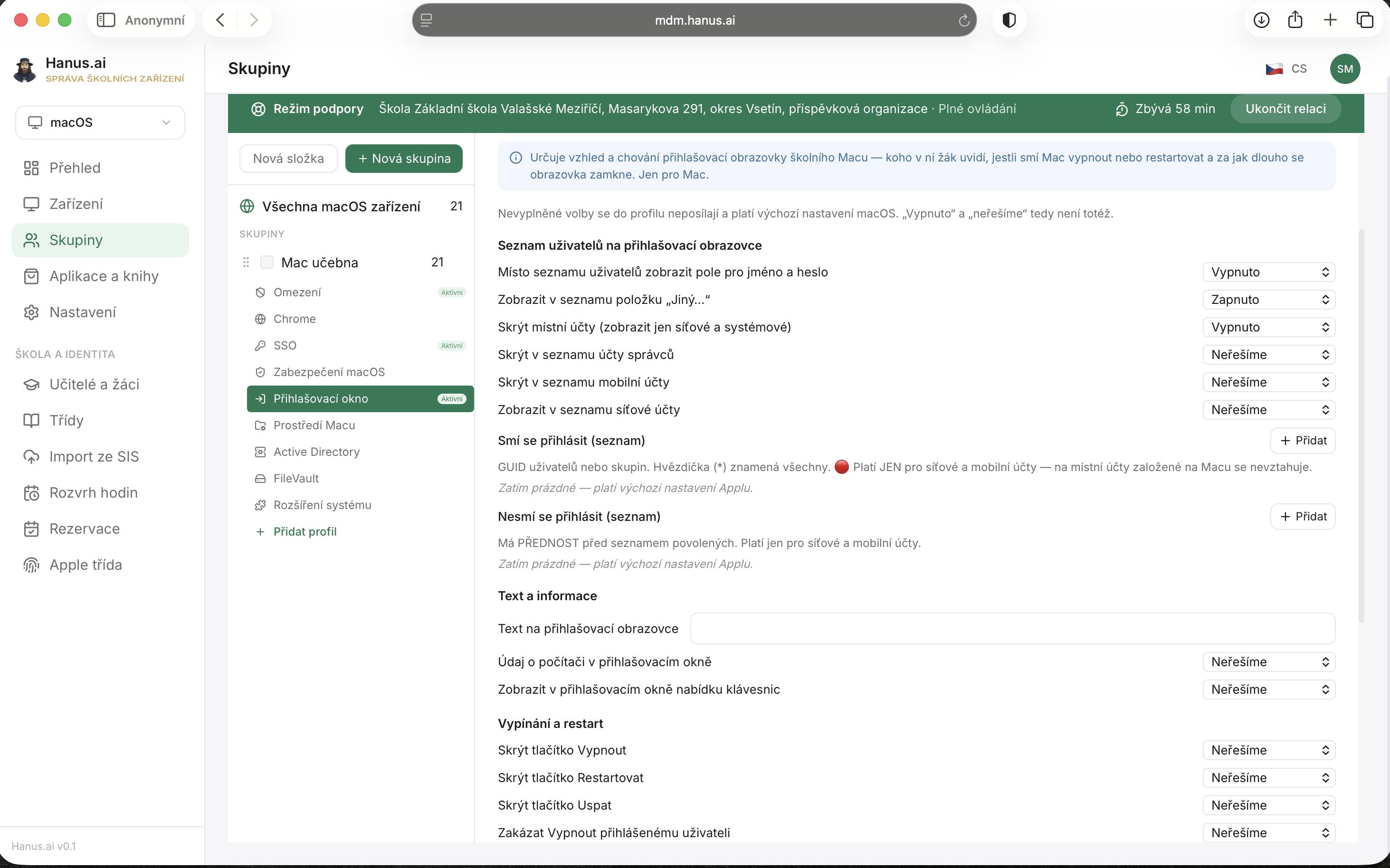
Screenshot from the live production environment at ZŠ Valašské Meziříčí. The highlighted preset “Shared classroom: persistent accounts (macOS 14+)” is currently deployed on 21 Macs in the computer room.
This is where the magic happens. In the group's profiles, click SSO and Hanus.ai opens a page titled “Sign-in to macOS (Platform SSO)”. The header says: “Allows students and teachers to sign in to the Mac with their school account. Requires macOS 14 or later and the Company Portal app installed.”
The best feature of this page is the three presets in the top bar, which decide for you what type of classroom you run:
Shared classroom: persistent accounts (macOS 14+): each student gets a regular local account at their first sign-in, and it stays on the disk. When the student comes back (say, a week later), they find their work where they left it. Suitable for schools where the computer room has a stable set of users (for example, 2 classes that take turns using it).
Shared classroom: temporary sessions (macOS 26+): students take turns, and their data is deleted automatically after sign-out. Perfect for schools with a higher turnover of users and for cases when someone without an Entra account sits at the Mac (a guest, a visitor, a supply teacher). Requires macOS 26 (Tahoe) or later.
Personal 1:1 Mac: one user, passwordless sign-in with a key in the Secure Enclave. Suitable for a teacher's MacBook, where the device belongs to a specific person who wants to sign in without typing a password.
At ZŠ Valašské Meziříčí we chose “Shared classroom: persistent accounts”, because the school currently has macOS 14 (Sonoma) on most of its Macs and wants students to keep their work in progress between lessons. After upgrading to macOS 26, we plan to switch to “temporary sessions” mode, which will give the room more flexibility.
The preset configures the whole section at once. If you wish, you can fine-tune individual fields by hand (below the presets they are organised into sections such as Basics and Account creation and permissions). The key settings for a shared classroom with persistent accounts:
- Authentication method: Password. Company Portal also supports a Secure Enclave key (passwordless sign-in) and a smart card, but for the shared scenario a password is the best compromise between security and user experience.
- Shared device keys: On. Critical for classrooms where several users take turns.
- Create account at the login screen: On. This ensures that a local account is created automatically at a new student's first sign-in. The student does not have to wait for the administrator.
- Permissions of newly created accounts: Standard user. The student does not have administrator rights.
- Permissions at every sign-in: Standard user. The student does not gain elevated rights at later sign-ins either.
Below all the presets there is a yellow warning: “Always keep at least one local administrator on the Mac outside Platform SSO. If the identity provider goes down, it is the only way back in.” This is essential. If Microsoft Entra ID went down or your school lost access, you need a local admin account to get into the Mac. Hanus.ai reminds you of this, so do not forget it.
Step 5: Login Window
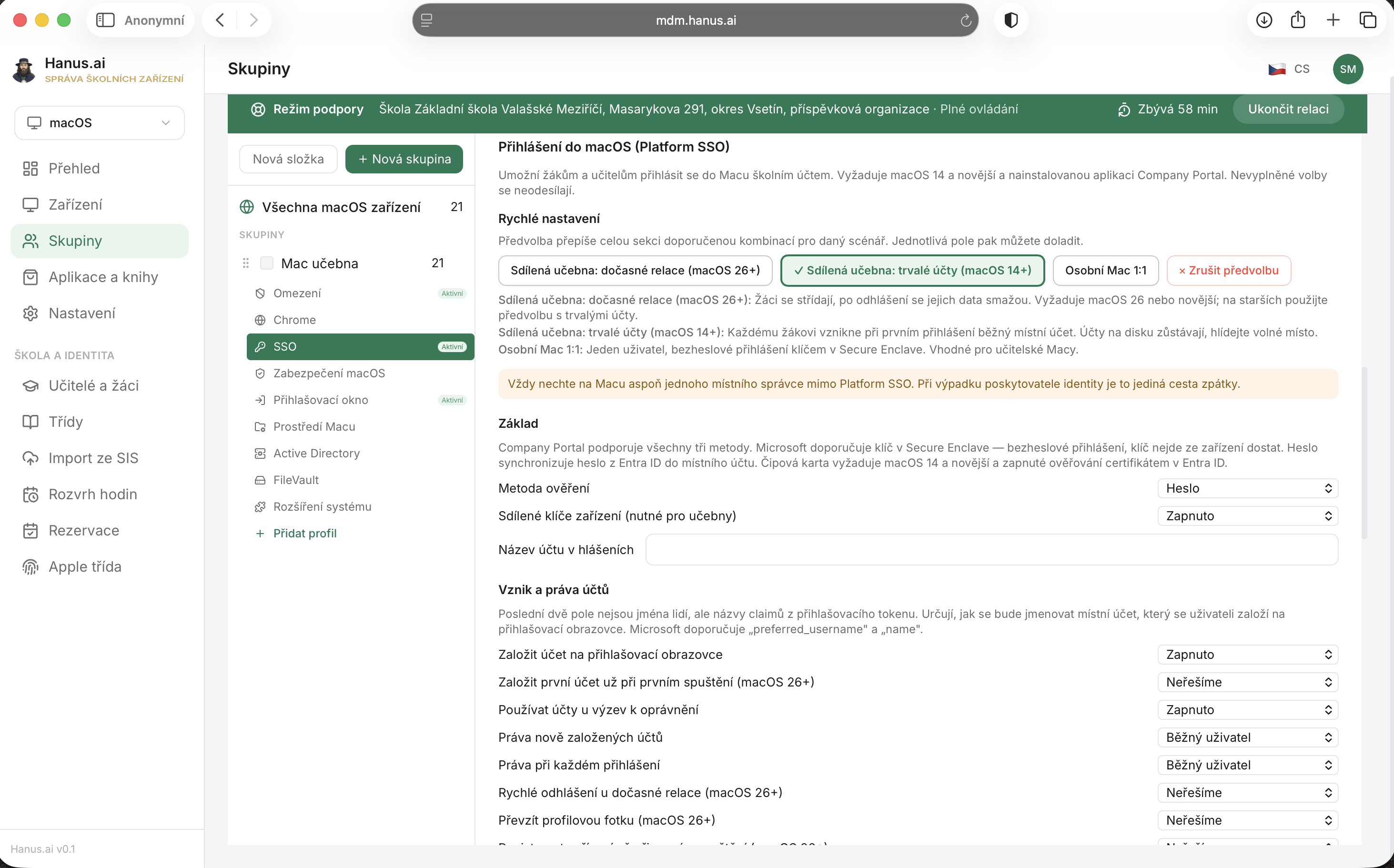
The real configuration at ZŠ Valašské Meziříčí. The key “Show the Other… item in the list” set to On provides the button for signing in with an Entra account.
The second key profile is the Login Window. It controls how the login screen looks: whom the student sees on it, whether they may shut down or restart the Mac, and what the button for signing in with a new account looks like.
At Valmez we have these three key settings active:
- Show name and password fields instead of the user list: Off. The student sees icons of existing accounts plus the “Other…” button.
- Show the “Other…” item in the list: On. This is the most important key of the whole setup. Without it, a new student would have nowhere to sign in with their Entra account. Clicking “Other…” opens fields for email and password, where the student types, for example,
jan.novak@skola.czand their Entra password. - Hide local accounts: Off. The local administrator account remains visible for emergency access (see the warning in the previous step).
Settings we deliberately leave on “Not managed” mean: send no request to the Mac and leave Apple's default behaviour in place. Hanus.ai distinguishes between “Off” (we actively disable it) and “Not managed” (we do not control it). This difference matters, because needlessly overriding Apple's defaults can make life harder for the school.
Step 6: Restrictions and Apple Classroom
The third profile for the Mac classroom is Restrictions. It is not about banning everything, but about turning off what makes no sense in a school context and raises doubts.
Features turned off at Valmez:
- Game Center, Bookstore, Music Service (Apple Music, Apple Books, games): they do not belong in a computer room.
- Find My Device, Find My Friends: students' privacy.
- Wallpaper Modification: a uniform wallpaper for the room.
- Erase Content and Settings: the student must not be able to erase the Mac.
- UI Configuration Profile Installation: the student must not install their own configuration profiles.
Features turned on (Apple Classroom):
- Force Classroom Automatically Join Classes: the Mac automatically joins the class when the teacher starts Apple Classroom on their iPad.
- Force Classroom Unprompted Screen Observation: the teacher sees the screens of student Macs without the student having to confirm explicitly.
- Force Classroom Unprompted App and Device Lock: the teacher can lock an app or the whole Mac remotely.
- Force Classroom Request Permission to Leave: the student must ask for permission when they want to leave the class.
Apple Classroom works both on iPads (which are also in the Valmez classroom) and on Macs. On their iPad, the teacher has an overview of the screens of all 21 Macs, can remotely lock Safari during a test, open a specific app for everyone at once or send a student a private message.
The result: what a student's sign-in looks like
Let us look at it through the eyes of Honza (a common nickname for Jan), a sixth-grader of about 12 who is in his first year of using the computer room.
Honza sits down at a Mac he has never touched. He sees the login screen: two icons of previous students in the middle, the “Other…” button at the bottom. He clicks it. A dialog opens with Email and Password fields. He types jan.novak@skola.cz (his school email) and the password he received at the start of the year.
He is signed in within 5 to 15 seconds. The first time takes longer because macOS is creating his local account and downloading the profile and certificates. Next time he will be signed in within 3 seconds.
Honza opens Safari. He types outlook.office.com. Outlook opens without another sign-in. He opens word.office.com, where the page he started a week ago in another classroom is waiting. Without another sign-in. He opens OneDrive and sees his files from his home computer. Without another sign-in.
This is Platform SSO in action. Signing in to the Mac automatically carried Honza's identity into every Microsoft web app. He does not have to remember any other password or set anything up.
After the lesson Honza leaves. He clicks the Apple menu at the top left, Log Out. Within 2 seconds the Mac is back at the login screen, ready for the next student. Honza's account and his documents stay on the disk (“persistent accounts” mode). When he comes next time, he clicks “Other…” again, types his email, and finds his things where he left them.
Optional: deleting data after sign-out
There are situations when you want all data to be deleted after sign-out. For example:
- The school does not have enough disk space for persistent accounts for hundreds of students.
- A large number of different students rotate through the room every week.
- You want a guest or visitor to be able to sit at the Mac and leave no trace behind when they go.
- You require maximum security (no data outside OneDrive).
For this scenario there is the preset “Shared classroom: temporary sessions (macOS 26+)”. It requires macOS 26 (Tahoe) or later, and Hanus.ai sets it up with one click. You do not have to deal with any plists, the com.apple.MCX key set or deletion scripts. You simply switch the preset, save, and all 21 Macs adapt.
The combination of Platform SSO + OneDrive + temporary sessions is the strongest option for schools that want maximum flexibility without an IT administrator every day. The student opens Word online, and their work is saved automatically to OneDrive. After sign-out, the local data is deleted. Next time, they find their work in OneDrive from any Mac.
The school in Valašské Meziříčí is staying with persistent accounts for now, because it is rolling out macOS 26 gradually during autumn 2026. Once the upgrade is complete, we will switch the preset to temporary sessions and add the option of guest sign-in for supply teachers.
Frequently asked questions
How much does it cost to manage Macs in a computer room with Hanus.ai?
Hanus.ai costs €6.60 per device per year including VAT, and you pay only for the most numerous device type in the school. If the school has more iPads than Macs, the Macs in the computer room are free. Setting up Platform SSO, the Login Window and Restrictions is included in the price, with no extra charge. For the first 45 days Hanus.ai runs free of charge as the full version; you can find the details in the price list.
Can it be set up so that a student's data is deleted after they sign out of the Mac?
Yes, in Hanus.ai this is what the Platform SSO preset “Shared classroom: temporary sessions (macOS 26+)” is for. After sign-out, the student's local data is deleted automatically and the Mac is ready for the next user. The preset requires macOS 26 (Tahoe) or later. In this mode, the student saves their work to OneDrive, where they can find it from any Mac.
Can a teacher monitor the screens of student Macs in Apple Classroom?
Yes, Apple Classroom works on Macs just as it does on iPads. On their iPad, the teacher sees the screens of student Macs, can remotely lock an app or the whole Mac and open the same app for everyone. For this to work without confirmation by the student, the options for automatically joining the class and observing the screen without a prompt are turned on in the Restrictions profile for the Mac group.
Does it work without Microsoft 365?
No. Platform SSO needs an identity provider. Microsoft Entra ID is the most widespread, but Apple also supports Google (via Google Cloud Identity, but the solution is weaker than Microsoft's) and federated identities from other companies. For schools in the Czech Republic and Slovakia, Microsoft Entra is practically the standard.
Do students need paid Office 365 licences?
No. Microsoft 365 A1 (the basic version for schools) is free for all students and teachers. It includes Word, Excel and PowerPoint online, OneDrive with 1 TB of storage, Outlook and Teams. A1 is sufficient for Platform SSO on the Mac.
How long does a new student's first sign-in take?
5 to 15 seconds at the first sign-in, then 2 to 5 seconds at every subsequent sign-in. The time depends on the Wi-Fi speed and the size of the profile.
Does SSO also work for the Word app installed on the Mac (not just the web)?
Yes. When the school installs the Microsoft Word app (via VPP or directly from Microsoft), SSO works in it too. The student opens Word, and the app signs in automatically with the Entra token it has from the login screen.
What if the school has macOS older than 14?
The minimum for Platform SSO is macOS 13 Ventura; macOS 14 Sonoma or later is recommended (because of full support for the password method and shared device keys, which are key for a classroom). For macOS 12 and older, the alternative is the Kerberos SSO Extension, but it has more limited functionality. We recommend upgrading to macOS 14+ if the hardware supports it.
What if a student forgets their password?
The reset is done through Microsoft Entra ID (self-service password reset, if the school has it turned on, or through the IT administrator). After the reset, the new password is synchronised to the local account on the Mac at the next sign-in. The student does not have to go to the IT administrator in person.
Does the device have to be connected to the internet at every sign-in?
At a new student's first sign-in, yes (we have to contact Entra ID for validation). At later sign-ins, the Mac keeps an offline password cache and allows sign-in even without the internet (until the cache expires, typically 30 days).
How long does a complete deployment take for a school with 20 Macs?
If the Macs are already enrolled in Hanus.ai and the Microsoft 365 tenant is working: 15 to 30 minutes. If you are starting from scratch (enrolment via Apple School Manager, tenant registration, configuring the first group): 3 to 4 hours with our assistance.
Verification sources
The data in this article comes from the production deployment at ZŠ Valašské Meziříčí (Masarykova 291), verified in the Hanus.ai console as of 1 September 2026.
Apple's technical specification for Platform SSO: developer.apple.com/documentation/devicemanagement/extensiblesinglesignon
Microsoft Company Portal for Mac: learn.microsoft.com/en-us/mem/intune/user-help/enroll-your-device-in-intune-macos-cp
Microsoft Entra ID Platform SSO documentation: learn.microsoft.com/en-us/entra/identity/devices/macos-psso
Competitor price calculation: Mosyle and Jamf list prices in USD, converted at a fixed rate of €0.8602/USD as of 28 June 2026, including Slovak VAT of 23%. Mosyle pricing from school.mosyle.com/pricing, Jamf education pricing from jamf.com/pricing/education-pricing/.
Want the same for your school?
If you have 10 or more Macs in your computer room and want to switch to sign-in with Microsoft 365, get in touch. We will set up your first Mac classroom together during one visit or an online consultation. Write to info@hanus.ai or read the overview at hanus.ai.
For €6.60 per device per year you get complete Apple device management, support in Czech, integration with the Czech school information systems Bakaláři and Škola OnLine, and the peace of mind that your computer room works without the IT administrator having to deal with every sign-in.
You might also like
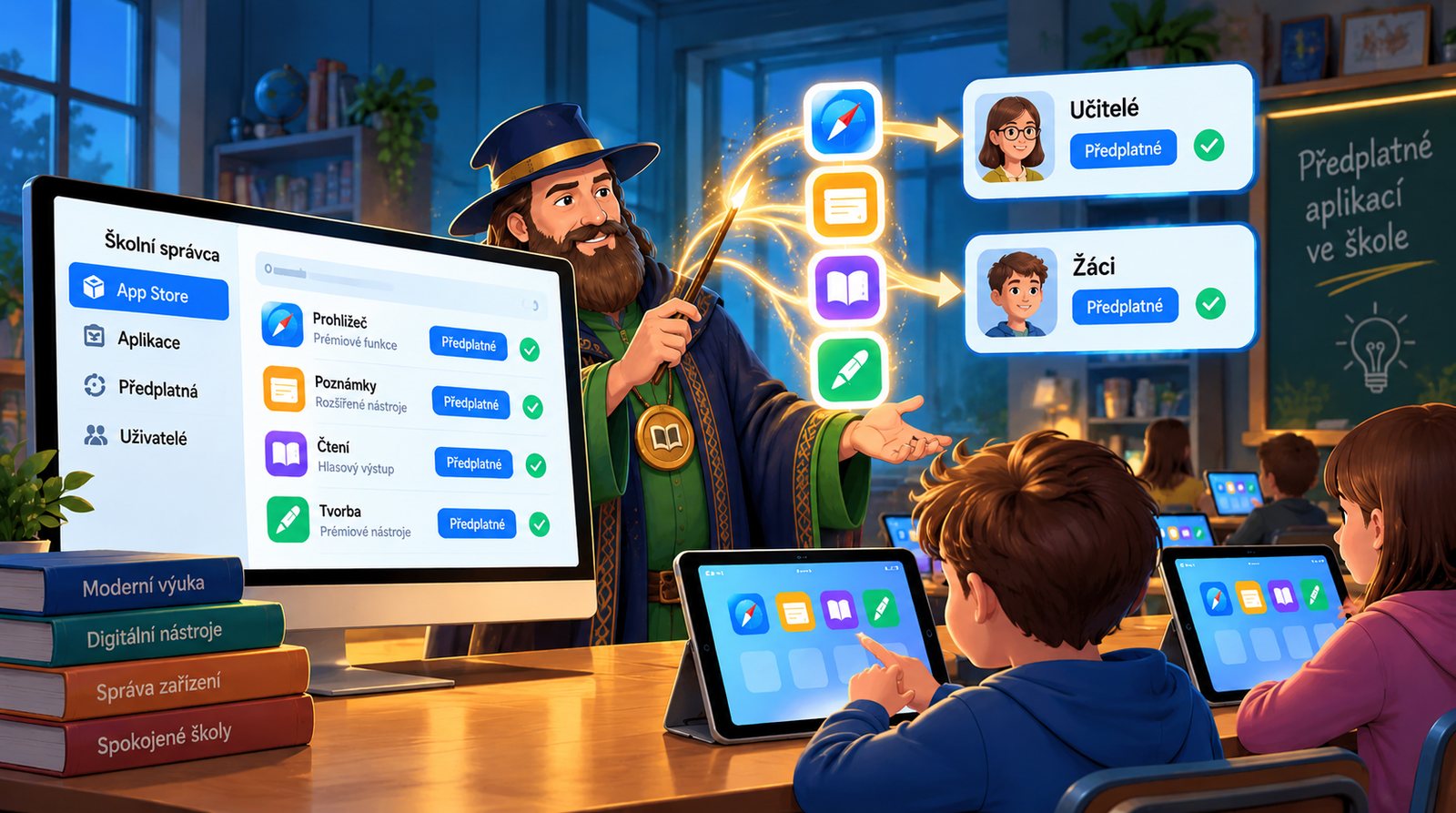 Apple School Manager
App subscriptions in Apple School Manager: the school buys them and Hanus.ai assigns them to teachers and students
Since 22 October 2026, schools can buy app subscriptions directly in Apple School Manager. Hanus.ai assigns them to a user with a Managed Apple Account, to a teacher on their iPad and to a student on a Shared iPad. How it works, how many seats you need, what subscriptions cannot do and how to remove and reassign them.
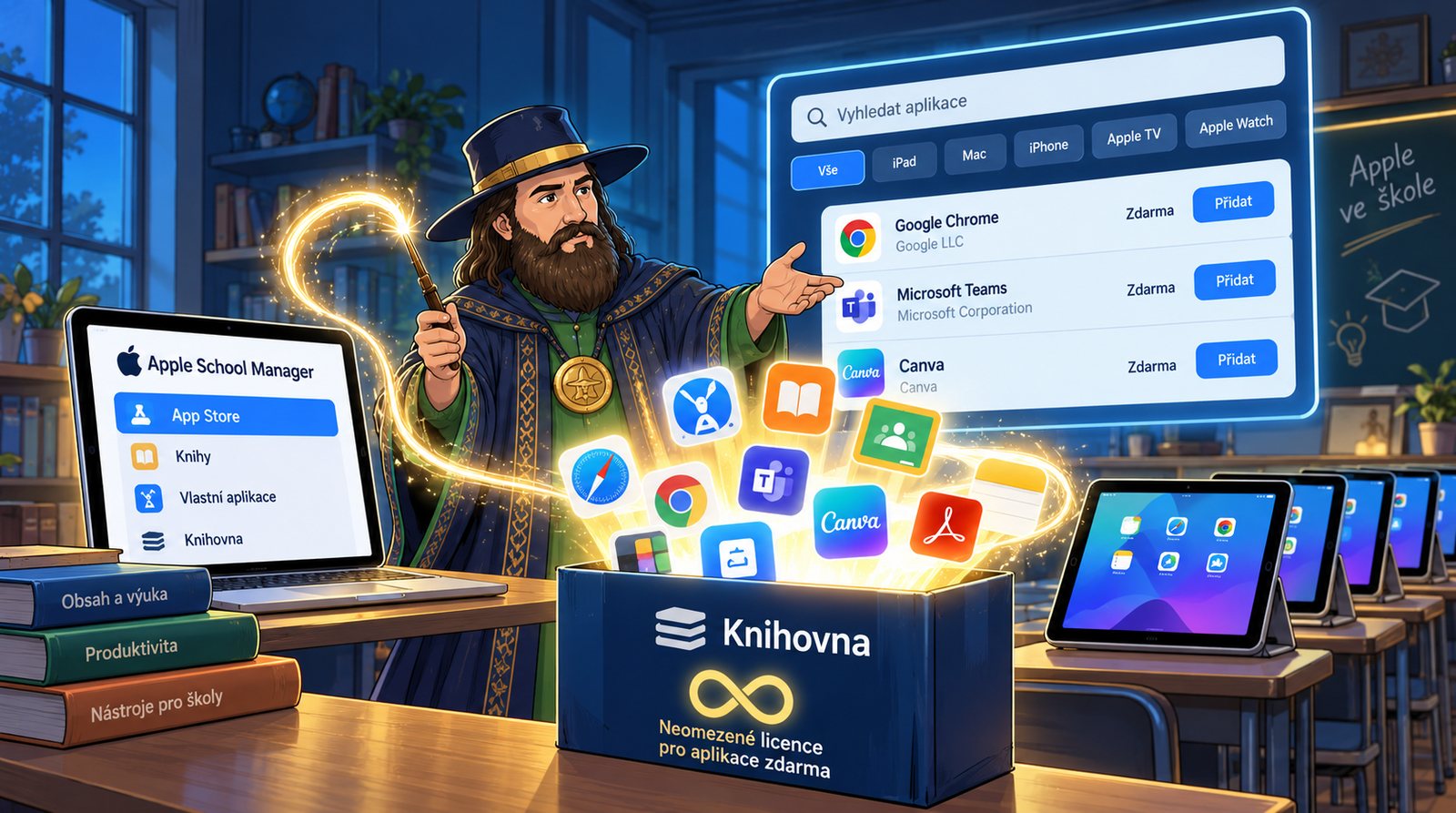 Apple School Manager
: free apps now have unlimited licences and purchasing has a new look
On 22 October 2026 Apple changed how apps are acquired in Apple School Manager: Apps and Books has been replaced by App Store, Books, Custom Apps and Library. Free apps are simply added to the library and have unlimited licences, paid apps are bought as before. What this means for MDM and how Hanus.ai displays it.
 Apple School Manager
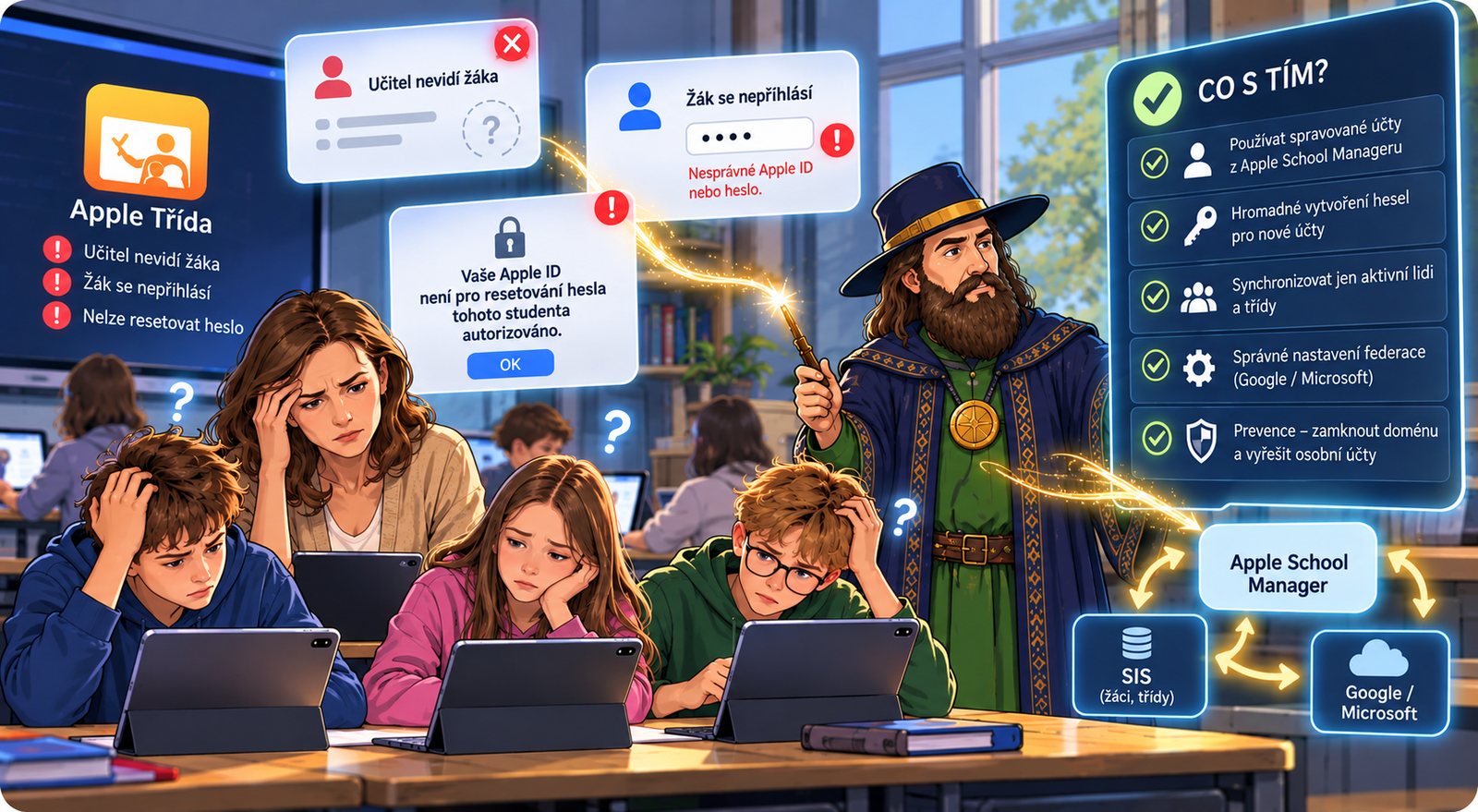
Apple Classroom not working for some students? The fault is usually in Managed Apple Accounts
A guide for ICT coordinators and MDM administrators: why a teacher cannot see a student in Apple Classroom, why a student cannot sign in to a Shared iPad and why a password reset ends with an authorisation error. Four causes in Managed Apple Accounts, how to diagnose them in Apple School Manager, how to fix them and how to prevent them.