
 School device management
App subscriptions in Apple School Manager: the school buys them and Hanus.ai assigns them to teachers and students
Since 22 October 2026, schools can buy app subscriptions directly in Apple School Manager. Hanus.ai assigns them to a user with a Managed Apple Account, to a teacher on their iPad and to a student on a Shared iPad. How it works, how many seats you need, what subscriptions cannot do and how to remove and reassign them.
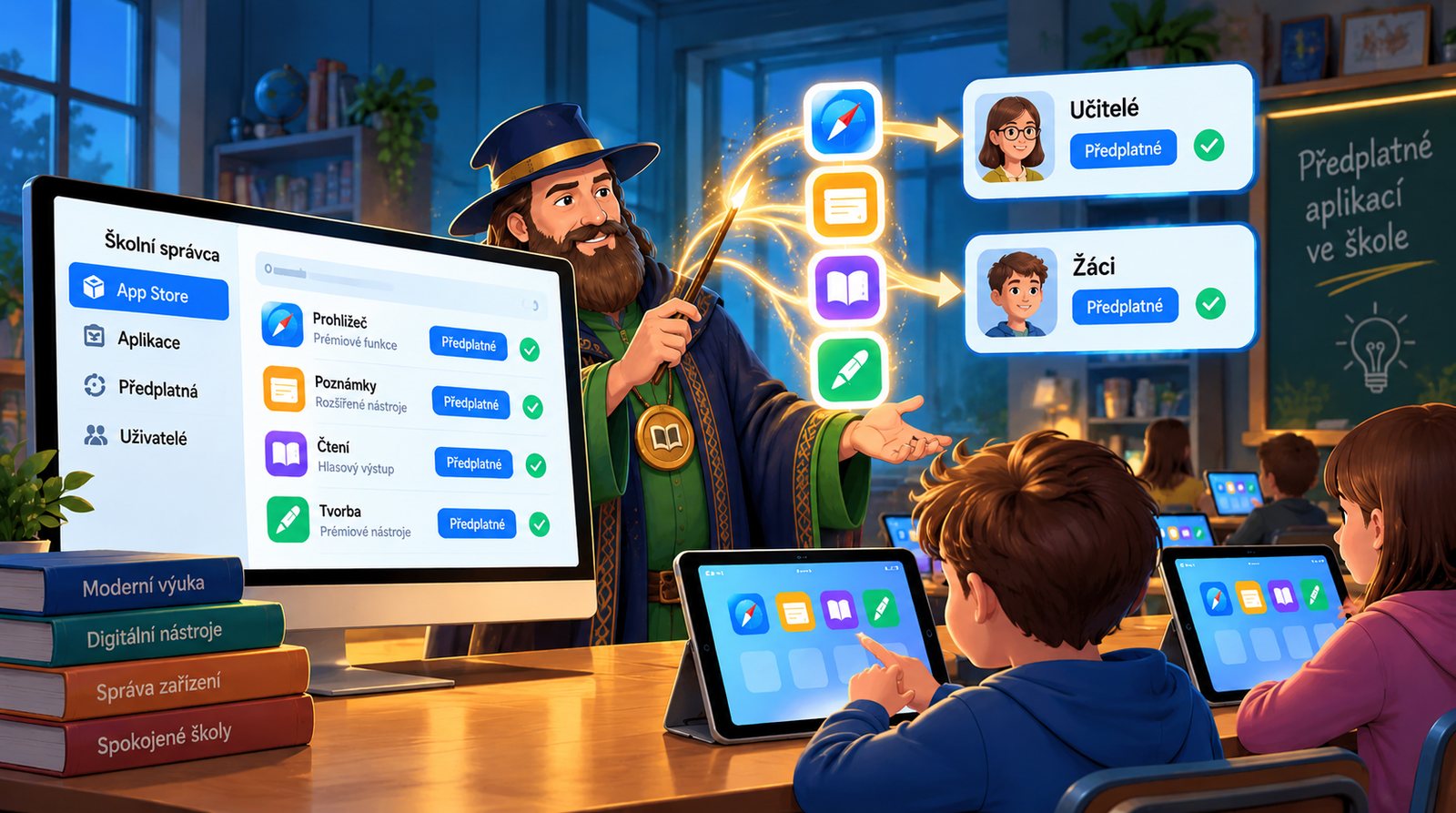
Since 22 October 2026, a school can buy app subscriptions directly in Apple School Manager, and Hanus.ai assigns them to a specific teacher or student with a Managed Apple Account, even on a Shared iPad. Each subscription seat belongs to one account, though, so the school pays for each user separately; the advantage is that a subscription can be removed from one user and given to someone else.
For ICT coordinators, this is one of the most practical additions in the autumn update of Apple School Manager (ASM): the school now manages paid app features centrally, much like app licences. Below you will find how to buy and assign a subscription step by step, who it pays off for and what to watch out for.
At a glance
- Purchase: the content manager buys app subscriptions (monthly or annual plan) in ASM in the App Store section, just like paid apps.
- Assignment: only to a user with a Managed Apple Account, never directly to an iPad. In Hanus.ai you select individual users or a whole class.
- Shared iPad: the subscription works when the student signs in with their Managed Apple Account. It does not matter which iPad they sit down at. A Guest (temporary session) does not get the subscription.
- One seat = one account: one subscription cannot be handed out to a whole class. As many users, as many seats.
- Removal and reassignment: a seat can be removed from a user and assigned to someone else, immediately or at the end of the paid period.
- Payment: seats renew automatically and the school pays for them. You cancel renewal in ASM.
- Hanus.ai: shows subscriptions in the app catalogue and assigns them on the new Subscription tab in the app detail. The school first enables subscription purchases once in Settings.
What has changed and why does it matter?
Many school apps are free to download, but the important features are only unlocked by a subscription: the full version of a note-taking app, premium reading tools, text-to-speech or advanced creative features. Until now, a school could do nothing about this through MDM. Apple School Manager could buy an app, but not a subscription or an in-app purchase. Subscriptions were therefore bought directly on the iPad under a personal Apple ID, often the teacher's (redemption codes do not work with Managed Apple Accounts), and the school had no control over them: they could not be transferred to another teacher, could not be given to a student and had nothing to do with the school account.
In the ASM release notes of 22 October 2026, Apple writes that organisations can acquire app subscriptions in Apps and Books and assign them through user-based assignment via an MDM that supports this feature. The ASM user guide adds that you select the subscription in the App Store section for a specific app and choose the plan and period (for example, a month or a year).
A note on terms: Apple talks about app subscriptions, which renew regularly. In everyday speech these are called “in-app purchases”, but ASM does not offer one-time purchases inside apps (unlocking a pack, in-game currency).
Who is the subscription assigned to: the iPad or the user?
The user. With app licences you are used to assigning an app to a group of iPads, and the licence belongs to the device. Apple does not allow this for subscriptions: a subscription seat can be assigned exclusively to a user with a Managed Apple Account (formerly Managed Apple ID). In practice this means:
- Teacher with their own iPad: they are signed in on the iPad with their school Managed Apple Account, and you assign the subscription to them by name.
- Students on Shared iPads: each student needs their own Managed Apple Account. These can be accounts the school creates in ASM, or accounts federated with Microsoft or Google, where the student signs in with their school password from Microsoft 365 or Google Workspace.
- An iPad enrolled via ADE with no account signed in (a typical “class” iPad that nobody is signed in to) does not get the subscription, even if the app is installed on it.
The app itself must still be installed on the iPad through a regular assignment to a device group. You do not need to assign the app licence to the user; in Hanus.ai testing, a device licence was enough.
How does a subscription work on a Shared iPad?
This is where the new feature is most interesting. A school connected to ASM through Apple Classroom in Hanus.ai has its classes, students and their Managed Apple Accounts in the console, along with the sign-in mode set up for Shared iPads. The student signs in to the Shared iPad with their school account, and the subscription the school assigned to them goes with them.
So the student does not have to worry about which iPad from the trolley they are sitting at. All that matters is that they sign in with their own account. On the same iPad, the premium features are then visible only to whoever has a subscription seat; a classmate who signs in after them and has no subscription assigned will not see them. A Guest in a temporary session never gets the subscription. We verified this on a test Shared iPad: the student with an assigned seat saw the premium features, the second student and the Guest did not.
How to buy and assign a subscription step by step
1. Enable subscription purchases in Hanus.ai
Apple only releases subscriptions to the school’s location once the MDM confirms, for the school’s VPP token, that it supports subscriptions. In Hanus.ai the main administrator does this once for the whole location:
- Open Settings, the VPP token tab and the App subscriptions section.
- Click Enable subscription purchases and then Enable in the confirmation.
The setting applies to this VPP token. It can only be turned off until the school buys a subscription.
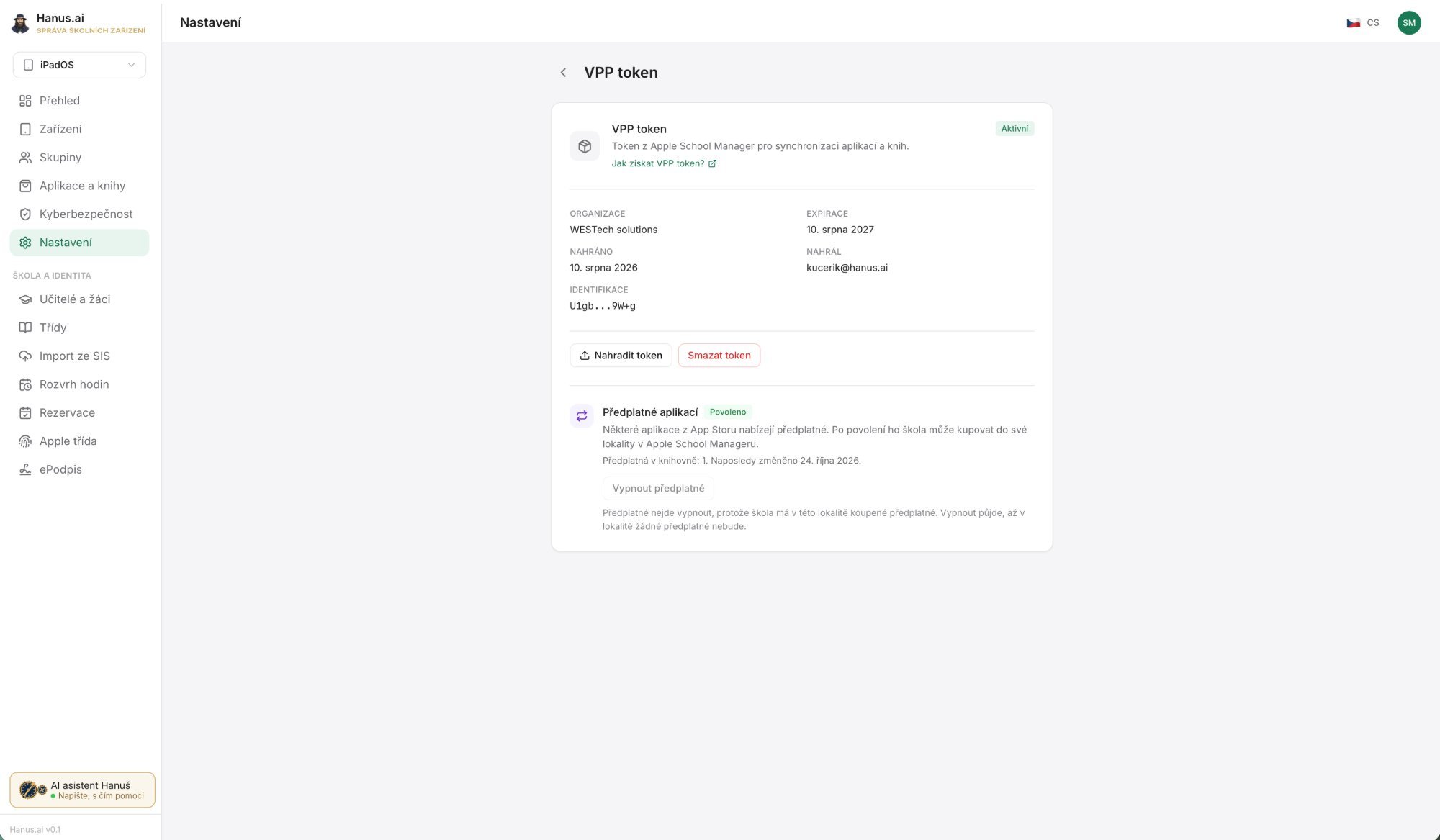
The VPP token tab with subscription purchases enabled. Once the school buys a subscription, the Disable subscriptions button is inactive and the console explains why.
2. Buy the subscription in Apple School Manager
- Sign in at school.apple.com with an account that is allowed to acquire apps and books.
- In the sidebar, open App Store and search for the app.
- For the app, select the subscription, plan and period, and enter the number of seats, i.e. the number of users who will have it.
- Select the location that the school’s VPP token in Hanus.ai belongs to, and complete the purchase.
You can see the subscription price in ASM. Hanus.ai does not receive it from Apple.
3. Check the subscription in the Hanus.ai catalogue
After the purchase, run a catalogue sync in Hanus.ai (the Sync now button), or wait for the daily sync. The subscription appears with the app it belongs to: under the name there is a Subscription label, the status, the end of the paid period and the seat counts. In the Price column, Subscription also appears instead of a price, because the school pays for the seats, so the app does not fall into the “Free only” filter.
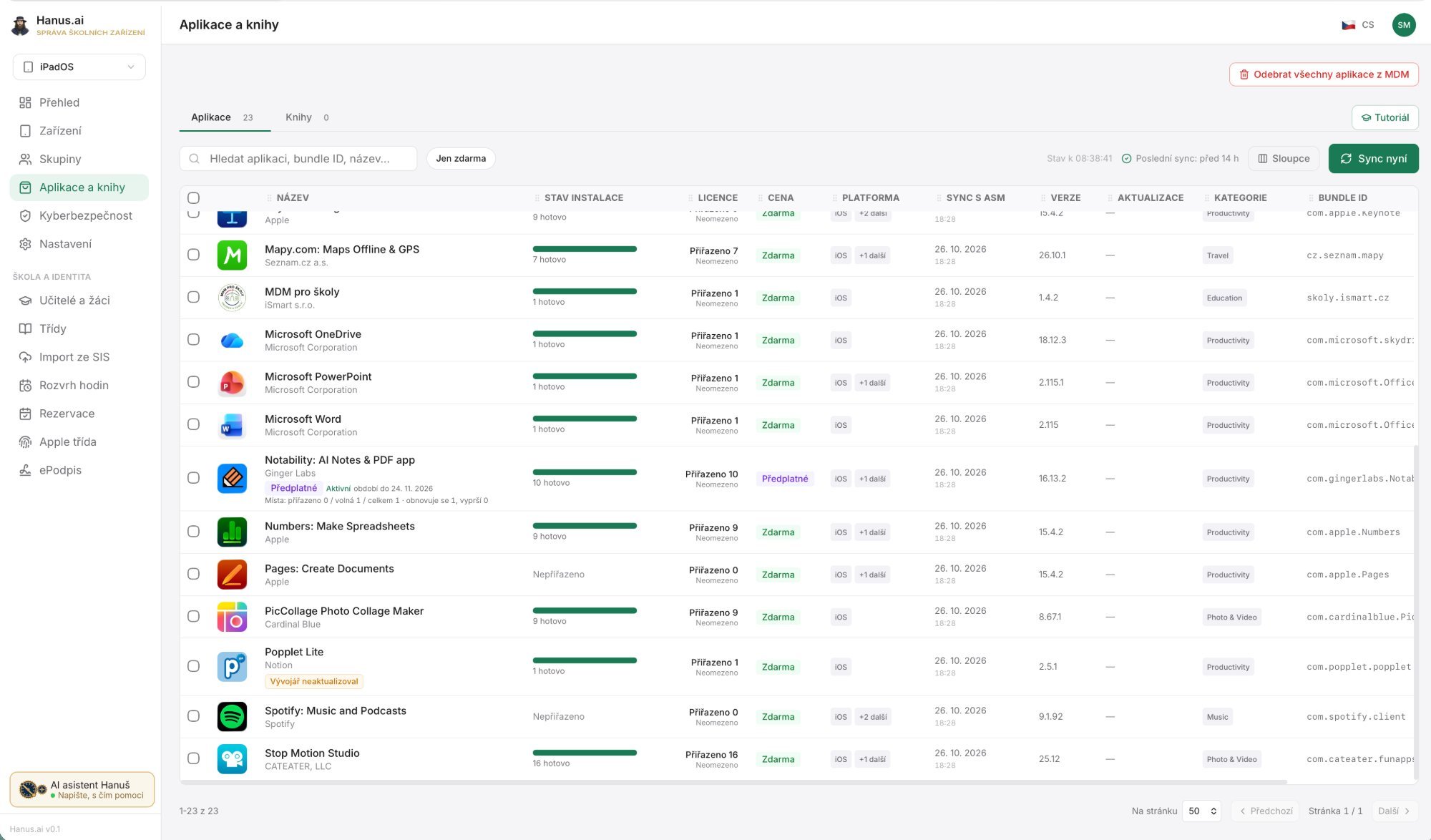
The “renewing” figure tells you how many seats will be extended automatically at the end of the period; seats without renewal are shown as “expiring”.
4. Assign the subscription to users or a class
- Open the app detail and the Subscription tab. You will see the status, period, seat counts and the device groups that the app itself is assigned to.
- In the Plan name field you can enter the name used in ASM (for example, “Notability Plus, annual”). Apple does not send it to the console, so you name it yourself.
- Click Assign subscription.
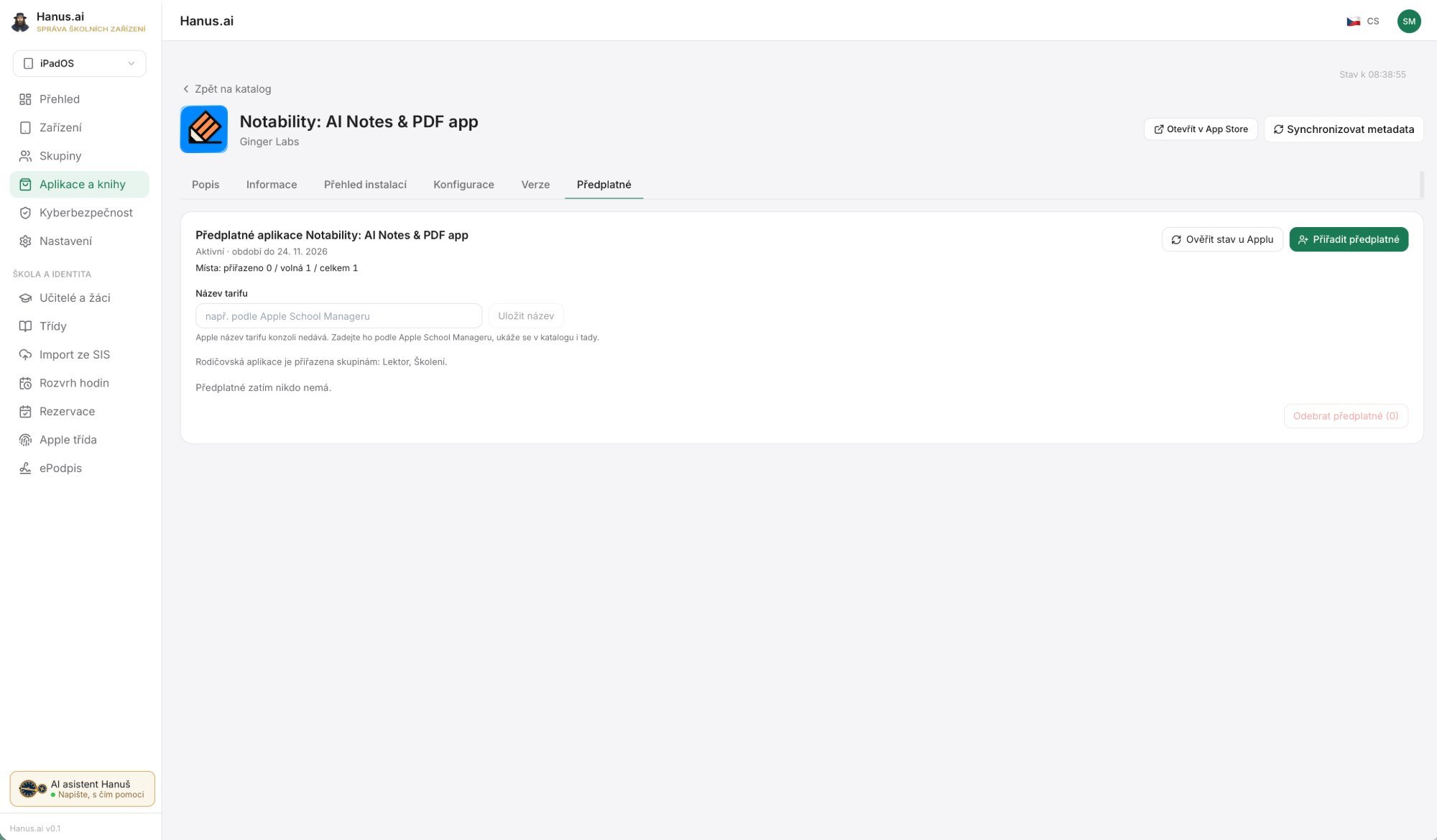
- In the dialog, switch between Class and Users. The Class option assigns the subscription to the students who are in the class right now; it does not add the class teachers. The Users option is for selecting individuals, including teachers. Anyone who already has the subscription is greyed out in the list as Assigned.
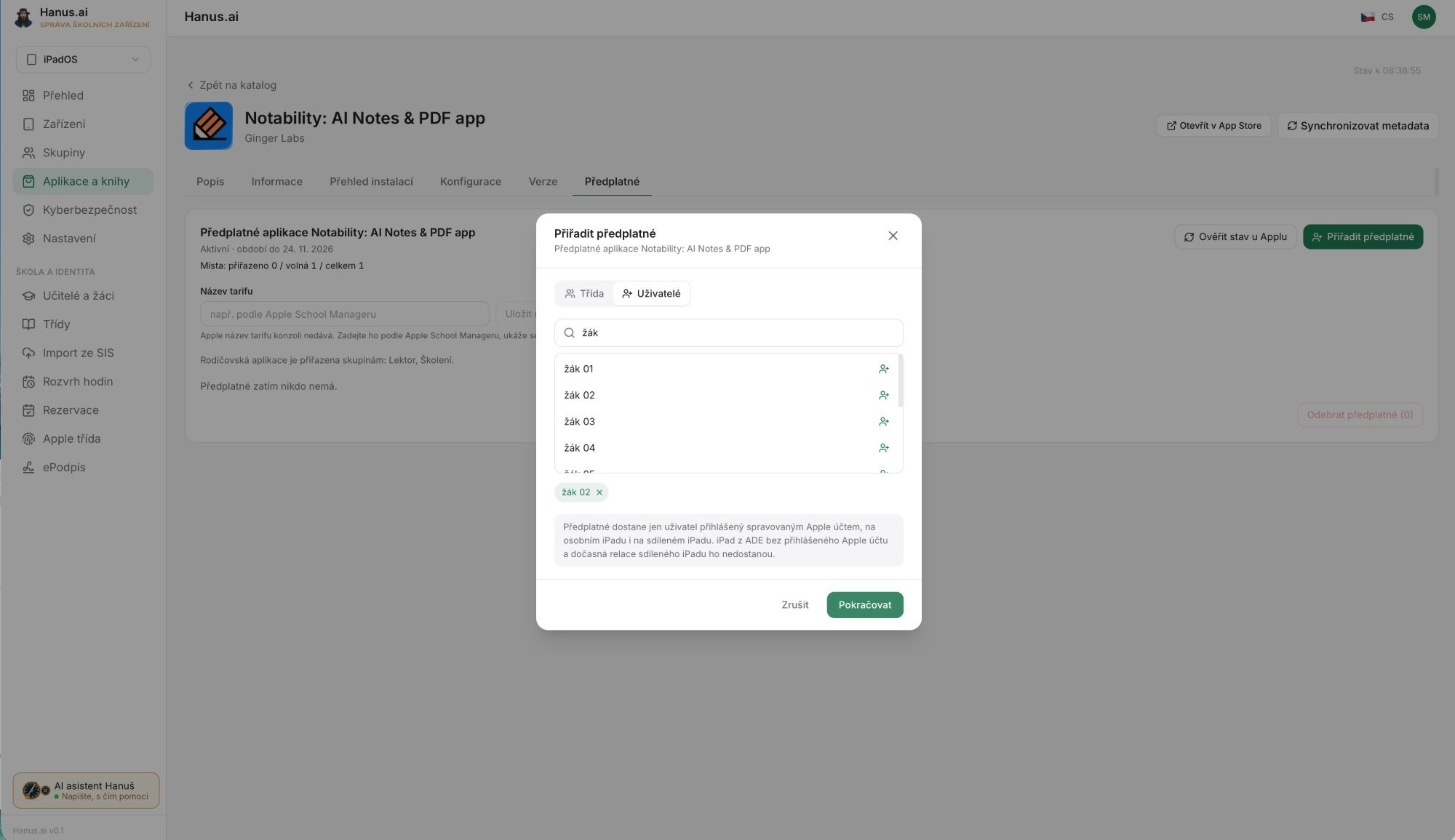
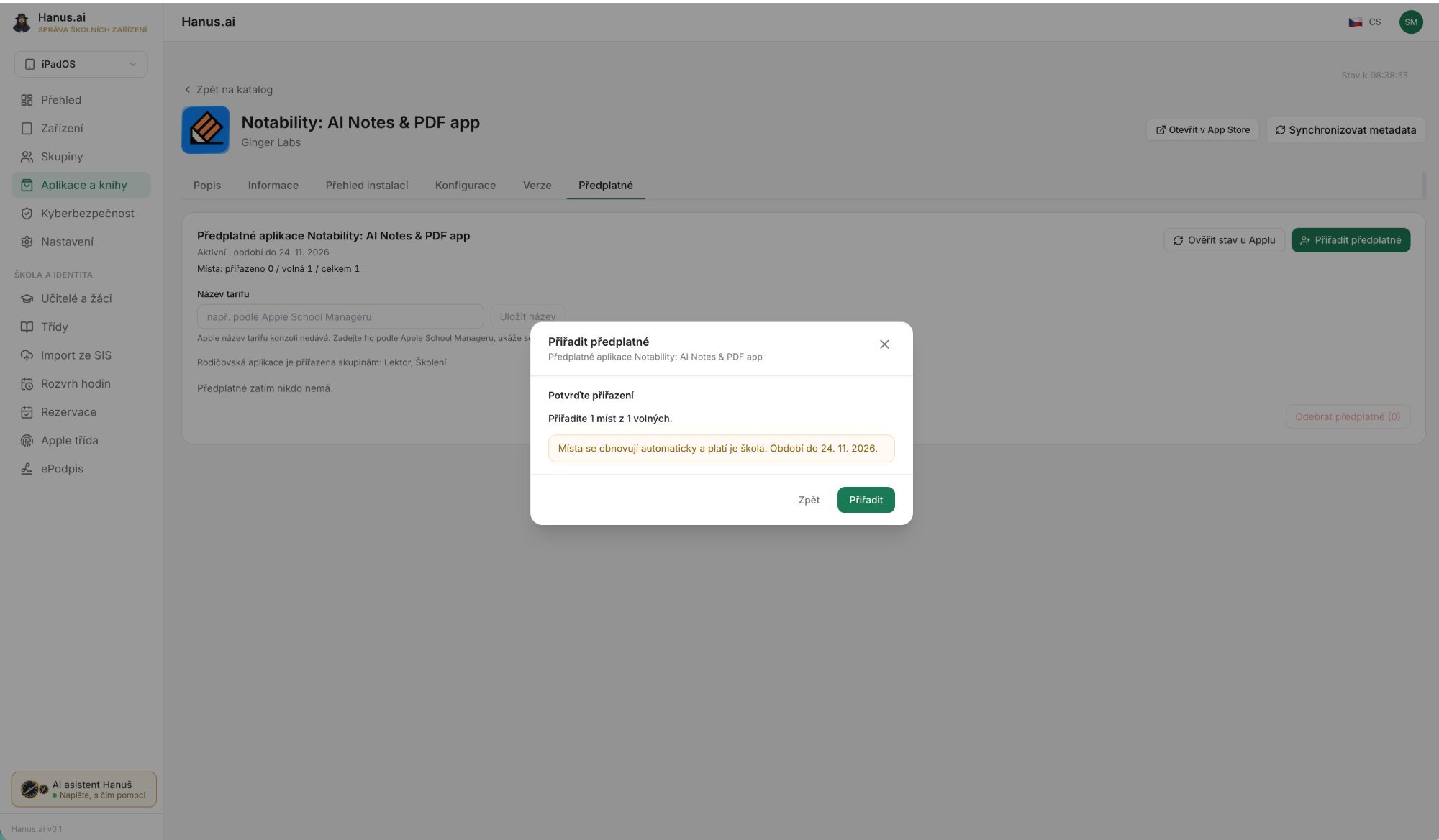
- Click Continue. Hanus.ai shows how many seats you are assigning out of how many available, and when the period ends. Only the Assign button sends the assignment to Apple.
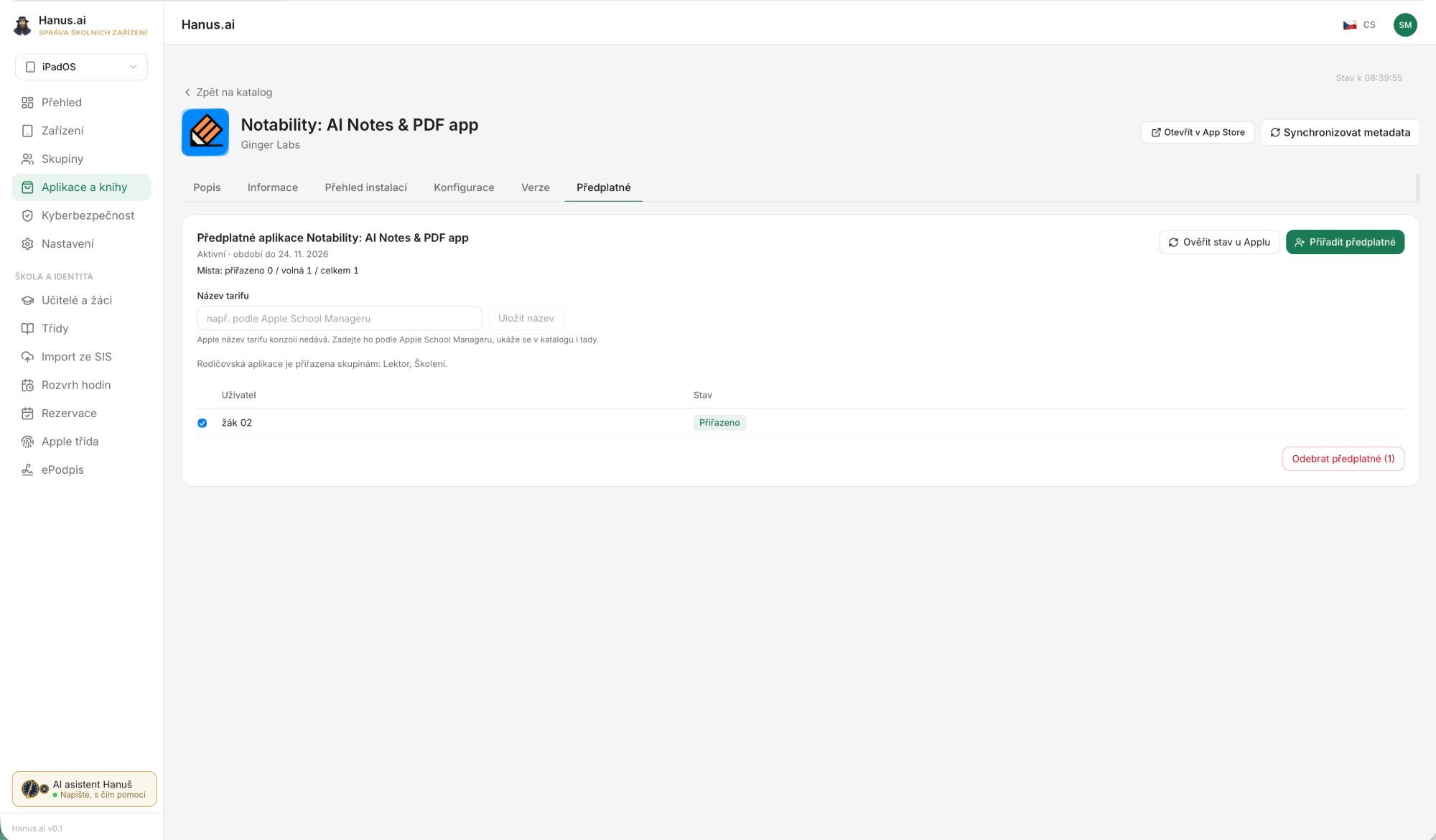
If you select more users than there are available seats, Hanus.ai assigns nothing to anyone and tells you how many seats are missing. You can then buy more seats in ASM or narrow your selection. After assignment, the user appears in the list with the status Assigned.
5. Remove and reassign the subscription
On the Subscription tab, tick the user and click Remove subscription. You choose when it should be removed:
- At the end of the period (recommended): the user keeps the subscription until the end of the paid period, then the seat lapses. The school has already paid for the period, so it loses nothing.
- Immediately: the user loses the subscription straight away and the unused part of the period is forfeited. The seat, however, returns to the available pool and you can assign it to another user.
Typically when a student transfers to another school or a teacher moves to a different subject: you remove the seat with the Immediately option and someone else gets it without a further purchase. One thing to watch out for: apps with their own sign-in (such as Notability) may keep premium features on their own account until the end of the paid period. The seat with Apple is nevertheless free.
App and book licences vs. subscriptions
| App licence | Book licence | App subscription | |
|---|---|---|---|
| Assigned to | iPad (device) or user | user | only a user with a Managed Apple Account |
| Can be removed and reassigned | yes, the licence returns to the available pool | no, the book stays with the user permanently | yes, immediately or at the end of the period, repeatedly |
| Payment and renewal | one-time purchase (free or paid), no renewal | one-time purchase | regular payment per period, seats renew automatically |
| Shared iPad | the app on the iPad works for everyone signed in | belongs to the student’s account | only a student signed in with their own account and an assigned seat; not a Guest |
| iPad enrolled via ADE with no account signed in | works | does not get it | does not get it |
| How many | free apps unlimited, paid apps by number of licences | by number of licences | one seat per account |
Compared with books, subscriptions are therefore much more flexible: once a book is assigned to a student you cannot take it back, but a subscription seat you can. And compared with a subscription bought on a personal Apple ID, the difference is even greater: it belongs to the school, not to a specific person.
Who does a subscription pay off for?
Because the school pays for each account separately, there is no point in buying a subscription for everyone “just in case”. It pays off well in three situations:
- Teachers. A teacher who uses the app every day to prepare lessons gets the most out of the paid version. Typical examples are tools for note-taking and working with PDFs, or for creating teaching materials or presentations. The seat belongs to the school, so when the teacher leaves, a colleague takes over the subscription.
- Students with special educational needs (SVP). Apps for reading, text-to-speech, communication or practice often unlock key features only in the paid version. The school can assign the subscription only to the students who really need it, and on a Shared iPad only they will have it.
- A specific app for a whole class or year group. When an entire subject or project relies on one app, you assign the subscription to the whole class at once. Bear in mind, though, that you need as many seats as there are students in the class.
Before you buy a subscription, it is worth checking whether the app has a school licence directly from the developer (for example, through its own web portal), which may work out cheaper than individual seats.
What can subscriptions not do?
- One subscription for everyone. Every teacher and student needs their own seat. One purchased subscription cannot be shared between several accounts.
- Assignment to an iPad. An iPad enrolled via ADE with no Managed Apple Account signed in does not get the subscription, even if the app is installed on it.
- The temporary session on a Shared iPad. A Guest on a Shared iPad does not have the subscription. If you want students always to sign in with their own account, set the Shared iPad to a mode that allows account sign-in only.
- Automatic assignment to newcomers. The Class option assigns the students who are in the class at the moment of assignment. A new student who arrives mid-year does not get a seat automatically; you assign it to them manually.
- One-time in-app purchases. Apple offers subscriptions in ASM, not one-time add-ons such as “unlock a pack”.
How Hanus.ai works with subscriptions
- Catalogue: for an app with a subscription it shows the Subscription label, the status (Active, Paused, Inactive), the end of the period and the seats assigned, available and total, including the number of seats that renew.
- Subscription tab in the app detail: the plan name, users with their statuses, the device groups that the app itself is assigned to, and the buttons Assign subscription, Remove subscription and Check status with Apple.
- Seat check in advance: the console does not send an assignment that exceeds the number of available seats at all, and before sending it shows a summary with the number of seats and the end of the period.
- User statuses: Assigned, Awaiting confirmation (Apple has not confirmed yet; Check status with Apple helps), Apple ID missing (the user has no Managed Apple Account), Seat expiring (removal at the end of the period) and Error. The status Awaiting sign-in is only a hint: the console has not yet seen the user sign in on the iPad, but the seat belongs to them.
- Nothing happens on its own: Hanus.ai never assigns or removes subscriptions automatically. Every change is made by an administrator and is recorded in the audit log.
Frequently asked questions
Can a school buy an app subscription in Apple School Manager?
Yes, since 22 October 2026. You buy the subscription in ASM in the App Store section for a specific app and assign it through an MDM that supports this, for example Hanus.ai. Before the first purchase, subscription purchases need to be enabled once in Settings in Hanus.ai.
Can an app subscription be assigned to an iPad instead of a student?
No. Apple only allows a subscription to be assigned to a user with a Managed Apple Account. The app itself is still installed on the iPad, but only the signed-in user you assigned the seat to gets the premium features.
Is one subscription enough for a whole class?
No. One subscription seat belongs to one account, so for a class of 25 students you need 25 seats. Before assigning, Hanus.ai shows how many seats you will use and how many are available.
Does the subscription work on a Shared iPad?
Yes, if the student signs in with their Managed Apple Account. It does not matter which iPad they use. A Guest in a temporary session does not get the subscription, and other students on the same iPad will not see it unless they have their own seat.
Do students need Managed Apple Accounts for subscriptions?
Yes. Without a Managed Apple Account, a student cannot get a subscription, and in Hanus.ai you will see the status Apple ID missing. Both accounts created in ASM and accounts federated with Microsoft or Google are suitable.
How do I remove a subscription from a student and give it to someone else?
On the Subscription tab, tick the student, click Remove subscription and choose Immediately. The seat returns to the available pool and you give it to another user via Assign subscription. The At the end of the period option leaves the subscription with the student until the end of the paid period.
Why does a student still have premium features in the app after the subscription was removed?
Some apps with their own sign-in, such as Notability, keep the premium features on their own account until the end of the paid period. The seat with Apple is nevertheless released and you can assign it to another user.
Does the subscription renew automatically, and who pays for it?
Yes, seats renew automatically at the end of the period and the school pays for them. You cancel automatic renewal in ASM in the Library for the app using the option to cancel the subscription (Cancel Subscription in the English interface); once the period ends, users then lose the subscription.
Can a one-time in-app purchase also be bought through Apple School Manager?
No. Apple only offers app subscriptions in ASM. For a one-time unlock of features, Apple recommends that developers release a separate version of the app for schools, and redemption codes do not work with Managed Apple Accounts.
Related
- Apple School Manager: free apps have unlimited licences and purchasing has a new look
- Apple Classroom not working for some students? The fault is usually in the Managed Apple Accounts
- Shared iPad in school: one iPad for several students and how to set it up
- What is a Managed Apple Account and does every student need one?
- How to buy a paid app for your school
- How to set up Shared iPad: sign-in, quotas and sign-out
- What is Apple account federation: student sign-in with a school Microsoft or Google account
- iPad management
Sources
- Apple School Manager User Guide: Release notes (22 October 2026: app subscriptions in Apps and Books, assignment to users via third-party MDM)
- Apple School Manager User Guide: Intro to app and book licenses (paid app subscriptions per period, plan selection in the App Store section)
- Apple School Manager User Guide: Get apps and books in Apple School Manager (transferring and reducing the number of subscription seats, cancelling automatic renewal)
- Apple Developer: Associate Subscriptions, Disassociate Subscriptions and Get Subscriptions (assigning and removing subscriptions for users, overview of the organisation’s subscriptions)
- Apple Developer Forums: Apple School Manager / MDM Support for In-App Purchases (Apple’s reply from June 2026: ASM supports only subscriptions, not one-time in-app purchases; redemption codes do not work with Managed Apple Accounts)
- Hanus.ai information: the Hanus.ai console and internal documentation as of 27 October 2026, including an assignment test on a Shared iPad on 24 and 25 October 2026.
You might also like
 Apple School Manager
: free apps now have unlimited licences and purchasing has a new look
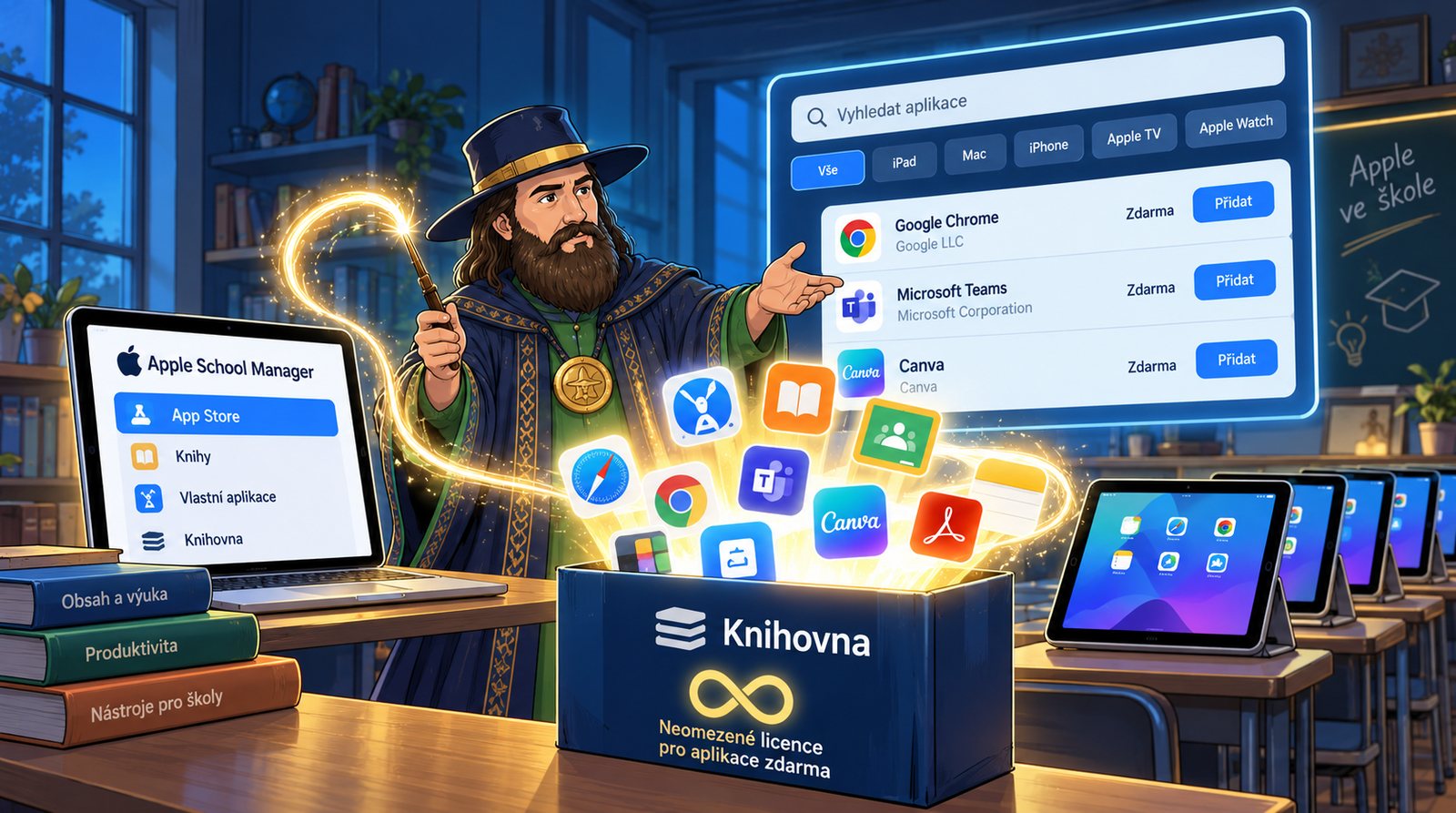
On 22 October 2026 Apple changed how apps are acquired in Apple School Manager: Apps and Books has been replaced by App Store, Books, Custom Apps and Library. Free apps are simply added to the library and have unlimited licences, paid apps are bought as before. What this means for MDM and how Hanus.ai displays it.
 Apple School Manager
Apple Classroom not working for some students? The fault is usually in Managed Apple Accounts
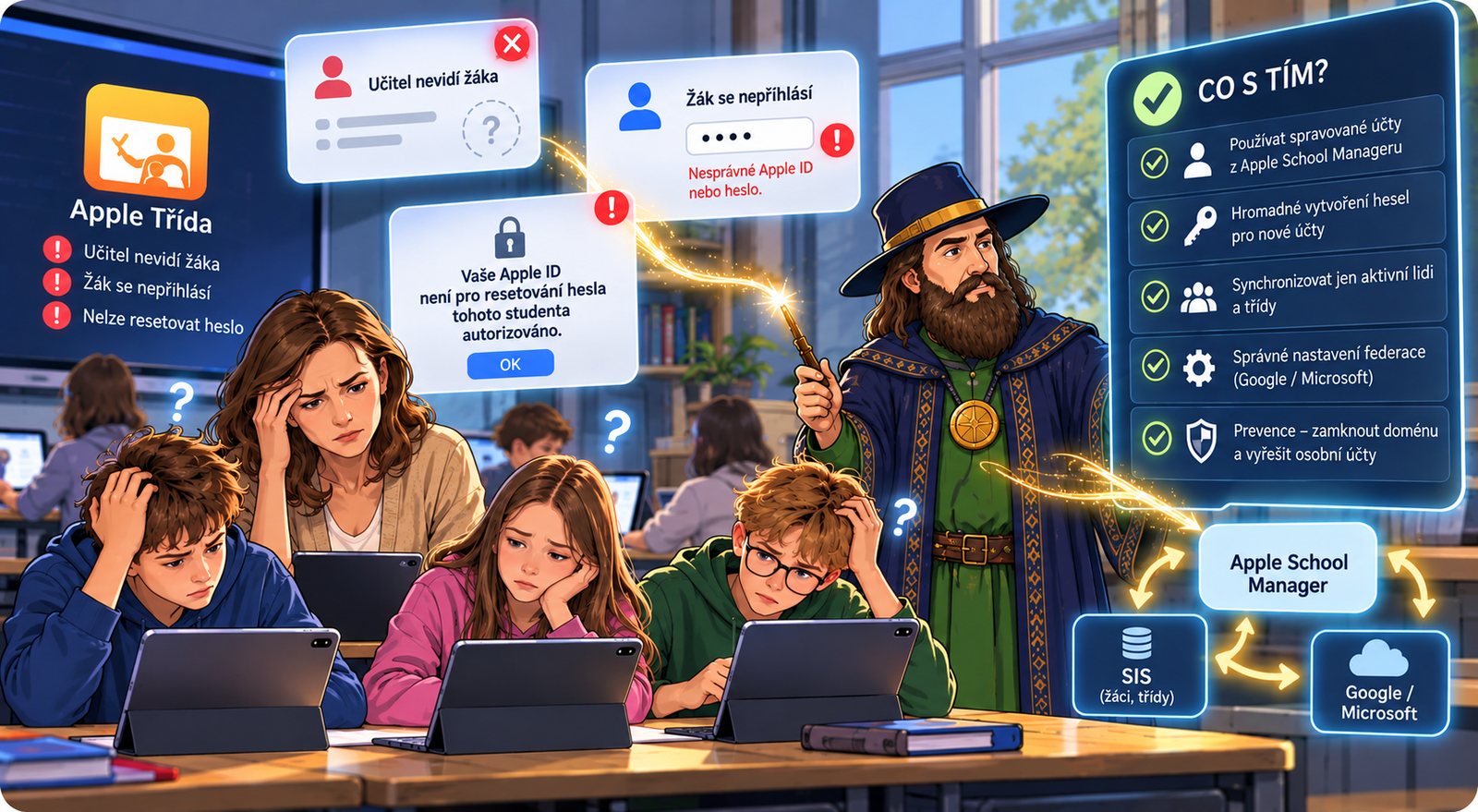
A guide for ICT coordinators and MDM administrators: why a teacher cannot see a student in Apple Classroom, why a student cannot sign in to a Shared iPad and why a password reset ends with an authorisation error. Four causes in Managed Apple Accounts, how to diagnose them in Apple School Manager, how to fix them and how to prevent them.
 Apple School Manager
 from A to Z: a guide for Czech schools (2026)
What Apple School Manager is, how a school signs up, how to get iPads and Macs into it, how student Managed Apple Accounts are created from EduPage or Bakaláři, how to buy apps and what schools most often run into. Checked against Apple’s documentation as of October 2026.