
 School device management
Apple Classroom not working for some students? The fault is usually in Managed Apple Accounts
A guide for ICT coordinators and MDM administrators: why a teacher cannot see a student in Apple Classroom, why a student cannot sign in to a Shared iPad and why a password reset ends with an authorisation error. Four causes in Managed Apple Accounts, how to diagnose them in Apple School Manager, how to fix them and how to prevent them.
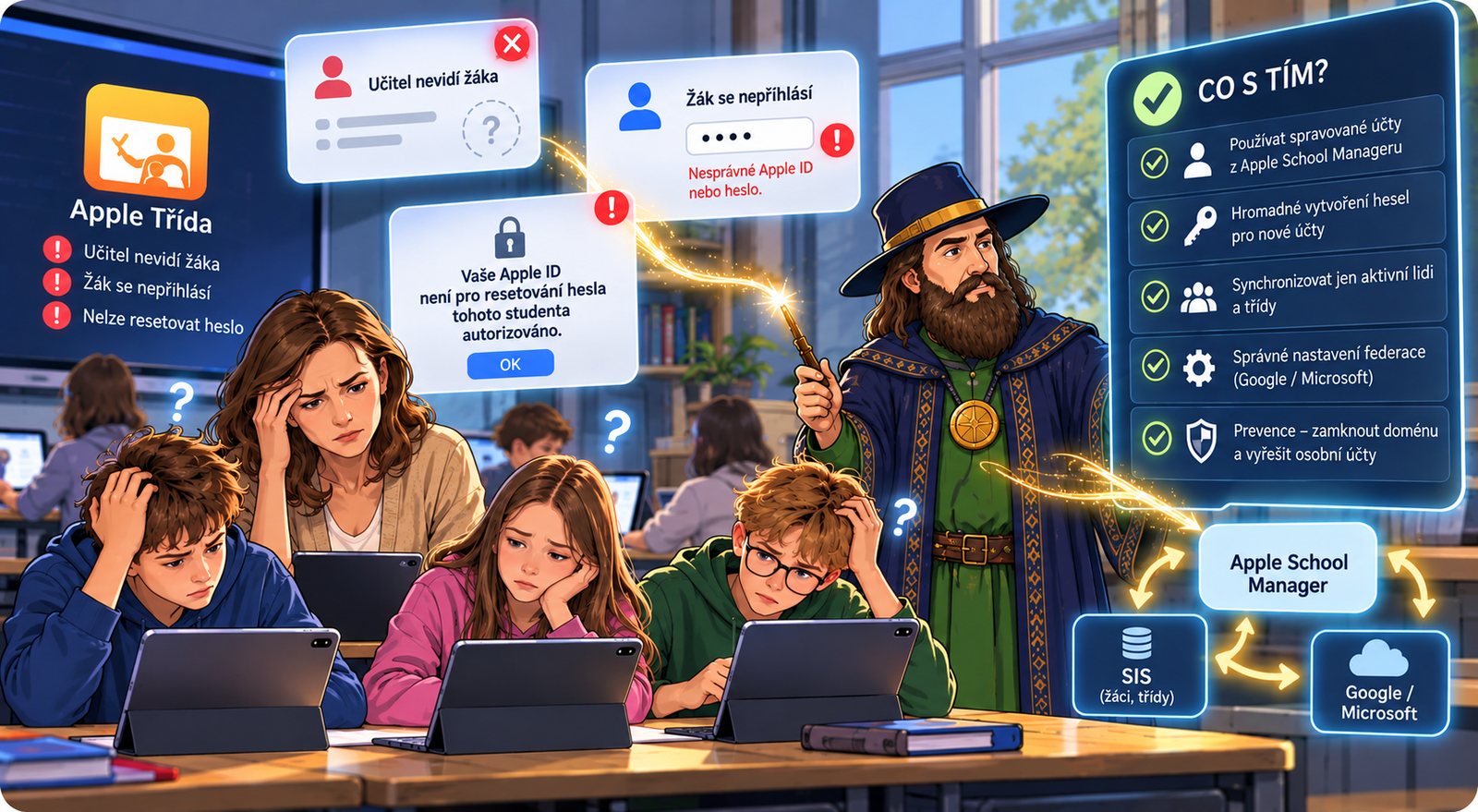
TL;DR for those in a hurry: When Apple Classroom “doesn't work” for only some people, the cause is usually in the accounts, not the iPads. Most often: a personal Apple Account on the school address, which made ASM add a number to the Managed Apple Account; an account that has never signed in; deleted people in the sync; and federation that clashes with the passcode type or with two-factor authentication. You prevent them by locking the domain, activating accounts as soon as the iPad is handed over, deleting in one place only and deciding on federation before any accounts are created.
Three sentences we hear after every rollout
When schools introduce Apple Classroom, a few situations keep repeating. A teacher opens the app and cannot see some of the students in the class, even though they sit next to the ones the teacher can see. A student cannot sign in to a Shared iPad, although they copied the passcode from the paper correctly. A teacher wants to reset a student's password in the Classroom app and gets the message “Your Apple ID is not authorised to reset this student's password”.
The first reflex is to look for a fault in the iPads or the network. But if only some people are affected while their classmates on the same iPads in the same classroom work without problems, the device settings are almost certainly fine. The cause is in the accounts.
This article is a guide for ICT coordinators and MDM administrators: how to classify the problem quickly, where to check it in Apple School Manager, how to fix it and, above all, what to do from the start so that it never happens.
Quick diagnosis
Before you change anything, open Apple School Manager (ASM from here on) and find, in the list of users (Users), one student or teacher for whom it does not work. You will see most of the answers directly in their details: account status, Managed Apple Account, authentication type and password policy.
| Symptom | Most common cause | Where to check | Fix |
|---|---|---|---|
| The teacher cannot see the student in Classroom, or the student signs in to a different account on the Shared iPad | The Managed Apple Account has an extra number in ASM (for example jan.novak1@skola.cz), but the MDM expects the address without the number |
ASM: Users, Managed Apple Account column; compare with the address in the MDM | Align the address in the MDM with the Managed Apple Account in ASM, resolve the conflict with the personal account via the domain |
| Password reset in Classroom says the Apple ID is not authorised | Account in New status, the student has never signed in; or the teacher and student are not in the same location; or it is a federated account | ASM: account status, Location, authentication type | Create sign-in credentials (Create Sign-in), align the location, for federation reset at the provider |
| The teacher cannot sign in to Classroom with their school account | Teacher account in New status, without their own password and two-factor authentication | ASM: teacher account status | Activate the account: first sign-in, own password, verification code |
| Duplicates keep appearing in ASM, the sync reports errors or stops | Deleted people get into the sync, or deletion happens in two places | ASM: sync activity, deactivated accounts | Send only the valid state from the source, delete only in the source |
| A federated student cannot enter their Google or Microsoft password on the Shared iPad | The sign-in screen shows a numeric passcode field instead of a password field | MDM: the student's Shared iPad passcode type | Switch the students' passcode type to password |
| A federated teacher gets stuck on two-factor authentication when signing in | The provider enforces security key only | Google Workspace or Microsoft Entra admin | Allow teachers the usual two-factor authentication methods |
Cause 1: a personal Apple Account on the school address
What happened
At some point, perhaps on a home iPhone, a student or teacher created a personal Apple Account on their school email address. Apple needed nothing for that, the address was free. When the school later creates Managed Apple Accounts, the address is taken. Apple states explicitly that each Managed Apple Account must be unique and must not be the same as an Apple Account someone else already has.
ASM therefore creates the Managed Apple Account with a different address. In practice it adds a number to the name, for example firstname.lastname1@skola.cz. Apple describes the same behaviour when you change the Managed Apple Account format: if the resulting address is already in use, a number is added to the end.
The problem is that the other systems do not know about the number. The school information system, the MDM and the paper handed out to students all expect the address without the number. The Apple Classroom profile on the iPad then points to an account that does not exist in ASM, and nothing matches.
How to tell
In ASM, open the list of users and look at the Managed Apple Account column. Look for addresses that end with a digit before the @ sign. Then compare them with the address the same person has in the MDM. In Hanus.ai, this is the Apple ID / email column on the Teachers and Students page. Where the addresses differ, you have found the culprit.
How to fix it
- List the people affected. The list from ASM with numbers in the address is your starting point.
- Align the address in the MDM. The Apple Classroom profiles must contain exactly the Managed Apple Account that is in ASM, including the number. If your MDM can take over Managed Apple Accounts from ASM, use that. If not, correct the address for the people affected. There are usually only a few.
- Deal with the cause, not just the symptom. Personal accounts on the school domain are resolved by capturing the domain (Capture a domain), which we describe below under prevention.
What to avoid
- Do not change the Managed Apple Account format in bulk just because of a few conflicts. Changing the format for existing users changes everyone's address, and Apple does not notify the users.
- Do not delete and recreate the account in the hope that it will be created without the number this time. As long as the personal account holds the address, the number will appear again.
- Do not edit details manually in ASM if the school information system or the MDM sends data into it. Apple warns that such an account becomes local and loses its link to the source.
Cause 2: accounts that have never signed in
What happened
Every account in ASM has a status. New means the account is new and the user has not signed in yet. Active means they have signed in at least once. In practice, New status therefore tells you that the account does not yet have a password the user set themselves.
For such an account, ASM does not offer a password reset but creating sign-in credentials (Create Sign-in). Reset Password is intended for users who have forgotten their password. And in practice we see that a reset from the Classroom app on an account that has never signed in fails with the authorisation message, even under an administrator account. This applies to both student and teacher accounts.
How to tell
In the ASM list of users, filter by New status. If you find students whose reset fails, or teachers who cannot sign in to Classroom, you have your answer.
Before you look further, though, also check the other conditions Apple lists for a reset from the app:
- the teacher and the student are in the same location (Location) in ASM,
- the teacher has permission to manage student accounts in ASM,
- the student does not have a federated account; federated students have their password reset at the identity provider, not in Classroom,
- the student is in that teacher's class; a teacher cannot reset the password of a student from another class.
When resetting, the teacher authenticates with their own Managed Apple Account and two-factor authentication. If they have never activated their own account, they cannot carry out the reset.
How to fix it
- In ASM, select the accounts in New status. Work class by class so that the printed passcodes match when you hand them out.
- For the selected accounts, choose creating sign-in credentials (Create Sign-ins).
- Choose how to deliver them. A PDF with eight people per page (8-up PDF) is handy for cutting up and handing out in class; keep the CSV for your records.
- Save the file straight away. ASM never shows the temporary password again after the change.
- Students sign in to the Shared iPad with the temporary passcode and set their own at the first sign-in. The account then moves to Active status and reset from the Classroom app starts working.
Watch the time limit: temporary passwords from ASM are valid for 90 days. Passcodes printed in September and not used by December will no longer help, and you must issue new ones.
Four-digit passcodes first require a password policy for the location in ASM, and Apple applies it only to newly created credentials. In Hanus.ai, the whole procedure is a checklist in the Student passcodes step on the Apple Classroom page.
What to avoid
- Do not keep retrying the reset from Classroom on an account in New status. The result will always be the same.
- Do not hand out passcodes without a date. Write on the paper when they expire.
Cause 3: deleted people who never disappear from ASM
What happened
If a school sends data to ASM via SFTP, that is by uploading CSV files, ASM treats the content of the files as the valid state. With SFTP, Apple also expects every update to contain all the files, including those in which nothing has changed. Yet the student template has no column for status: whoever is in the file is a valid person for ASM.
When deleted people or people who have left get into the export, ASM continues to list them as active. From our experience: over time, new people with the same name are added, duplicates appear and the sync starts ending in errors until it stops completely.
How to tell
- People who have left the school are listed as active in ASM.
- In the user list you find pairs with the same name, often one of them with a number in the address.
- The sync in ASM reports errors, or the data has not changed for a long time.
How to fix it
- Fix the source, not ASM. Adjust the export so that it contains only active people and their current class enrolments.
- Deactivate leavers, do not delete them manually in the middle of a sync. For accounts from an SIS and SFTP, Apple offers deactivation. A deactivated account is signed out of devices, cannot be used to sign in, and if it is not synced again within 120 days, Apple removes it automatically.
- Resolve duplicates one at a time, and only after fixing the source. Otherwise the next sync will bring them back.
How it works in Hanus.ai
In Hanus.ai, the school does not upload anything to ASM via SFTP. For ASM, Hanus.ai is the school information system, and ASM downloads the roster via OneRoster. So what goes into ASM is what is in the Hanus.ai roster.
The import from the school information system is a mirror of the full export, not an increment: anyone missing from the uploaded file is proposed for removal and shown in the summary of changes. Deleting an account on the Teachers and Students page is controlled: the account is marked for deletion, sign-in is deactivated and it is removed from ASM at the next sync. The deleted account stays in the Deleted tab, from where it can be restored.
One rule follows from this for you: delete in one place only, in Hanus.ai, and let the sync carry the change through.
What to avoid
- Do not send partial exports with one class or a handful of new students. With a mirror import, that means everyone else disappears.
- Do not delete manually in ASM when the data is controlled by the source.
- Do not disconnect and reconnect the sync to tidy up. Apple warns explicitly that after doing so, ASM holds incorrect details for the changed accounts.
Cause 4: federation with Google or Microsoft
Federation means that students and teachers sign in to Apple services with a Google or Microsoft account, and that provider, not Apple, holds the password. It is convenient, but it has two traps that only show up in the classroom. We explain what federation is in the guide What is Apple account federation.
Student: numeric passcode instead of a password
A federated student signs in to a Shared iPad for the first time with their name and Google or Microsoft password, and creates a Shared iPad passcode at the same time. The next time, they sign in with their name and this passcode.
However, if the student is set in the MDM to a four-digit or six-digit passcode, the Shared iPad sign-in screen shows a numeric PIN field. The Google password cannot be typed into it, and the student cannot sign in. We verified this in live use with a school on Google.
Fix: set the passcode type to password for federated students. In Hanus.ai, this is the Apple passcode format for the student on the Teachers and Students page. To change it for several students at once, use the Change passcode format button in the selection bar and choose Password (8 characters). For newly created students at a federated school, password is the default. Shared iPads receive the new profile automatically, or immediately via the Send Shared iPad settings button.
Also remember that for a federated student, password reset in the Classroom app does not work, and temporary passcodes from ASM do not help on a federated account. ASM can only reset the Shared iPad passcode for a federated user, and this does not change their password at the provider.
Teacher: two-factor authentication with security key only
For teachers, the trap is elsewhere. If the school enforces two-factor authentication in Google Workspace in security key only mode (Only security key), Google does not allow users to create their own backup codes in this mode. The backup code must be generated by an administrator. From our experience: on the Apple sign-in page, the teacher then cannot get any further without a backup code from the administrator, and this repeats every day.
Fix: in the Google admin console, allow teachers the usual two-factor authentication methods, not just a security key. The cleanest way is to do this for the teachers' organisational unit, so that the rules for administrators do not change.
An order that cannot be undone
At a federated school, the order matters: first a verified and locked domain, then federation turned on, and only then account sync from the school information system. For federation, Apple requires a locked domain with domain capture started, and there must be no Managed Apple Account conflicts. In any other order, accounts are created without federation.
If it has happened anyway, do not delete the accounts and do not reconnect the sync. Once federation is turned on, Apple converts accounts with an address in the federated domain itself (Automatic changes).
The email in the roster must be exactly the sign-in name at the provider. For Microsoft, Apple requires the UPN to match the email address and does not support aliases.
What to avoid
- Do not give federated students a numeric PIN in the MDM just because it is more convenient for children. They must first sign in with a password.
- Do not promise teachers password reset in Classroom if you use federation. That is done at Google or Microsoft.
The right procedure from the start
This is the order in which we recommend introducing Apple Classroom so that the problems described above never arise.
- Verify the domain in ASM. Without a verified domain, Managed Apple Accounts on the school address cannot be created.
- Find out how many personal accounts use the domain. You will see the totals in the domain details. Download the list (Download a list of unmanaged Apple Accounts). Note that the list only contains accounts that have recently signed in to certain Apple web services, so it may be shorter than reality.
- Lock the domain (Lock a domain). From then on, nobody can create a new personal account on it. The lock is permanent and can only be removed by removing the domain.
- Capture the domain (Capture a domain). Owners of personal accounts receive a notification and have 30 days to decide: either they move the account to a different address and keep it as personal, or they transfer it to the school. If they do nothing, Apple renames their personal account to a temporary address and the school can use the school address. Capture cannot be undone, so inform people in advance.
- Decide on federation. Separately for students and for teachers, be clear about who will hold the passwords, what passcode type students will have on the Shared iPad and which two-factor authentication methods teachers will have.
- Prepare the data. A full export from the school information system, active people only, each class with a teacher.
- Connect the sync to ASM. Only now are the accounts created.
- Set the student password policy for the location and issue sign-in credentials class by class.
- Activate teacher accounts as soon as the iPad is handed over. First sign-in, own password, two-factor authentication. The teacher leaves with a working account, not with a piece of paper.
- Have students sign in at least once in the first lesson with the temporary passcode from ASM. From then on, reset from the Classroom app works.
- Check for New status in ASM after the first week and follow up with anyone who was missing.
What not to do
- Do not create Managed Apple Accounts before you lock the domain and resolve personal accounts.
- Do not edit or delete accounts manually in ASM when they are controlled by the school information system or the MDM. One source of truth, one way to delete.
- Do not upload partial exports and do not disconnect the sync to tidy up.
- Do not turn on federation only after the accounts have been created.
- Do not give federated students a numeric PIN and do not force teachers to use a security key only.
- Do not leave temporary passcodes lying around for more than 90 days.
How Hanus.ai helps with this
The connection to ASM is on a single Apple Classroom page in the Hanus.ai console, and the steps unlock one after another, so the order from the previous section is hard to skip.
- Domain before sync. Without confirmation that the domain is verified in ASM, the form for a new person offers no address.
- Federation before students. At a federated school, the ASM connection is locked until the school ticks off the provider connection, a test sign-in and turning on federation. Until then, only the school structure and teachers go to ASM.
- Student passcodes as a checklist in an order that ensures four-digit passcodes.
- One source of truth. Roster via OneRoster, import as a mirror of the full export, controlled deletion with the option to restore.
- Password as the default passcode type for new students at a federated school, and in bulk for existing ones.
We are gradually enabling, school by school, the matching of Managed Apple Accounts from ASM into Apple Classroom profiles in Hanus.ai, so that the iPad works with the address including Apple's number. Until your school has it, what we recommend in cause 1 applies: the address in the roster must match the Managed Apple Account in ASM.
And if you would rather not tackle this yourself, setting up Apple Classroom is included in the Hanus.ai price: we will go through the domain, accounts, roster and devices with you.
Frequently asked questions
How do I reset the password of a federated student who signs in with a Google or Microsoft account?
A federated student's password is reset at the identity provider, that is in Google Workspace or Microsoft 365, not in the Classroom app. Password reset in Classroom does not work for federated students, and temporary passcodes from Apple School Manager do not help on a federated account. Apple School Manager can only reset the Shared iPad passcode for a federated user; it does not change the password at the provider.
How do I stop someone from creating a personal Apple Account on a school email address?
Lock the domain in Apple School Manager (Lock a domain). From then on, nobody can create a new personal Apple Account on it; the lock is permanent and can only be removed by removing the domain. Personal accounts that already exist on the domain are resolved by capturing the domain (Capture a domain): owners have 30 days to move the account to a different address or hand it over to the school. Capture cannot be undone, so inform people in advance.
Why does a teacher get stuck on two-factor authentication when signing in to a Managed Apple Account?
Most often because the school enforces two-factor authentication in Google Workspace in “security key only” mode (Only security key). In this mode, the teacher cannot create their own backup codes and can only get further on the Apple sign-in page with a backup code from the administrator. The solution is to allow teachers the usual two-factor authentication methods in the Google admin console, ideally for the teachers' organisational unit.
What happens in Apple School Manager to the account of a student who has left the school?
A leaving student's account should be deactivated, not deleted manually in Apple School Manager. A deactivated account is signed out of devices, cannot be used to sign in, and if it is not synced again within 120 days, Apple removes it automatically. In Hanus.ai, it is enough to delete the student on the Teachers and Students page: sign-in is deactivated and the account is removed from Apple School Manager at the next sync.
Why does the teacher see only some students in Apple Classroom?
If the whole class is not working, look for the cause in the network. If only some students, compare their Managed Apple Account in ASM with the address in the MDM. The most common cause is a number that ASM added because of a personal Apple Account on the same address.
What does the message “Your Apple ID is not authorised to reset this student's password” mean?
Most often, that the student has never signed in and their account in ASM is in New status. Also check that the teacher and the student are in the same location, that the teacher has permission to manage accounts and that the student does not have a federated account.
Can an administrator reset the password of a student who has never signed in?
In ASM yes, but not with a reset. For such an account, you create sign-in credentials (Create Sign-in). The student signs in with the temporary passcode, sets their own, and from then on reset from the Classroom app works too.
How long are temporary passcodes from ASM valid?
Temporary passwords from ASM are valid for 90 days. If the student does not use them by then, you must issue new ones. You can find more about forgotten passwords in the guide Student forgot their password.
Can we leave federated students with a four-digit PIN?
Only after the first sign-in with the provider's password. If the student is set to a numeric passcode in the MDM before that, the Shared iPad sign-in screen will not offer them a password field. That is why we set the passcode type to password for federated students.
Related
- Apple Classroom in school: how a teacher runs a lesson with iPads
- Shared iPad in the classroom
- Apple School Manager from A to Z
- What is a Managed Apple Account
- What is Apple account federation
- What is OneRoster
- How to set up a Shared iPad
- How to connect your school with Microsoft
- When the ICT coordinator leaves
- Apple Classroom workshop for teachers and iPad management in Hanus.ai
Apple Classroom is a great tool. But whether it works from day one is decided when the accounts are created, not in the classroom. If you are not sure where your school stands, write to us and we will go through it with you.
Sources
- Apple: Intro to users in Apple School Manager
- Apple: Intro to Managed Apple Accounts in Apple School Manager
- Apple: Edit Managed Apple Accounts in Apple School Manager
- Apple: View account totals using your domain
- Apple: Lock a domain in Apple School Manager
- Apple: Download a list of unmanaged Apple Accounts
- Apple: Capture a domain in Apple School Manager
- Apple: Create or reset user passwords in Apple School Manager
- Apple: Set password policies in Apple School Manager
- Apple: Create Shared iPad passcodes in Apple School Manager
- Apple: Sign in to Shared iPad
- Apple: Intro to federated authentication with Apple School Manager
- Apple: Integrate Apple School Manager with your SIS
- Apple: Upload Student Information System data
- Apple: Reset a Managed Apple ID password in Classroom
- Apple: Problems signing in and using accounts in Schoolwork
- Google: Deploy 2-Step Verification
- Our own experience: introducing Apple Classroom in schools managed with the Hanus.ai platform, as of 13 October 2026
You might also like
 Apple School Manager
App subscriptions in Apple School Manager: the school buys them and Hanus.ai assigns them to teachers and students
Since 22 October 2026, schools can buy app subscriptions directly in Apple School Manager. Hanus.ai assigns them to a user with a Managed Apple Account, to a teacher on their iPad and to a student on a Shared iPad. How it works, how many seats you need, what subscriptions cannot do and how to remove and reassign them.
 Apple School Manager
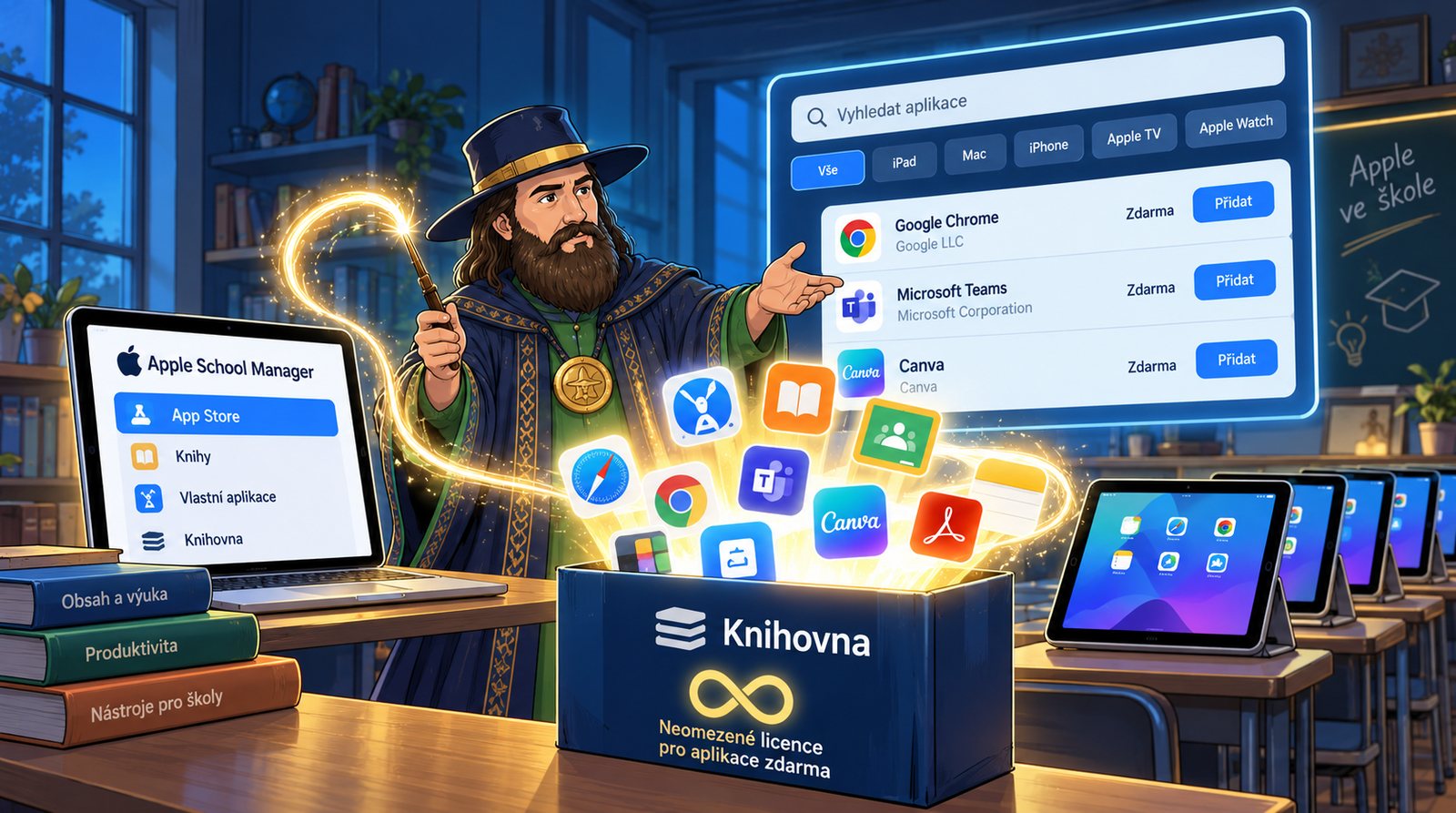
: free apps now have unlimited licences and purchasing has a new look
On 22 October 2026 Apple changed how apps are acquired in Apple School Manager: Apps and Books has been replaced by App Store, Books, Custom Apps and Library. Free apps are simply added to the library and have unlimited licences, paid apps are bought as before. What this means for MDM and how Hanus.ai displays it.
 Apple School Manager
 from A to Z: a guide for Czech schools (2026)
What Apple School Manager is, how a school signs up, how to get iPads and Macs into it, how student Managed Apple Accounts are created from EduPage or Bakaláři, how to buy apps and what schools most often run into. Checked against Apple’s documentation as of October 2026.