
 School device management
Shared iPad at school: one iPad for several pupils and how to set it up
Shared iPad for Czech and Slovak schools: how several pupils safely take turns on one iPad, signing in with a Microsoft or Google account, storage quotas, logging out according to the lesson timetable and a comparison with Mosyle and Jamf. Based on experience from 300+ schools.

Shared iPad at school: one iPad for several pupils and how to set it up
TL;DR for busy ICT coordinators: Most Czech schools do not have an iPad for every pupil, and they do not need one. Shared iPad lets 3 to 8 pupils safely take turns on one device, each with their own account, their own data and their own settings. Pupils sign in with a managed school account and, thanks to federation, they can use the same username and password as for Microsoft 365 or Google Workspace. After logging out, their work syncs to the cloud and next time they can continue on any other school iPad. You need Apple School Manager, an MDM, decent Wi-Fi and iPads registered through ADE. In this guide we look at when Shared iPad pays off, what it can really do, how you set it up in Hanus.ai and how our Shared iPad management differs from Mosyle and Jamf.
One iPad, several pupils: where the problem starts
The average Czech school we know from our work at mdmproskoly.cz has around 55 iPads and several hundred pupils. The “one pupil, one iPad” model is out of budget for most Czech schools and, honestly, a large part of teaching does not even need it.
Reality looks different. iPads travel between classrooms on a trolley, are lent out for specific lessons and in the afternoon for after-school clubs. And this is exactly where a problem every ICT coordinator knows starts: a pupil leaves unfinished work open on the iPad, the next class overwrites it, someone signs in to their personal account and forgets to sign out, another iPad “mysteriously” changes its language or wallpaper. After half a year nobody knows what belongs to whom, and the iPads are “reset” by hand before every lesson.
Apple has an answer to this scenario built into the system: Shared iPad (in Czech “sdílený iPad”). It is one of the most useful and at the same time least understood features of school iPad management. This guide explains it from scratch and without marketing fog, including things a vendor usually will not tell you (for example that Shared iPad settings only take effect once stored pupils have been removed, or that the language of pupil accounts is controlled not by the MDM but by Apple School Manager).
If you are still choosing an MDM or building the whole environment from scratch, start with our complete guide to MDM for schools. This article is its practical follow-up on one specific topic.
1. What Shared iPad is and how it works
Shared iPad is an iPad mode in which several users take turns on one device, similar to a school computer with several accounts. Each pupil has:
- their own sign-in with a managed school account (Managed Apple Account),
- their own separate data: documents, unfinished work, app settings,
- their own disk space (quota), which other pupils cannot see into.
After signing in, the iPad shows the pupil their environment exactly where they left off. After logging out, their data syncs to the cloud and the iPad is ready for the next pupil. Typically, count on 3 to 8 pupils per iPad depending on storage size; we will come to that below.
An important technical minimum: shared mode is not an app or a profile that can be installed later. It is a property of device enrolment. An iPad is activated as shared on first start-up through Automated Device Enrolment (ADE) with an enrolment profile that turns shared mode on. You can only turn a regular iPad into a shared one by activating it again, not with a click in the settings.
2. Pupil sign-in: school account, Microsoft or Google
This is the biggest “aha moment” for most schools. Pupils sign in to a Shared iPad with their Managed Apple Account (a managed school Apple account from Apple School Manager). And if your Apple School Manager is federated with Microsoft Entra ID or Google Workspace (which we strongly recommend for Czech schools), the pupil does not need any new password: they sign in with the same username and password as for Microsoft 365 or Google Workspace.
What a federated account is and why you want it
Federation sounds complicated, but it means a simple thing: connecting your existing school accounts at Microsoft or Google with Apple School Manager. The key point is that with federation Apple does not create new accounts or email addresses. On the contrary, it accepts the existing accounts of your pupils and teachers as its own and turns them into Managed Apple Accounts at the same time. Pupils and teachers keep using their school email and the same password they are used to. Nothing needs to be handed out, nothing needs to be learnt again.
How federation works (and why it is not complicated)
You start federation directly in the Apple School Manager settings. You open the federation section, sign in to Microsoft or Google with administrator rights and confirm the connection in a few clicks. Apple then matches the accounts by the school’s email domain. It is not a week-long project; with a prepared domain it takes minutes.
Federation connects passwords, but the accounts still have to be uploaded
One common misconception: turning on Microsoft or Google federation by itself does not automatically import school accounts into Apple School Manager. Federation makes sure that password verification is redirected to Microsoft or Google, but the list of pupils and teachers (the roster) still has to be uploaded into Apple School Manager. There are two ways to do this:
- Direct integration into Apple School Manager from the school information system (SIS), such as Bakaláři, Edupage or others (school information systems widely used in Czech and Slovak schools).
- A more elegant way: import through Hanus.ai. Hanus.ai is not only a verified SIS for Apple School Manager but also an identity provider (IdP). If the school uses Bakaláři, Edupage and similar systems, a simple CSV export from that system uploaded to Hanus.ai is enough. Within a few minutes this opens the door not only to identifying school accounts and connecting them, but also to the Apple Classroom app (covered separately in the article Apple Classroom in school).
The only change for pupils: a passcode (PIN)
For pupils practically nothing changes, with one exception. When signing in to a Shared iPad for the first time, the pupil creates an iPad passcode (PIN) in addition to their password. Note that this is not the same as the account password: it is a short numeric code the pupil then uses to get into their environment on the Shared iPad quickly. The school decides how long the code should be; the administrator chooses 4, 6 or 8 digits depending on how much emphasis they place on security.
Bonus: 200 GB of iCloud free for everyone
With federation, every pupil and teacher also gets 200 GB of iCloud storage free from Apple (with a regular personal account you would pay a monthly fee for that much space). The device and personal school data are backed up to iCloud: settings, photos, videos, notes, documents. This creates a clear division: iCloud takes care of backing up the device and its content, while Microsoft or Google cloud takes care of school and work documents (OneDrive, SharePoint, Google Drive). The school has its data backed up on two sides, and neither depends on one particular iPad.
Work travels with the pupil
What all this means on an ordinary day:
- A pupil starts a presentation on a computer in the IT room and saves it to OneDrive or Google Drive.
- In the next lesson they take any school iPad, sign in with their school account and continue exactly where they left off. Word, PowerPoint, Google Docs, it is all there.
- After logging out, their work and settings sync to the cloud.
- Next week they can take a completely different iPad from the same trolley. After signing in, they have their own environment again.
So the pupil is not tied to a specific piece of hardware. They are tied to their account, and the account travels with them: between iPads, between classrooms and between an iPad and a computer. For teachers this means the end of the sentence “but I had it on the other iPad”.
For teachers: their own iPad or Mac through BYOD
Federation also opens an interesting option for teachers who already own an iPad or Mac (a private device that is not school property). Thanks to federated accounts, such a teacher simply signs in to their school in the settings of their device. Apple calls this BYOD (Bring Your Own Device) through account-driven User Enrolment.
The result is elegant: the teacher keeps the autonomy and privacy of their own Apple ID, their photos, apps and data, and adds a school part on top. Physically they have two Apple IDs on one device, and the system internally keeps separate worlds, private and school, that do not mix. The teacher no longer has to carry two devices, one private and one school device. They can do everything from their own, while the school sees and manages only the work part. We cover the whole topic in detail in a separate guide, BYOD at school: a teacher’s private iPad or Mac in teaching, including what the school can and cannot see on a private device.
In addition to signing in with an account, Shared iPad also offers a guest session: a pupil without an account (or a visitor, enrolment day for incoming first-graders, an after-school club) borrows an iPad without signing in, and all their data is deleted when the session ends. We will come back to how guest mode suits exams below.
3. When Shared iPad pays off (and when it does not)
From our work in schools, three typical scenarios emerge where Shared iPad makes the most sense:
An iPad trolley that travels between classes
The most common Czech scenario. 20 to 30 iPads on a trolley, class 4.A in the morning, 7.B after the break, a robotics club in the afternoon. Without shared mode, classes overwrite each other’s data. With shared mode, each group signs in to its own accounts and the iPads stay “clean”.
A small school or a smaller budget
For a small village school (in Czech “malotřídka”, where several year groups share one classroom) or a school on a tight budget, 10 iPads for 60 pupils is a perfectly workable model with shared mode: 6 pupils per iPad, each with their own space. For the price of one 1:1 class you can cover the whole school.
Specialist classrooms and libraries
iPads that belong to a room, not to a pupil: a language classroom, a science lab, the school library. A pupil comes in, signs in, works, logs out.
When Shared iPad does not make sense
Let us be fair, shared mode is not a universal answer:
- A 1:1 programme at lower secondary level (years 6 to 9) and in secondary schools, where pupils take the iPad home. Personal (1:1) enrolment belongs there; shared mode brings nothing extra.
- Nursery schools and first-year classes without accounts. If the children do not have accounts, a single shared “class” mode or a guest session is simpler.
- Very weak Wi-Fi. Shared iPad syncs pupil data to the cloud; without a decent network, signing in will be slow. What to do about it is covered in the complete guide in the chapter on network infrastructure.
4. What you will need
Checklist before deploying Shared iPads:
- Apple School Manager (ASM) (how to set it up) with pupil accounts created (ideally federation with Microsoft Entra ID or Google Workspace, or import via SIS/CSV).
- An MDM with Shared iPad support (Hanus.ai, but also Mosyle or Jamf, comparison below).
- iPads with enough storage. The minimum for shared mode is 32 GB, but in practice the rule is: the more pupils per iPad, the more space. On a 32 GB iPad, the system and apps take up most of the storage, leaving roughly 10 to 15 GB for pupils.
- Good Wi-Fi. Signing in and syncing pupil data runs over the network.
- iPads in Apple School Manager. The easiest way is to buy from an Authorised Apple partner: the device is added to Apple School Manager automatically and goes straight through ADE (Automated Device Enrolment). An iPad bought elsewhere can be used, but adding it to Apple School Manager is a slower, manual process (via Apple Configurator). That is why we always recommend buying from an Authorised Apple partner.
In ASM it is also a good idea to check the organisation language. A little-known detail: the language of pupil accounts on a Shared iPad is controlled neither by the MDM nor by the device settings, but by the organisation language in Apple School Manager. If it is set to English (US) there, pupils will see an English environment even on an iPad set to Czech.
5. How to set up Shared iPad in Hanus.ai
Now the main part. Any decent MDM can turn on shared mode. The difference is in what happens next: how pupils are logged out, how disk space is monitored, how iPads behave during breaks and who has to handle all of it manually. In Hanus.ai we built Shared iPad management around the real day-to-day running of a Czech school. You will find the “Shared iPad” profile in the device group settings, and here is what it can do. An overview of all other features is on the Features page.
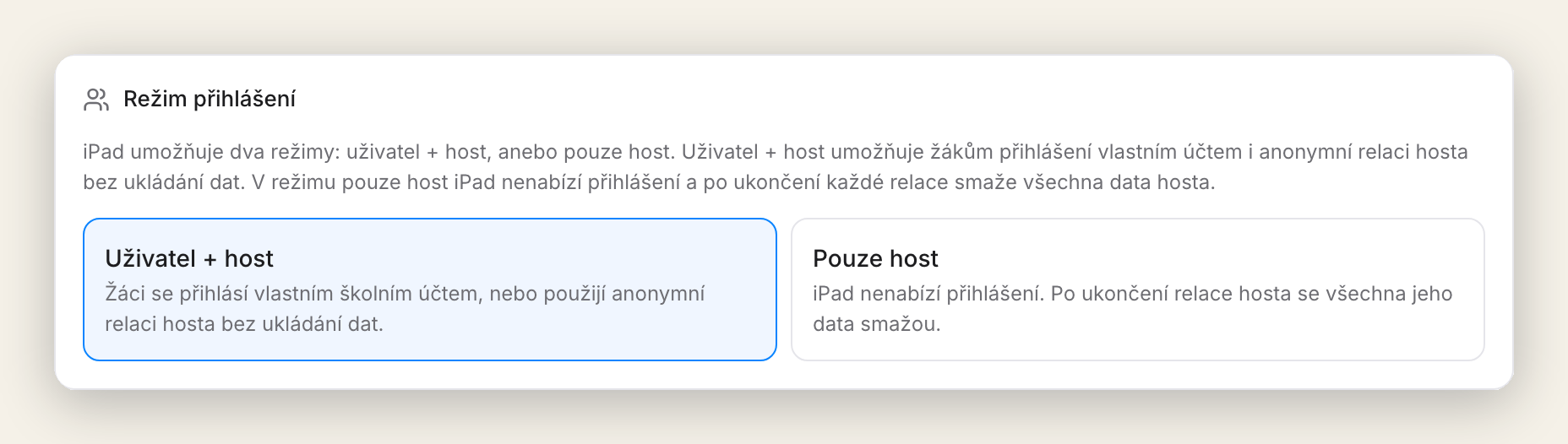
Sign-in mode: user + guest, or guest only
- User + guest: pupils sign in with their own school account, or use an anonymous guest session without saving data. The standard for regular teaching.
- Guest only: the iPad does not offer sign-in and deletes all guest data after each session ends. Suitable for visits, open days and above all exams: combined with online verification at every sign-in, you can be sure that no pupil data remains on the iPad.
Logging pupils out according to the lesson timetable
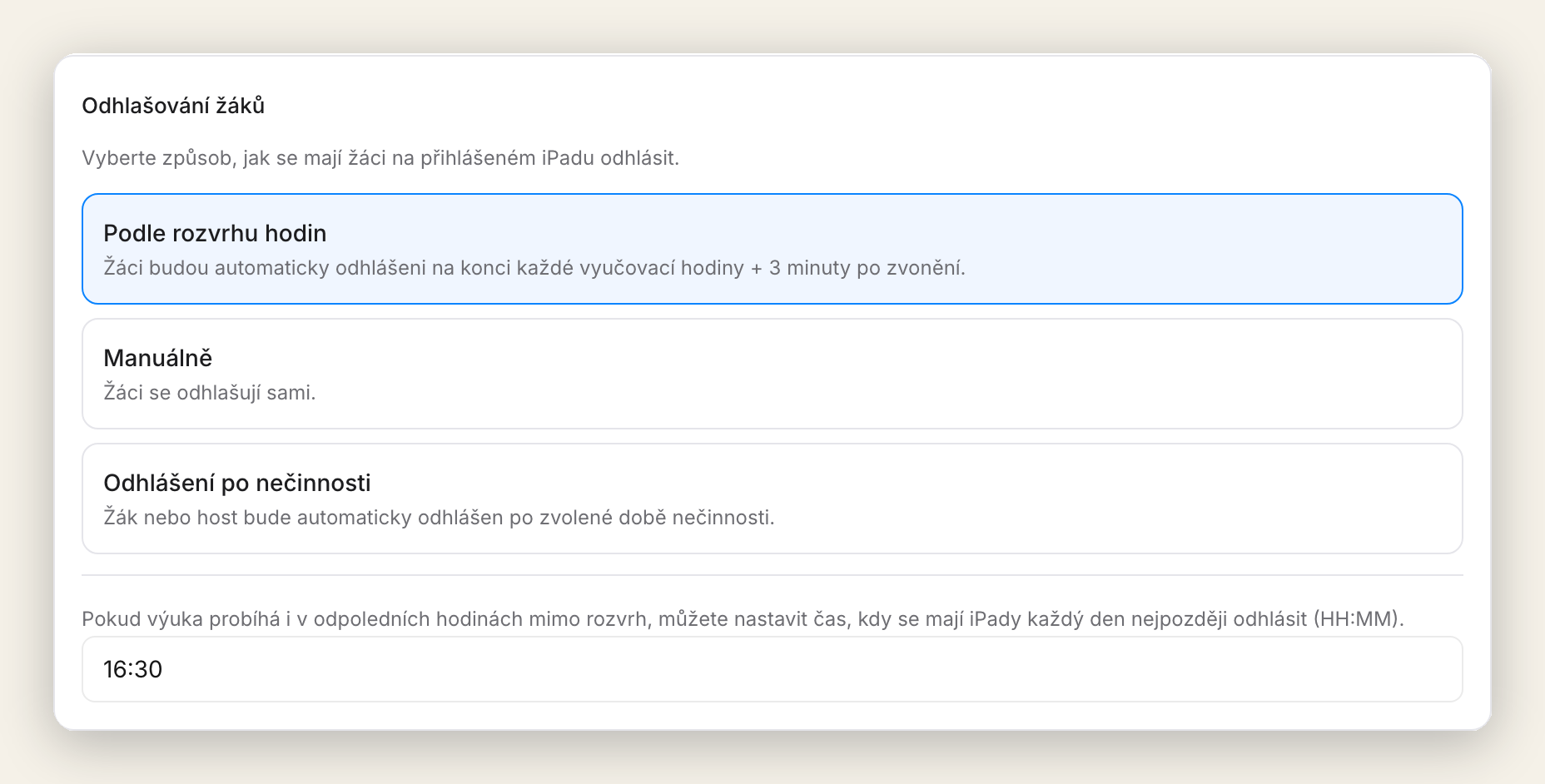
This is a feature we have not seen anywhere else, and it came directly from the requirements of Czech schools: Hanus.ai knows your lesson timetable and automatically logs pupils out at the end of every lesson. The next class always gets “clean”, ready iPads, without going round the trolley and logging out by hand.
A small side note: as part of digital skills, we should teach pupils to always log out themselves from a device, whether it is a computer or a tablet. It is one of the basic habits, like washing your hands before eating. The reality, though, is that it cannot always be checked. That is exactly why we tied automatic logout to the timetable: it works as a safety net in case a pupil does not log out, so that their signed-in session does not stay on the iPad for the next person.
Alternatives as needed: you leave logging out to the pupils (manually), or you set logout after inactivity separately for a signed-in pupil and for a guest. On top of that there is an end-of-day safety net: if teaching also runs in the afternoon outside the timetable, you set a time by which the iPads log out every day at the latest, so that nobody stays “stuck” in them overnight.
Booking iPads for several consecutive lessons
Hanus.ai has its own booking calendar, which every teacher can access after signing in with their school account. The school can use it to book and keep records of loans not only of iPads but of any school equipment (laptops, cameras, measuring kits, sports equipment and so on). The Hanus.ai booking system and teacher portal is a web app, so teachers can access it from any device: Windows, Mac, iPad, iPhone and Android.
When a teacher books iPads for two consecutive lessons, the system itself offers the option “Don’t log out pupils between lessons”: the session survives the break and logout happens only at the end of the whole block.
For signed-in pupils, data is not at stake here. Even if they logged out at the end of the lesson and signed in again in the next one, their unfinished work would come back thanks to the cloud. This option therefore makes the most sense for a guest session. So if the class works as guests (for example a two-lesson workshop for a group that does not have school accounts yet, or a one-off activity where you do not want to deal with sign-in), “don’t log out between lessons” is exactly what ensures they do not lose the work from the first lesson during the break. After the booking ends, the usual timetable-based logout applies again.
And one more clarification, so that guest mode does not sound worse than it really is. A guest session does not necessarily mean the pupil loses their data. A guest session by itself does not create backups linked to a specific pupil, but during the session it allows signing in to school apps (for example Google or Microsoft) and working in them normally, downloading and saving data to school clouds. The key difference compared with a signed-in pupil is this: as soon as the guest session ends, everything that was physically created on the iPad is deleted, but whatever the pupil sent to their school clouds during the lesson (OneDrive, Google Drive) stays in the cloud.
Space for pupils: quotas with recommendations from real data
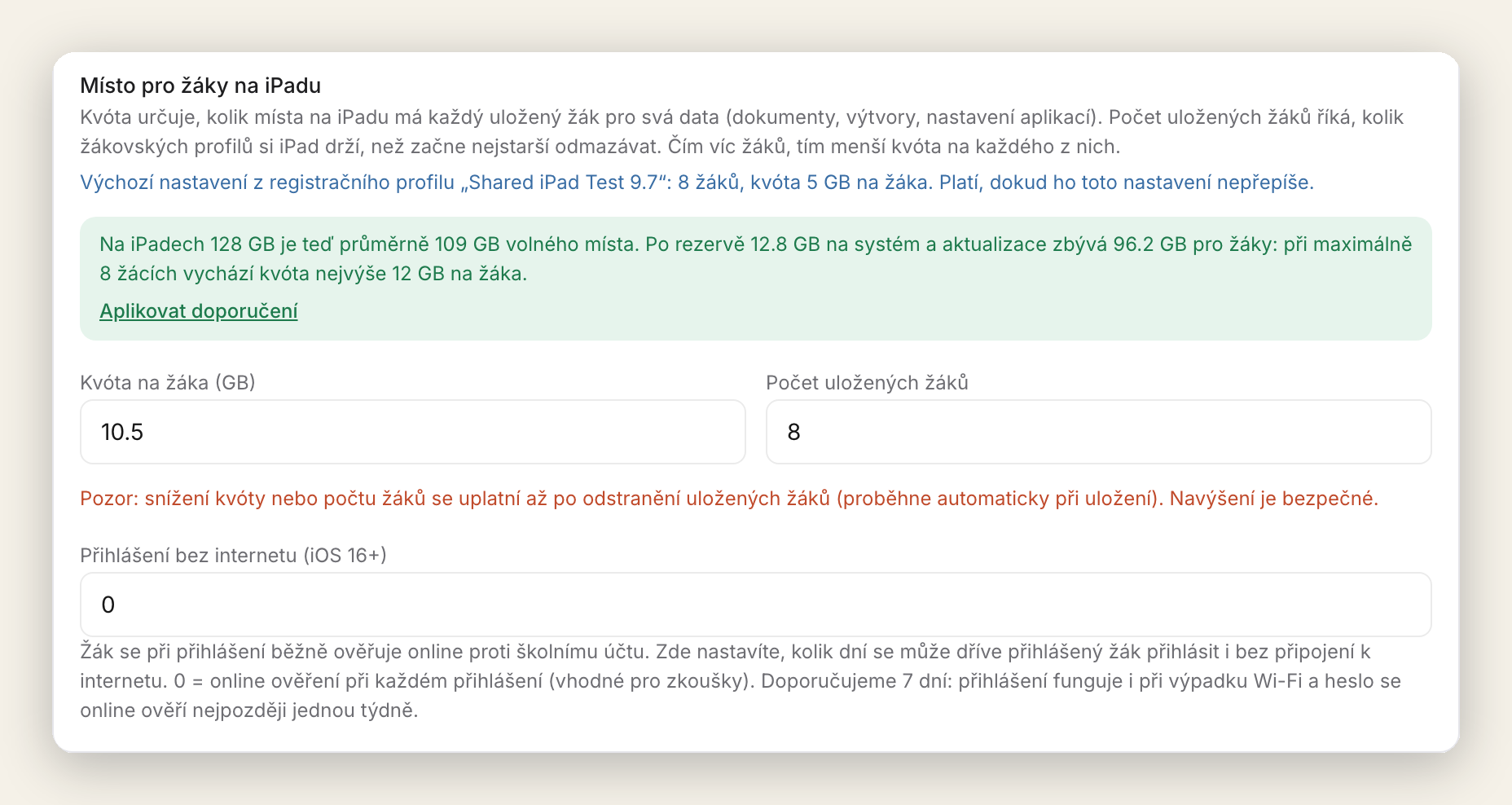
Each stored pupil gets a quota on the iPad, meaning reserved space for their data. And this is where people often stumble: how much to set on a 32 GB iPad and how much on a 128 GB one? Hanus.ai calculates it for you:
- When a group mixes sizes (for example 5× 32 GB and 3× 128 GB), you set the quota and number of pupils separately for each size, and each iPad gets values according to its storage.
- The system also knows the real free space on your iPads and shows a recommendation: “The 32 GB iPads currently have 14 GB of free space on average. After a reserve for the system and updates, 10.8 GB is left for pupils: with a maximum of 5 pupils, the quota comes to at most 2 GB per pupil.” With one click on Apply recommendation you take over the values.
- You can also see the default values from the enrolment profile, so you know what applies until you overwrite them.
A real-world case: Shared iPad even on 32 GB devices. Our customers include, for example, Základní škola Kosoř and ZŠ a MŠ Uherské Hradiště, Palackého náměstí (both primary schools). Both schools not only use Shared iPad mode but also have iPads with 32 GB of storage in their fleet. At first glance it might seem that such a low capacity would hit a limit, but the opposite is true: even a 32 GB iPad is far from ready for the scrap heap. These schools have around a hundred apps in their catalogue and hundreds of pupils, and yet they work very well in Shared iPad mode with pupils’ own accounts. The key is the right settings: on 32 GB devices you need to keep an eye on the number of apps you really need on the iPad, and above all choose the quota per pupil and the maximum number of stored pupils well. When the system and apps take up most of the storage, only the rest is left for pupils, so fewer stored pupils with a smaller quota is the better choice here than the full number.
And this is exactly where the AI capabilities of Hanus.ai help a lot. Hanus.ai looks at the current storage usage of specific iPads and recommends the maximum sensible quota per pupil and number of stored pupils by itself. Our tip for getting started: before you start setting up Shared iPad, first install the apps you really need. Once the iPad is in the state in which it will run for real, Hanus.ai has a clear picture: it suggests the optimal settings and all you have to do is confirm them with one click.
Sign-in screen: how a pupil gets in
The most convenient sign-in for pupils comes when the school uses Apple Classroom with its Shared iPads (a combination of importing pupils from Bakaláři, Edupage and similar systems and launching Apple Classroom through the MDM, covered separately in the article Apple Classroom in school). The iPad sign-in screen then shows individual classes and, in each of them, the names of the assigned pupils. The pupil just finds their class, taps their name and signs in with their PIN. No typing of email addresses, ideal even for the youngest pupils.
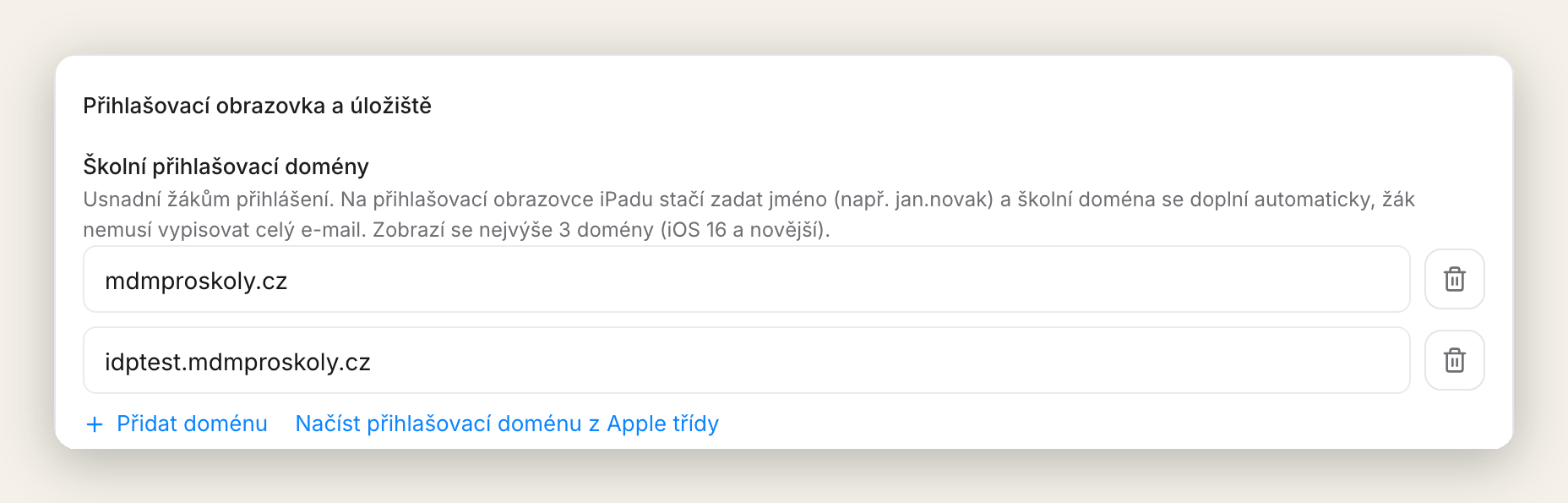
And this is where domain completion comes in. You set the school sign-in domains, and anyone who signs in manually only needs to type their name on the screen (for example “jan.novak”); the school domain is added automatically. This is useful in two situations: when a pupil or staff member who is not assigned to any class signs in to a Shared iPad, and when the school does not use Apple Classroom at all. Hanus.ai can load the domain directly from your Apple Classroom setup; for a new school it is pre-filled automatically.
Signing in without internet
A Wi-Fi outage must not stop a lesson. That is why you can set how many days a pupil who has signed in before can also sign in offline. We recommend 7 days: sign-in works even during a network outage, and the password is verified online at least once a week. For exams, on the other hand, you set 0, meaning online verification at every sign-in.
Overview: who is on which iPad
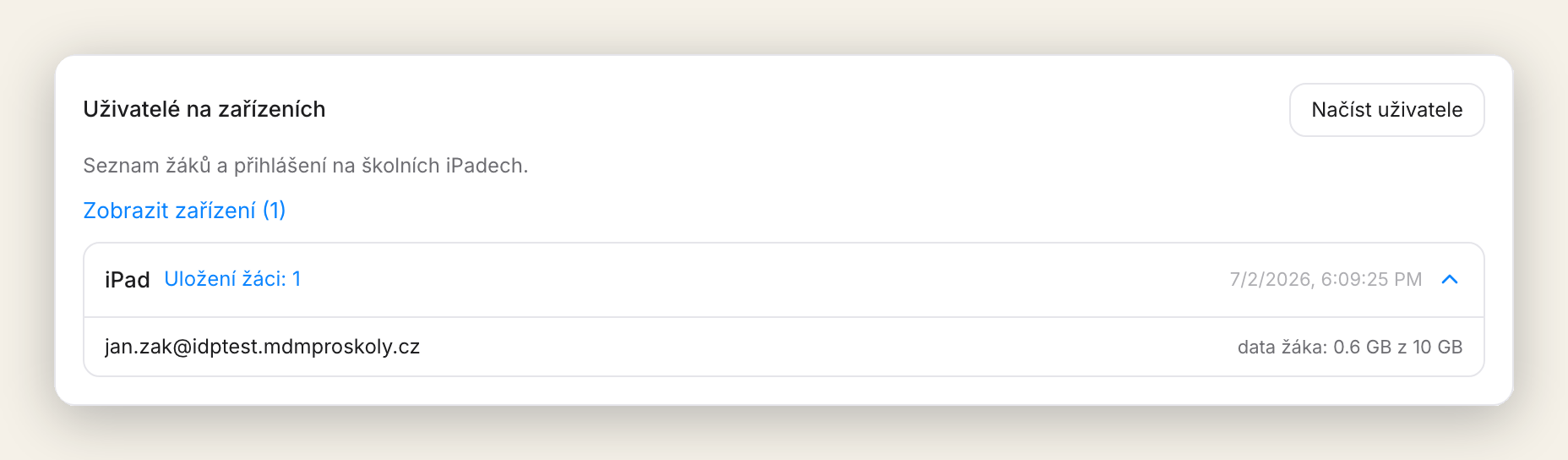
The “Users on devices” section shows a live overview: which pupil is currently signed in on which iPad, how many pupils an iPad has stored and how much of the quota each one takes up. When something gets lost or broken, you know within seconds who was working on the device.
Manual actions and automation that saves steps
Two buttons for immediate action: Log out all pupils (for example before a staff meeting or at the end of the day) and Remove stored pupils (deletes local copies of data; pupil accounts and cloud data remain).

And above all: Apple has a rule that changes to Shared iPad settings only take effect when the device has no stored pupils. With other MDM providers this means a manual sequence of “log out, delete, send again”. Hanus.ai does this automatically on every save: it logs out, cleans up and sends the new settings. You just click Save.
The same automation applies to the whole life cycle: a new iPad added to the group takes over the complete Shared iPad settings, including quotas according to its size, and when a group is moved or deleted, the settings are cleaned up again. Nothing has to be done by hand.
The whole setup is, of course, fully in Czech, including explanations for every option. And because Hanus.ai is Assisted Device Management (ADM), you can ask the AI assistant Hanuš at any time in Czech (“how do I set up guest mode for exams?”) and you get an answer based on your school’s data and settings, not a generic guide.
6. Shared iPad in Mosyle and Jamf: what is the difference
Both Mosyle and Jamf have basic Shared iPad support; both are high-quality global MDMs. If you are choosing, look at two things: what they cost and how much of the day-to-day running of Shared iPads they automate for you.
| Area | Hanus.ai | Mosyle / Jamf |
|---|---|---|
| Turning on shared mode, quotas, guest mode | Yes | Yes |
| Logout according to the Czech lesson timetable | Yes | According to public documentation there is no equivalent; manual logout and logout after inactivity are available |
| iPad booking by teachers + no logout between lessons | Yes, included in the licence | According to public documentation there is no equivalent |
| Quota recommendations from real free space | Yes | You set quotas manually |
| Automatic application of changes (log out, clean up, send again) | Yes, one Save button | Usually a manual procedure |
| Interface and support in Czech | Yes, fully | No |
| Integration with Czech SIS (Bakaláři, Edupage) | Yes, CSV import, verified SIS for Apple School Manager and identity provider (IdP) | According to public documentation they have no native integration with Czech SIS; the roster is uploaded through generic routes (SFTP, OneRoster) |
| Price for a school with 50 iPads per year | €330, a single price of €6.60 per device incl. VAT, Mac and Apple TV free, no add-on modules | Mosyle (public price list): Manager Premium approx. €291, the more expensive ONE K12 approx. €476 (converted from $5.50 and $9 per device). Jamf does not publish school prices: the basic version starts at roughly $5.50 per device (approx. €291 for 50), higher versions (Enhanced, Ultimate) and the Jamf Safe Internet add-on cost considerably more and Jamf prices them only on individual request. Payment by card in USD, exchange rate €0.8602/USD, prices incl. Slovak VAT of 23% |
One significant difference is in the pricing model. Both Mosyle and Jamf have tiered versions: the basic version is cheaper, and you pay extra for the full feature set (a higher version, and with Jamf also the separate Jamf Safe Internet add-on). Mosyle publishes its school prices, Jamf provides them only on individual request. Hanus.ai has a single, uniform price of €6.60 per device per year incl. VAT, which includes everything: Shared iPad, app management, timetable, booking, AI assistant. No higher tiers, no add-on modules, no working out what each version can do. What is more, you pay only for the most numerous device type, so Mac and Apple TV are free.
The feature comparison is based on both vendors’ public documentation as of 2 July 2026. Mosyle prices are from the public price list (school.mosyle.com). Jamf does not publish school prices; the amounts given are an indicative conversion from publicly available estimates. Before buying, ask Jamf for an individual quote. A detailed and honest comparison, including where Mosyle and Jamf are stronger, can be found on our pages Mosyle vs Hanus.ai comparison and Jamf vs Hanus.ai comparison.
7. Common mistakes when deploying Shared iPads: TOP 5
1. Underestimating storage
A 32 GB iPad with 10 stored pupils is a recipe for frustration: quotas come out tiny and the iPad is permanently full. On 32 GB count on a maximum of 5 pupils, on 64 GB 8, on 128 GB and more 10.
2. Personal Apple IDs instead of managed accounts
Shared iPad works only with managed school accounts from ASM. If pupils currently use personal Apple IDs, you will first need to sort out the accounts. We describe how in the complete guide.
3. Expecting a regular iPad to become shared without erasing it
It will not. Shared mode is turned on when the device is activated, so switching to shared mode always means erasing the iPad and letting it go through Automated Device Enrolment (ADE) again. In Hanus.ai, however, you can do this remotely with one action, Switch to Shared iPad: the iPads erase themselves, connect to Wi-Fi, set themselves up and return to management as shared devices, without anyone having to stand next to them. We describe how it works in the article From teacher iPad to shared pupil iPad in one click. Erasing and reinstalling apps puts a load on Wi-Fi, so plan larger batches outside teaching hours.
4. English environment on pupil accounts
A classic: the iPad is in Czech, but pupils see English after signing in. The cause is not in the MDM but in the organisation language in Apple School Manager. Check Organisation Settings, Time Zone and Language.
5. No rules for logging out
If you leave logging out purely to the pupils, you end up with iPads that have pupils signed in overnight and unfinished work locked away. But it is not only about convenience. An open session means that anyone else who picks up the iPad gets access to the pupil’s account, files and email. That is a direct problem for personal data protection (GDPR): a stranger sees data that does not belong to them. And it also opens the door to identity misuse and cyberbullying, when someone sends a message, deletes work or pretends to be someone else under the name of the signed-in pupil. So do not take logging out lightly: set logout according to the timetable, or at least the end-of-day safety net.
8. Frequently asked questions
Can a regular iPad be made shared without erasing it?
No. Shared mode is turned on when the iPad is activated through Automated Device Enrolment (ADE), so switching to Shared iPad always means erasing the iPad. In Hanus.ai, however, you can do this remotely with one action, Switch to Shared iPad: the iPads erase themselves, connect to Wi-Fi, set themselves up and return to management as shared devices. The procedure is described in the article From teacher iPad to shared pupil iPad in one click.
How do I automatically log pupils out of a Shared iPad after a lesson ends?
Turn on timetable-based logout in Hanus.ai, which automatically logs pupils out at the end of every lesson. It is set in the Shared iPad profile in the device group settings. As alternatives, Hanus.ai offers logout after inactivity and the end-of-day safety net, meaning a time by which the iPads log out every day at the latest.
Why do pupils see English on a Shared iPad even though the iPad is set to Czech?
Because the language of pupil accounts on a Shared iPad is controlled neither by the MDM nor by the device settings, but by the organisation language in Apple School Manager. If English (US) is set there, pupils will see an English environment after signing in. You fix the language in Apple School Manager in Organisation Settings, in the Time Zone and Language section.
Can a pupil without a school account use a Shared iPad?
Yes, through a guest session. A pupil without an account, a visitor or an after-school club borrows the iPad without signing in, and when the session ends, everything created on the iPad is deleted. Whatever the pupil saves to the school cloud (OneDrive, Google Drive) during the session stays in the cloud. Guest only mode is also suitable for exams.
What is Shared iPad?
An iPad mode in which several pupils take turns on one device. Each signs in with their own school account and has separate data, settings and reserved disk space. It requires Apple School Manager, an MDM and device activation through ADE.
How many pupils fit on one Shared iPad?
In practice 3 to 8 depending on storage: for a 32 GB iPad we recommend at most 5 stored pupils, for 64 GB up to 8, for 128 GB and larger up to 10. Hanus.ai recommends the quota and number of pupils based on the real free space on your devices.
Can pupils sign in with a Microsoft or Google account?
Yes. When you federate Apple School Manager with Microsoft Entra ID or Google Workspace, pupils sign in to a Shared iPad with the same username and password as for Microsoft 365 or Google Workspace. No new password, no additional account management.
Will a pupil see their work on another iPad?
Yes. After logging out, the pupil’s data syncs to the cloud. At the next sign-in, even on a completely different school iPad, the pupil continues where they left off. Documents in OneDrive or Google Drive are also available to them on a school computer.
Does Shared iPad work without internet?
Signing in a new pupil requires internet. However, a pupil who has signed in on the iPad before can also sign in offline for a period you set (we recommend 7 days). A Wi-Fi outage will not stop the lesson.
Can Mosyle or Jamf do Shared iPad too?
Yes, they have basic support. The difference is in automation for Czech schools: logout according to the lesson timetable, booking for several consecutive lessons, quota recommendations from free space and a fully Czech interface are only found in Hanus.ai. Details in the comparison with Mosyle and the comparison with Jamf.
How much does Shared iPad management with Hanus.ai cost?
The same as Hanus.ai as a whole: a single price of €6.60 per device per year incl. VAT, invoiced in euros. For a school with 50 iPads that is €330 a year, with Mac and Apple TV free on top. Shared iPad is part of the licence, with no higher tier or add-on module. Both Mosyle and Jamf have a cheaper basic version and more expensive higher versions; with Jamf you also pay by card in USD and only get an exact price on individual request. You can work out the price for your school in the price list.
Conclusion: where to start
For most Czech schools, Shared iPad is the most sensible way to get the most out of a limited number of iPads: every pupil has their own account and their own data, and the school has order and an overview.
What to do right now
- Work out your pupil to iPad ratio. If it comes out higher than 1:1, shared mode is probably for you.
- Check the accounts in Apple School Manager and consider federation with Microsoft 365 or Google Workspace.
- Check your iPads’ storage (32 GB means fewer pupils per device) and the state of your Wi-Fi.
- Try the setup in practice. Hanus.ai gives you the full version free for 45 days; you can set up Shared iPads, including timetable-based logout, in an afternoon.
If you are not sure whether shared mode is right for your school, get in touch; over 4 years and 300+ schools we have helped make similar decisions many times. And if you want to see the overall picture of Apple device management at school, continue to the complete guide to MDM for schools or to the price list.
Verified as of 2 July 2026. Sources: Apple: Shared iPad documentation, Apple School Manager User Guide, experience from 300+ schools at mdmproskoly.cz.
You might also like
 MDM basics
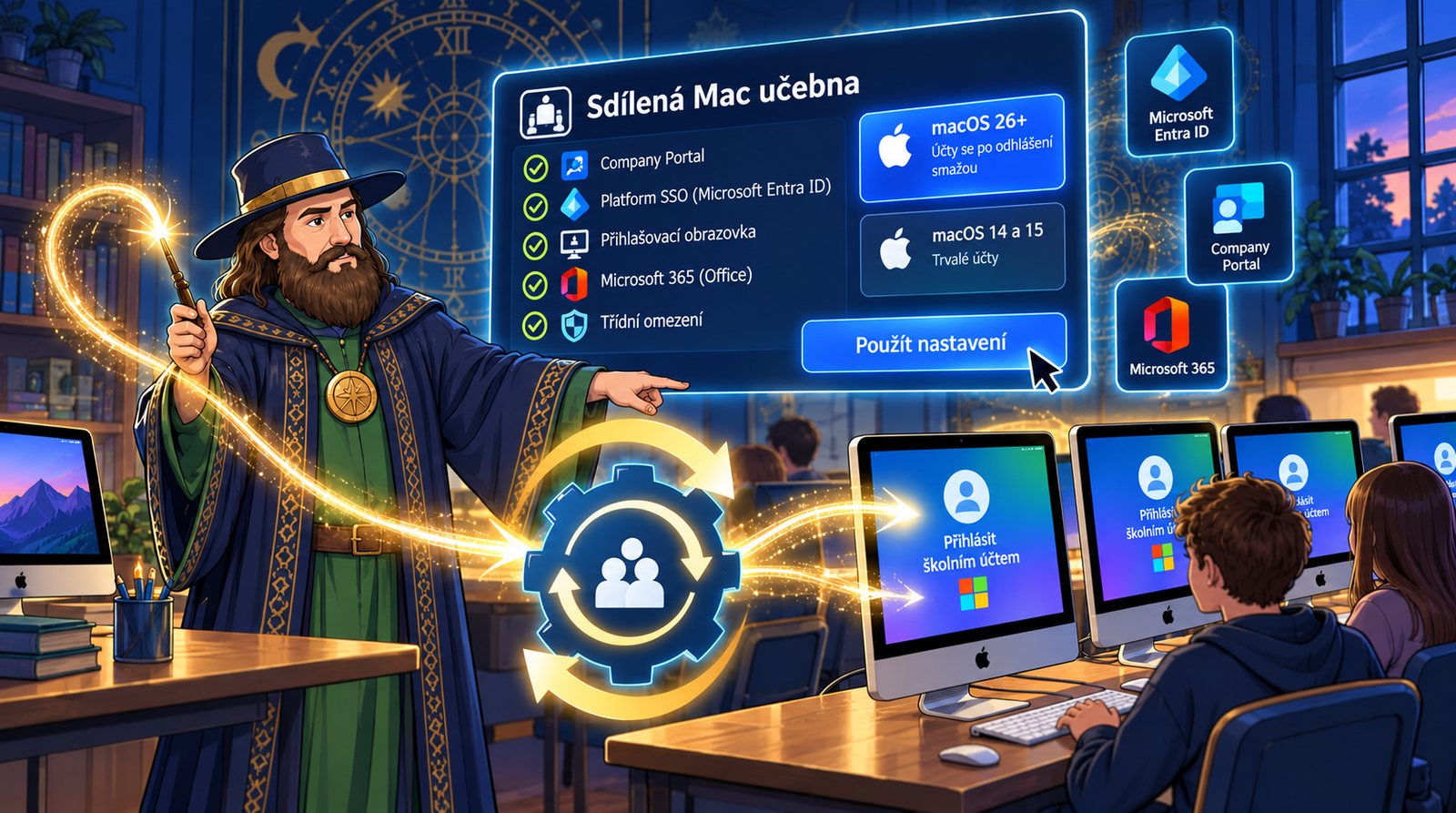
Shared Mac classroom: set up sign-in with a school Microsoft account from a single card
New in Hanus.ai: the Shared Mac Classroom card sets up Company Portal, Platform SSO with Microsoft Entra ID, the login screen, Office and classroom restrictions all at once. A new Mac from Apple School Manager can register as early as Setup Assistant (macOS 26). A comparison with the manual procedure from public guides.
 MDM basics
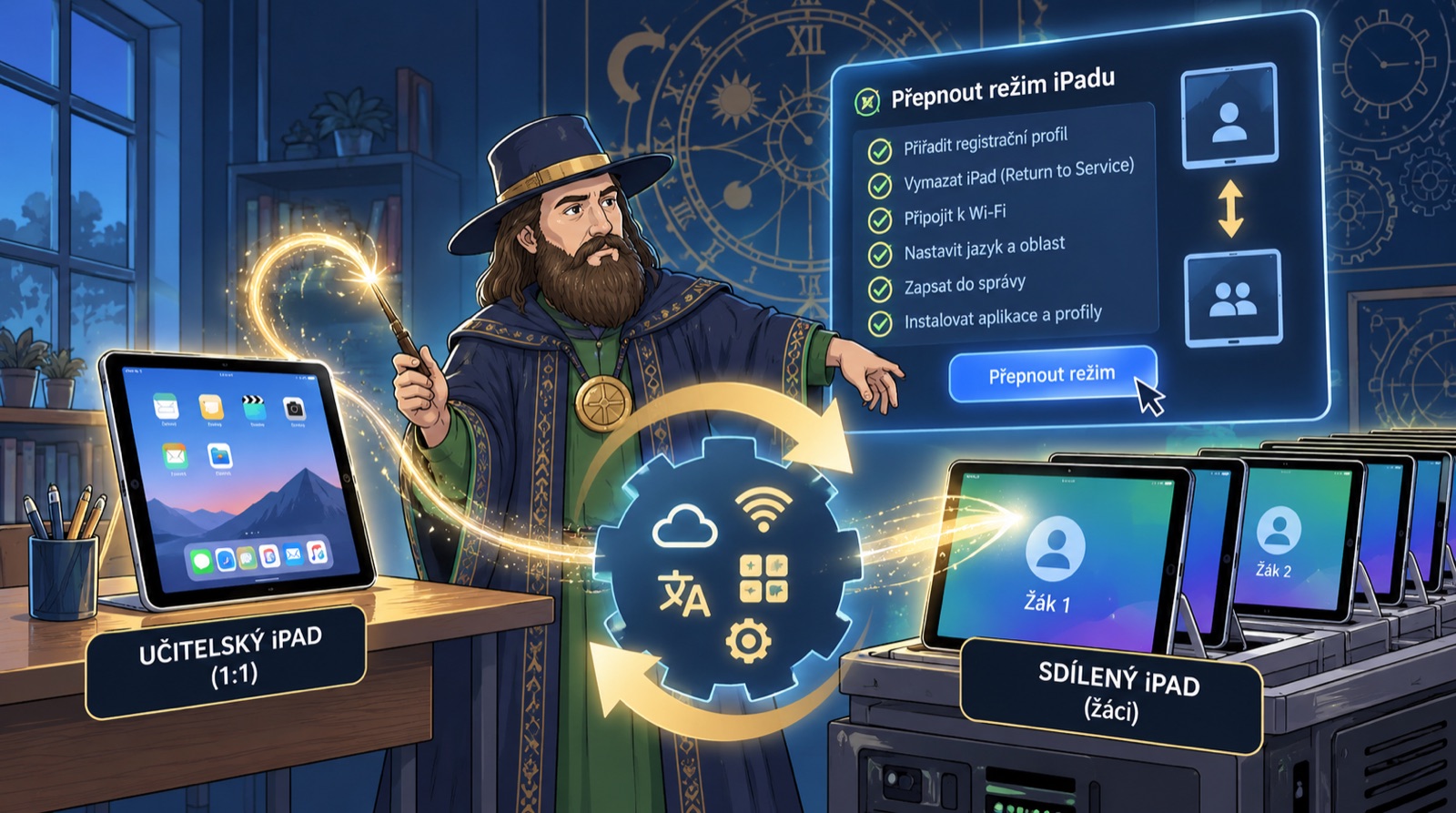
From teacher iPad to shared pupil iPad in one click: switching modes without manual work
Hanus.ai switches an iPad from single-user mode (1:1) to Shared iPad and back with one action in the console. The iPad erases itself, connects to Wi-Fi, sets the language, enrols back into management and receives its group’s apps. No walking round to the iPads, even for hundreds of devices at once.
 MDM basics
Apple Classroom in school: how a teacher runs a lesson with iPads
Apple Classroom in practice: live viewing of the whole class’s screens, locking pupils into one app during a test, what works only in the classroom and what also works remotely, who decides on pupil privacy and how the connection to Apple School Manager works through Hanus.ai.