
 School device management
Apple School Manager from A to Z: a guide for Czech schools (2026)
What Apple School Manager is, how a school signs up, how to get iPads and Macs into it, how student Managed Apple Accounts are created from EduPage or Bakaláři, how to buy apps and what schools most often run into. Checked against Apple’s documentation as of October 2026.

Apple School Manager from A to Z
In short: Apple School Manager (ASM) is Apple’s web portal at school.apple.com. In it, a school keeps a record of its devices, creates Managed Apple Accounts for students and teachers, buys apps and books in volume and decides which device management system (MDM) will control its iPads and Macs. It does not configure anything on the devices itself; that is the MDM’s job. Sign-up is open to primary, secondary and higher education institutions, verification takes several working days and you need a second person for verification, usually the head teacher. The most common mistakes: the wrong order of steps for the domain and federation, devices released from ASM before a repair, and editing accounts directly in ASM when a school information system is connected. We checked everything below against Apple’s documentation as of 6 October 2026.
What Apple School Manager is and what it is not
Apple School Manager is the school’s central record with Apple. It contains four things:
- Devices the school has bought, and which management system each one belongs to.
- Managed Apple Accounts for students and teachers (formerly Managed Apple IDs).
- App and book licences bought in volume.
- Classes and courses, which the Apple Classroom and Schoolwork apps then draw on.
Apple describes it as a portal that works with a third-party device management service. This matters: ASM itself does not configure anything on iPads, install apps or lock the App Store. That is done by the MDM, for example Hanus.ai. ASM only says “this iPad belongs to the school and is managed by this MDM”.
Two common misconceptions:
- ASM is not a shop. You do not buy devices through it. The school buys them from a reseller in the usual way and only then do they appear in ASM.
- ASM is not an MDM. Without an MDM you will see a list of serial numbers in it, but you will not be able to manage the iPads.
It supports iPad, iPhone, Mac, Apple TV, Apple Vision Pro and Apple Watch. Apple provides it free of charge.
Who can have ASM and how a school signs up
Sign-up takes place at school.apple.com. During sign-up you choose the type of organisation: primary and secondary schools (Apple calls them K-12) or higher education. ASM is available in both Czechia and Slovakia.
What you will need:
- A first administrator who is a real person with a real name. Apple sends accounts such as “ICT coordinator” or “IT department” back for correction.
- An email address for the first administrator that has never been used as an Apple Account (App Store, iCloud). It also must not be on a domain that another organisation has already verified with Apple.
- A verification contact, a different person from the one submitting the sign-up. Usually the head teacher or the school’s statutory representative. Apple may contact them by phone during verification, and they then confirm the administrator by email.
- School details: official name, address, website, time zone.
- An Apple customer number or reseller number, depending on where the school buys its devices.
The D-U-N-S number that Apple asks businesses for is not among the requirements for schools.
How long it takes: according to Apple, several working days, depending on the number of requests. Return a missed call from Apple as soon as possible and allow mail from all apple.com domains so the verification email does not end up in spam. If the school misses the verification deadline, Apple deletes the organisation along with all its data.
The first five things to do after sign-up
- Add a second administrator. You can add up to four more alongside the first. If the only administrator falls ill or leaves, the school cannot get into its ASM.
- Verify the school’s domain (for example
skola.cz). Verification is done with a TXT record in DNS and you have 14 calendar days for manual verification, otherwise you start again. Without a verified domain, accounts on the school address cannot be created, and neither federation nor connecting the school information system will work. A school without its own domain gets a substitute domainname.appleaccount.com, which cannot be changed later. - Go through Locations. The first location is created automatically and corresponds to the school. Others are useful only for multiple buildings or school units. Each location has its own password policy.
- Assign roles. The default roles are Administrator, Site Manager, People Manager, Device Enrollment Manager, Content Manager, Manager, Staff, Instructor and Student. Anyone without the Student role must be an adult.
- Accept the updated terms and conditions. Until an administrator confirms the new wording after a change to the terms, most ASM features do not work. This is the most common reason why “ASM stopped syncing”.
How iPads and Macs get into ASM
Buying from an authorised reseller
The simplest route. You give the reseller your Organisation ID from ASM and add their reseller number to your suppliers in ASM. The reseller then registers the devices against your order. Note: this only happens when the reseller submits the order in their portal; it is not automatic. If you cannot see the iPads in ASM after delivery, contact the reseller first.
Devices bought elsewhere: Apple Configurator
iPads and Macs that the school bought outside the authorised channel can be added to ASM manually with the Apple Configurator for iPhone app (or for Mac). The iPad must be stopped at the Wi-Fi selection screen in Setup Assistant, the Mac at the country selection. The Mac must have Apple silicon or a T2 chip.
Devices added this way have a 30-day provisional period: after assignment to an MDM, the user can release them from ASM, supervision and management themselves within 30 days. After 30 days this is no longer possible.
Assigning to an MDM
Every device in ASM must be assigned to a device management server (your MDM). Default assignment by device type saves you time: in Preferences you set all new iPads and Macs to go to your MDM automatically. It applies only to newly added devices; existing ones need to be assigned manually once. You can assign manually by order number, type, capacity or serial numbers, up to 1,024 at a time.
The token (the file that links ASM with the MDM) is valid for one year and ASM may not notify you when it expires. In Hanus.ai we show its validity and warn you a month in advance.
Releasing a device: careful, it cannot be undone
A released device disappears from ASM. You can only get it back through the reseller or Configurator, and it has to be erased again. Apple explicitly warns: do not release a device that is going in for repair. A replacement unit would not appear in your ASM.
Managed Apple Accounts for students and teachers
A Managed Apple Account is a school Apple account owned by the school, not the student. What Apple gives it and what it does not:
- 200 GB of free iCloud storage for each account.
- A student can have a 4 or 6 digit passcode; other roles have a standard password (at least 8 characters, letters and numbers). After ten failed attempts the account is locked.
- No purchases. You can only browse the App Store, Apple Books and iTunes; you cannot buy anything or download anything, not even free items. The school delivers apps through the MDM.
- No Apple Music, TV+, Arcade, iCloud Mail, Family Sharing or Find My.
- iMessage and FaceTime work but are turned off by default. The administrator can turn them on for everyone or only for communication within the school.
Managed Apple Accounts are a prerequisite for Shared iPad, where several students take turns on one iPad. We describe how this works in practice in the article Shared iPad in school.
How accounts are created
ASM offers five routes:
| Route | When it suits | What to watch out for |
|---|---|---|
| Manually in ASM | a few teachers, testing | not practical for hundreds of students |
| CSV files via SFTP | one-off upload | you must send all files with every upload; a missing record deactivates the account |
| Connecting the school information system (SIS) | ongoing synchronisation | Apple mainly connects American systems; neither Bakaláři nor EduPage is on the list |
| Federation with Microsoft or Google | the school already has Microsoft 365 or Google Workspace | only one federation at a time; administrators do not sign in through it |
| Directory sync | large schools with Entra ID | groups are not synchronised |
Czech and Slovak specifics: Apple connects school information systems through the Claris Connect service, and its list includes systems such as PowerSchool or Infinite Campus. Neither Bakaláři nor EduPage (the school information systems most widely used in Czech and Slovak schools) is there. Anything that speaks the OneRoster standard can connect.
This is exactly where Hanus.ai helps. To Apple School Manager, Hanus.ai behaves like a school information system. You upload an export from EduPage to Hanus.ai (for Bakaláři we help with the conversion), you edit accounts and classes with us and ASM pulls them itself via OneRoster. In ASM you then only need to copy in four details once: the API address, the client ID, the client secret and the token endpoint address.
The school chooses from three sign-in modes for students, and account synchronisation works the same way in all of them:
- Without federation. Apple holds the passwords; resets are done in ASM or in the Apple Classroom app.
- The school’s own federation with Microsoft or Google. The student signs in with the same name and password as for Microsoft 365 or Google Workspace.
- Federation via Hanuš, for schools that do not have their own federation. The school then manages passwords in Hanus.ai.
Details on connecting to Microsoft 365, Google and Entra ID are on the Integrations page.
Domains and students’ personal Apple Accounts
When the school turns on Domain Capture, everyone who has a personal Apple Account on the school address (for example a teacher who once created an Apple ID at jmeno@skola.cz) receives a prompt: either transfer the account to the school or change its email address. They have 30 days with no possibility of extension. Anyone who does nothing keeps a personal account, but it gets a substitute address. The step cannot be undone, so warn teachers in advance.
Classes and courses
Classes in ASM are needed by the Apple Classroom app (the teacher controls iPads during a lesson) and the Schoolwork app (assigning tasks). They are created from the school information system, from CSV or manually. Courses are created only from the school information system or CSV.
How a teacher works with classes during a lesson is covered in the article Apple Classroom in school.
Apps and books
Volume purchasing of apps (formerly the Volume Purchase Program, VPP) is now found in ASM under Apps and Books.
- You must have a payment method set up even for free apps. In Czechia and Slovakia payment is by card (American Express, Mastercard, Visa); purchasing on credit, which German schools, for example, can use, is not offered here.
- The education discount applies from 20 copies of an app. It does not apply to books.
- Apps can be assigned to a device or to a user. On a supervised iPad they install silently, without an Apple Account. Books can only be assigned to users, and an assigned book cannot be taken back and given to someone else.
- The content token is valid for one year and is also invalidated by changing the password of the account that downloaded it. Apple recommends having a separate account for tokens.
In Hanus.ai, licences bought in ASM load automatically and you distribute an app to a group of iPads with a single assignment.
Apple School Manager or Apple Business?
On 14 April 2026 Apple Business Manager was replaced by a new service, Apple Business. For businesses it also brought built-in free device management. Nothing changes for schools: schools stay in Apple School Manager, which offers things Apple Business does not have:
- connection to the school information system and OneRoster,
- classes for Apple Classroom and the Schoolwork app,
- the Instructor and Student roles,
- a 4 or 6 digit passcode for students,
- 200 GB of free iCloud storage.
Apple does not publish a procedure for moving an organisation between Apple Business and ASM.
Apple School Manager API
Since June 2025 ASM has had an API through which an MDM can read the device list itself, assign devices to a management server and, since September 2026, also find out whether a device has Activation Lock turned on. The API account is created by an administrator with the Administrator or Site Manager role.
Hanus.ai can use the API, but the school does not have to turn it on. Everything important, including switching an iPad between 1:1 mode and Shared iPad, works without it.
The most common mistakes schools run into
- Federation turned on before the domain is verified. Domain first, then federation. And before Domain Capture, warn teachers who have personal accounts on the school address.
- Editing an account directly in ASM when a school information system is connected. This makes the account “local” and it stops synchronising. Edit accounts in the system they come from (with us, in Hanus.ai).
- Duplicate person ID in a CSV. It overwrites an existing user. In addition, a person ID cannot be changed later.
- Releasing an iPad before a repair. The replacement unit then does not appear in ASM.
- An expired token. It is valid for one year and ASM may not warn you. New devices then do not get into the MDM.
- New terms and conditions not accepted. Most ASM features then do not work, and it looks like an MDM fault.
- From our experience: the sync filter. If in the ASM sync settings (Sync Assist) you keep only active records, synchronisation fails the moment the school information system sends the first deleted student. Choose “Active and inactive”.
- From our experience: an empty first sync. ASM rejects a first sync over empty data. Before connecting, at least one class with a teacher must exist.
What Apple School Manager looks like in Hanus.ai
- You link ASM with Hanus.ai: download the public key, add a management server in ASM, upload the token. The wizard in Settings guides you through it.
- You set default assignment of new iPads and Macs to Hanus.ai.
- You upload students and teachers from EduPage (Bakaláři with our help) and copy the OneRoster details into ASM.
- You choose the sign-in mode: without federation, the school’s own federation, or via Hanuš.
- App licences from ASM load automatically and you distribute them to groups.
Hanus.ai costs €6.60 per device per year incl. VAT and the connection to ASM is included in the price. You can calculate the price for your school in the pricing. If you are still choosing an MDM, start with the complete guide to MDM for schools.
Frequently asked questions
Why have newly bought iPads not appeared in Apple School Manager?
Most often because the reseller has not yet submitted the order in their Apple portal; registration in Apple School Manager does not happen automatically. The reseller must know the school’s Organisation ID, and the school must have the reseller’s number added to its suppliers in Apple School Manager. If you cannot see the iPads in Apple School Manager after delivery, contact the reseller first.
Can students with a Managed Apple Account download apps from the App Store?
No. With a Managed Apple Account you can only browse the App Store; nothing can be bought or downloaded, not even free apps. The school delivers apps to school iPads through the MDM from licences bought in Apple School Manager; on a supervised iPad they install silently and without an Apple Account.
How long is the token that links Apple School Manager with the MDM valid?
The token is valid for one year and Apple School Manager may not notify you when it expires. Once it expires, new devices do not get into the MDM. Hanus.ai shows the token’s validity and warns you a month before it expires.
Can I release a device from Apple School Manager before sending the iPad for repair?
No, Apple explicitly warns against this. Releasing a device from Apple School Manager cannot be undone and the replacement unit from the repair would not appear in your Apple School Manager. A released device can only be brought back through the reseller or Apple Configurator, and it has to be erased again.
How much does Apple School Manager cost?
Apple provides it as a free portal. You only pay for the apps and books the school buys in it and for the MDM that manages the devices.
Does a school need a D-U-N-S number to sign up?
No. D-U-N-S is not among Apple’s requirements for Apple School Manager. Instead, Apple verifies the school through the verification contact, usually the head teacher.
How long does school verification take?
According to Apple, several working days. You can speed it up by making sure the verification contact answers the phone call from Apple and confirms the email quickly.
Can I add iPads to ASM that the school bought elsewhere years ago?
Yes, with the Apple Configurator for iPhone or for Mac app. An iPad added this way has a 30-day provisional period during which the user can release it from ASM themselves.
Do Bakaláři or EduPage connect directly to Apple School Manager?
Not directly; they are not among Apple’s options. It works through a system that supports the OneRoster standard. With Hanus.ai you upload an export from the school information system to us and ASM pulls the data from us.
Do students have to have federation with Microsoft or Google?
No. Federation only determines who holds the password. Accounts and classes in ASM are created without it too.
What happens to teachers’ personal Apple Accounts on the school domain?
If the school turns on Domain Capture, they have 30 days to decide: transfer the account to the school or change its email address. Without a decision, the account stays personal with a substitute address.
Is Apple Business a replacement for Apple School Manager?
No. Apple Business replaced Apple Business Manager for businesses. Schools continue to use Apple School Manager, which has features for teaching (classes, student roles, connection to the school information system).
Sources
We checked all facts about Apple School Manager on 6 October 2026 in Apple’s official documentation:
- Intro to Apple School Manager
- Sign-up requirements and signing up and verifying your organisation
- Adding and verifying a domain and capturing a domain
- Adding devices using Apple Configurator and releasing devices
- Managed Apple Accounts and service access
- Password policies
- Integrating with your SIS and federated authentication
- App and book licences and payment availability by country
- Apple School Manager API account and release notes
- Deploy and Manage Devices with Apple (Apple Education Community)
- Introducing Apple Business
You might also like
 Apple School Manager
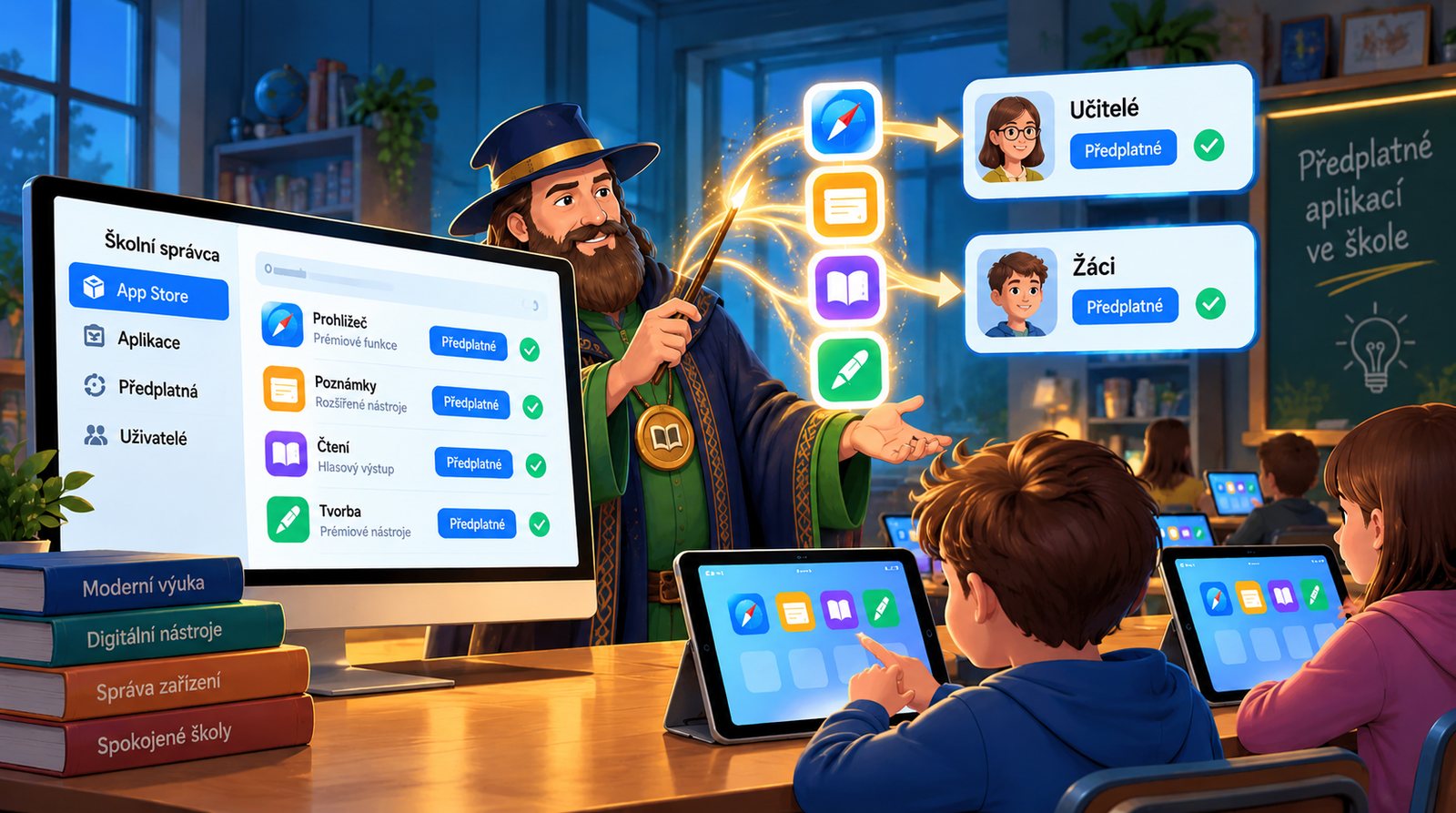
App subscriptions in Apple School Manager: the school buys them and Hanus.ai assigns them to teachers and students
Since 22 October 2026, schools can buy app subscriptions directly in Apple School Manager. Hanus.ai assigns them to a user with a Managed Apple Account, to a teacher on their iPad and to a student on a Shared iPad. How it works, how many seats you need, what subscriptions cannot do and how to remove and reassign them.
 Apple School Manager
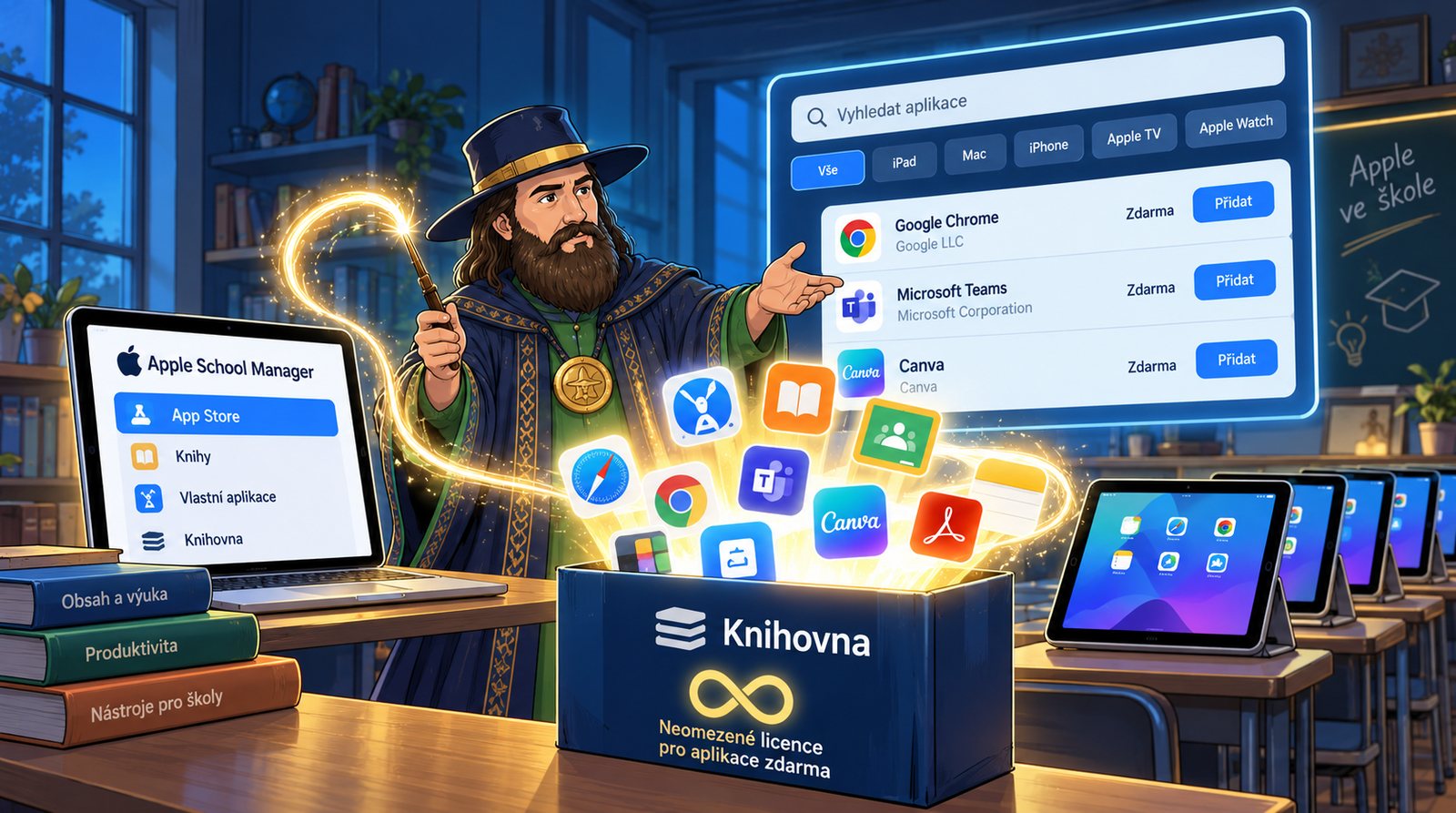
: free apps now have unlimited licences and purchasing has a new look
On 22 October 2026 Apple changed how apps are acquired in Apple School Manager: Apps and Books has been replaced by App Store, Books, Custom Apps and Library. Free apps are simply added to the library and have unlimited licences, paid apps are bought as before. What this means for MDM and how Hanus.ai displays it.
 Apple School Manager
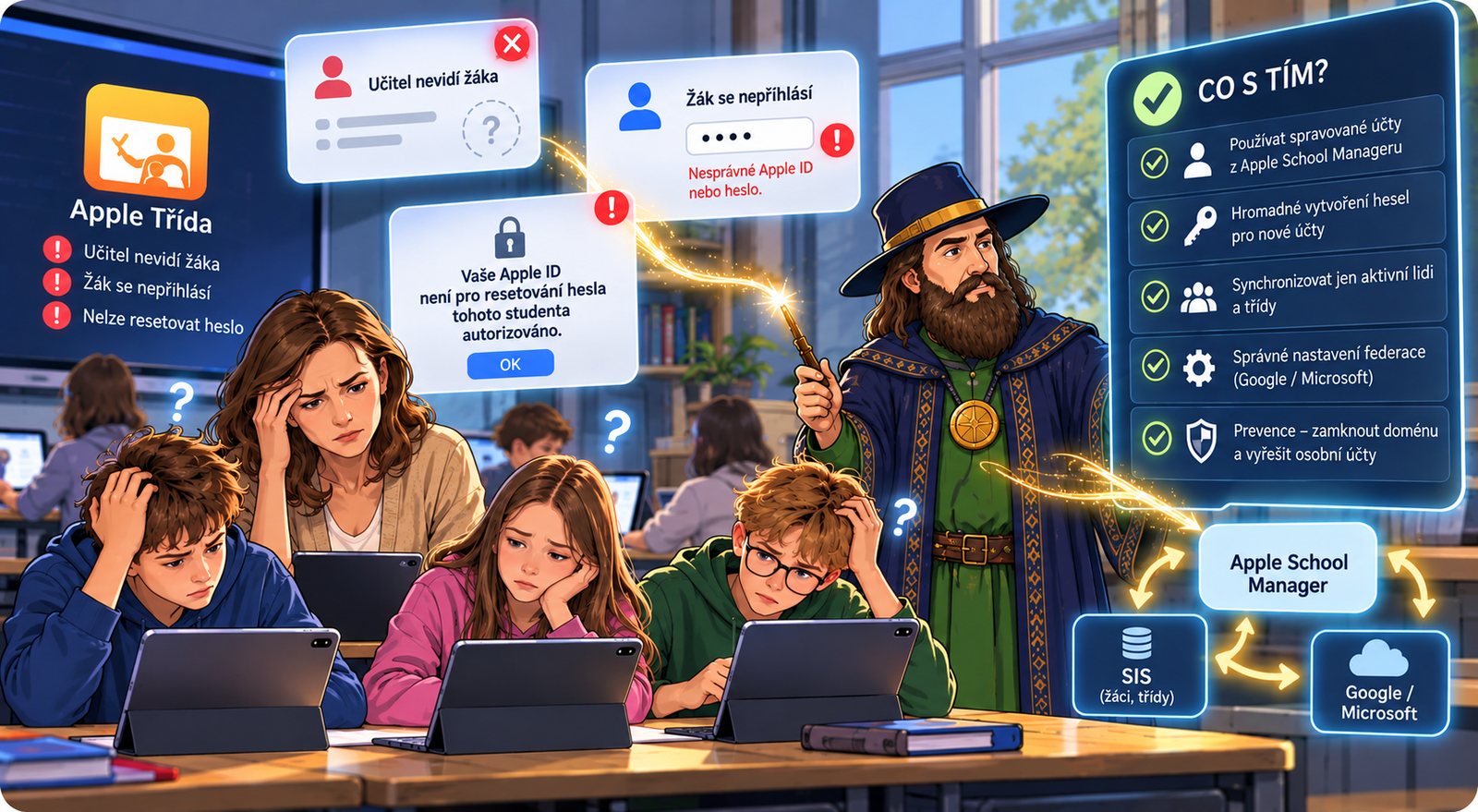
Apple Classroom not working for some students? The fault is usually in Managed Apple Accounts
A guide for ICT coordinators and MDM administrators: why a teacher cannot see a student in Apple Classroom, why a student cannot sign in to a Shared iPad and why a password reset ends with an authorisation error. Four causes in Managed Apple Accounts, how to diagnose them in Apple School Manager, how to fix them and how to prevent them.